How to Create an Online Registration Form (20+ Free Templates)
Registration forms are used for all kinds of signups: events, webinars, classes, camps, memberships, and more. The best structure depends on what you need to collect and what should happen after someone submits the form.
A simple signup may only need a few contact fields. A more detailed registration flow may need consent, file uploads, payments, emergency contacts, session choices, or approval steps.
This guide explains how to create a registration form, what fields to include, and how to pick the right template for your use case.
What is a registration form?
A registration form is a form people fill out to sign up for something. That could be an event, webinar, class, workshop, volunteer shift, sports camp, summer program, membership, or waiting list. The form collects the details needed to handle the signup and tell the person what happens next.
Here is an example of a simple registration form created in FormGrid:
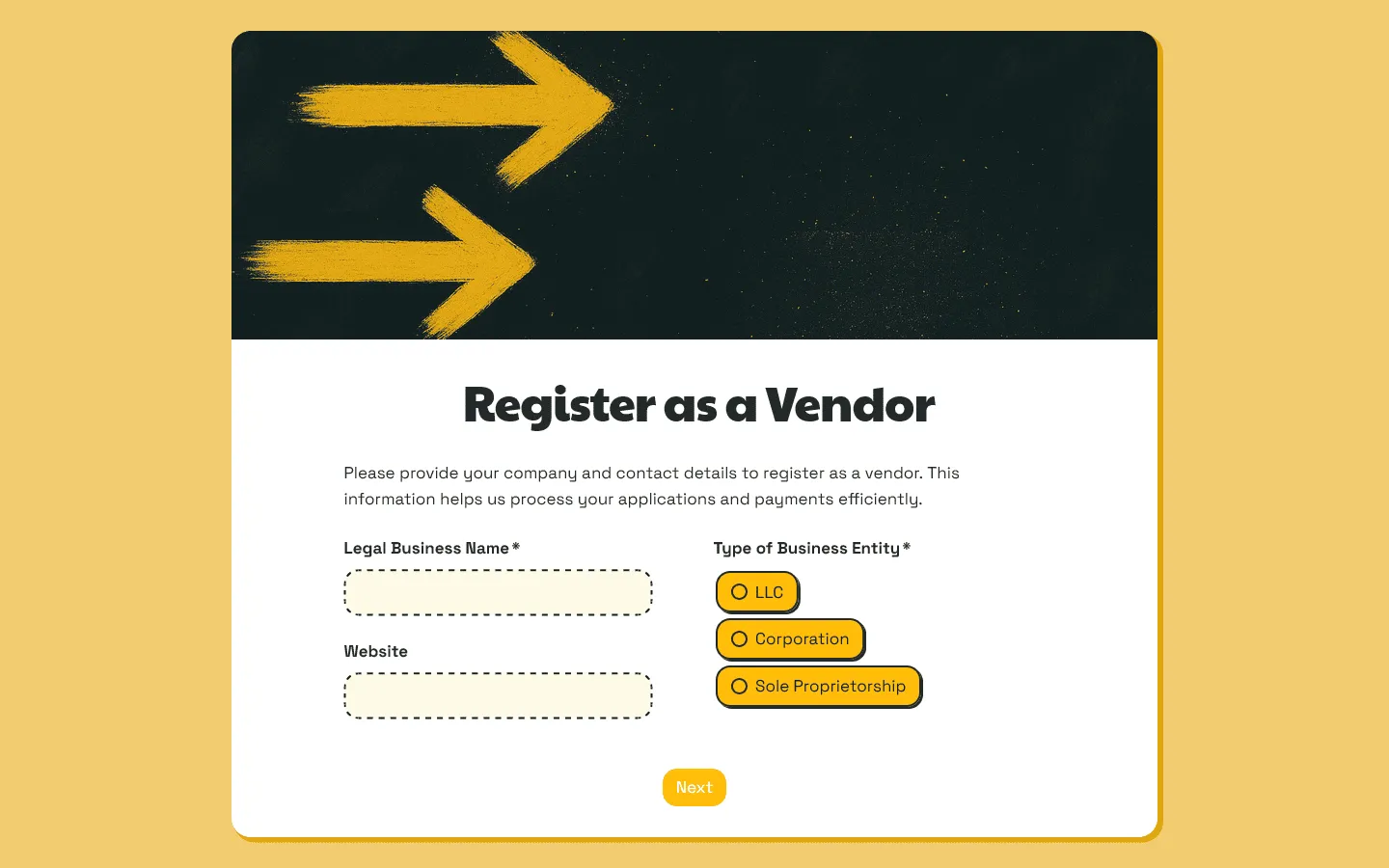
A basic registration form may only ask for a name and email address. A more detailed form may include consent, session choices, emergency contacts, medical notes, file uploads, or payment details.
A good registration form should:
- collect the information needed to process the signup
- keep the questions easy to follow
- make the next step clear after submission
That last point is easy to miss. If someone submits the form and does not know whether they are confirmed, waitlisted, or waiting for approval, the registration experience already feels unfinished.
In case people need to apply first and wait for approval, read our guide on how to create an application form.
How to create a registration form in 5 steps
Most registration forms can be planned and built in five steps.
1. Decide what the registration needs to handle
Before you add fields or pick a template, get clear on what the form needs to do.
Ask yourself:
- What is the person signing up for?
- What details do I need to accept or process the registration?
- Should the person be confirmed automatically or does anyone need to review the submission?
- Are there limited spots, dates, sessions, or ticket types?
- Do I need consent, uploads, payment, or emergency details?
The answers will shape the form.
For example, a webinar registration form can usually stay short. A vendor registration form needs more operational detail. A summer camp registration form often needs safety and consent information.
2. Pick a template or generate a first draft
Once the registration process is clear, decide how you want to build the form.
A registration form template can save time because it already gives you a basic structure for a familiar signup flow. You can also generate a custom registration form in FormGrid by describing the registration process, the fields or features you need, and the style you want.
For example, you could generate:
- a summer camp signup form for parents
- a vendor registration form with file uploads
- an event registration form that matches your landing page
That gives you a first draft you can edit.
3. Add the fields you actually need
Go through every field and decide whether it belongs. A common mistake is keeping fields because they came with the template. Another one is asking for details that might be useful later, even though they are not needed to process the registration.
Every extra field adds friction. Keep the form focused on the information you actually need.
4. Set up payments, limits, uploads, or logic
After the main fields are in place, add the features your registration process needs.
For example, you may want to:
- use conditional logic to show different questions based on attendee type, age group, session choice, or role
- add file uploads for resumes, permission slips, IDs, certificates, or supporting documents
- collect payment for tickets, deposits, fees, or paid sessions
- set a submission limit if spots are limited
- add hidden fields to track the source of each signup
Only add features that are relevant to the actual registration process.
5. Write the confirmation message and test everything
A registration form should end with a clear confirmation.
Add a custom confirmation page to let people know whether their registration was received, confirmed, or sent for review. Mention any next steps, especially if they should expect an email, payment instructions, joining details, or a decision.
Examples:
- Thanks for registering. Your spot is confirmed. We have sent the event details to your email.
- Thanks. Your registration is now under review. We will follow up within two business days.
- Thanks for signing up. We will send the webinar link before the session.
Before publishing, submit the form yourself. Check that the required fields work, the questions appear in the right order, the logic behaves correctly, uploads go through, and the confirmation message says what it should.
Also test the form on mobile, especially if you plan to share it publicly or embed it on a website.
Key elements of a registration form
The fields will change depending on what people are signing up for. Still, most registration forms need the same basic parts: context, contact details, registration choices, any supporting information, consent, and a clear confirmation.
1. A clear title and short description
The title should make the purpose of the form obvious. For example:
- Sign up for the live webinar
- Save your child’s spot for summer camp
- Apply as a vendor for the market
Use the description to answer the questions people may have before they start filling out the form. Mention the date, location, available spots, payment, review process, or expected follow-up if any of those details matter.
A short explanation at the top helps people understand what they are signing up for and what will happen after they submit the form.
2. Contact details
Most registration forms need a name and email address. Depending on the signup, you may also need a phone number. For forms involving children, teams, group bookings, or third-party registrations, collect the right contact person too. That could be a parent, guardian, team lead, organizer, or company contact.
These details help you identify the registration and send confirmations, updates, or follow-up questions.
3. Registration choices
This is where the form collects the details tied to the signup itself. Common fields include:
- session choice
- event date
- ticket type
- attendance format
- membership level
- age group
- attendee type
- class selection
- sports track
- shift preference
These questions should match the actual options you need to manage. For example, an event form may need ticket types, while a camp form may need age group and session choice.
4. Supporting details
Some registrations need extra information before you can plan, approve, or prepare for the signup. That may include:
- dietary requirements
- accessibility requests
- emergency contact details
- allergies or medical notes
- company or organization name
- prior experience
- equipment size
- uploaded documents
- website or social links
These fields are common in camps, classes, vendor registrations, volunteer programs, and events with more logistics behind them.
5. Consent or agreement
Some registration forms need a checkbox for consent, approval, or agreement. That may include:
- terms and conditions
- privacy consent
- waiver acceptance
- photography consent
- parent or guardian approval
This is especially common for camps, sports programs, volunteer work, vendor applications, and registrations involving minors.
6. Confirmation message
After submission, people should know what happened.
Tell them whether the registration was received, confirmed, or sent for review. Mention any next step, such as payment instructions, event details, joining links, or follow-up timing.
You can include this in the confirmation message, a confirmation email, or both.
Free registration form templates
Here are a few registration form templates from our template library, covering events, classes, camps, vendors, patients, and other common signups.
Event registration form template
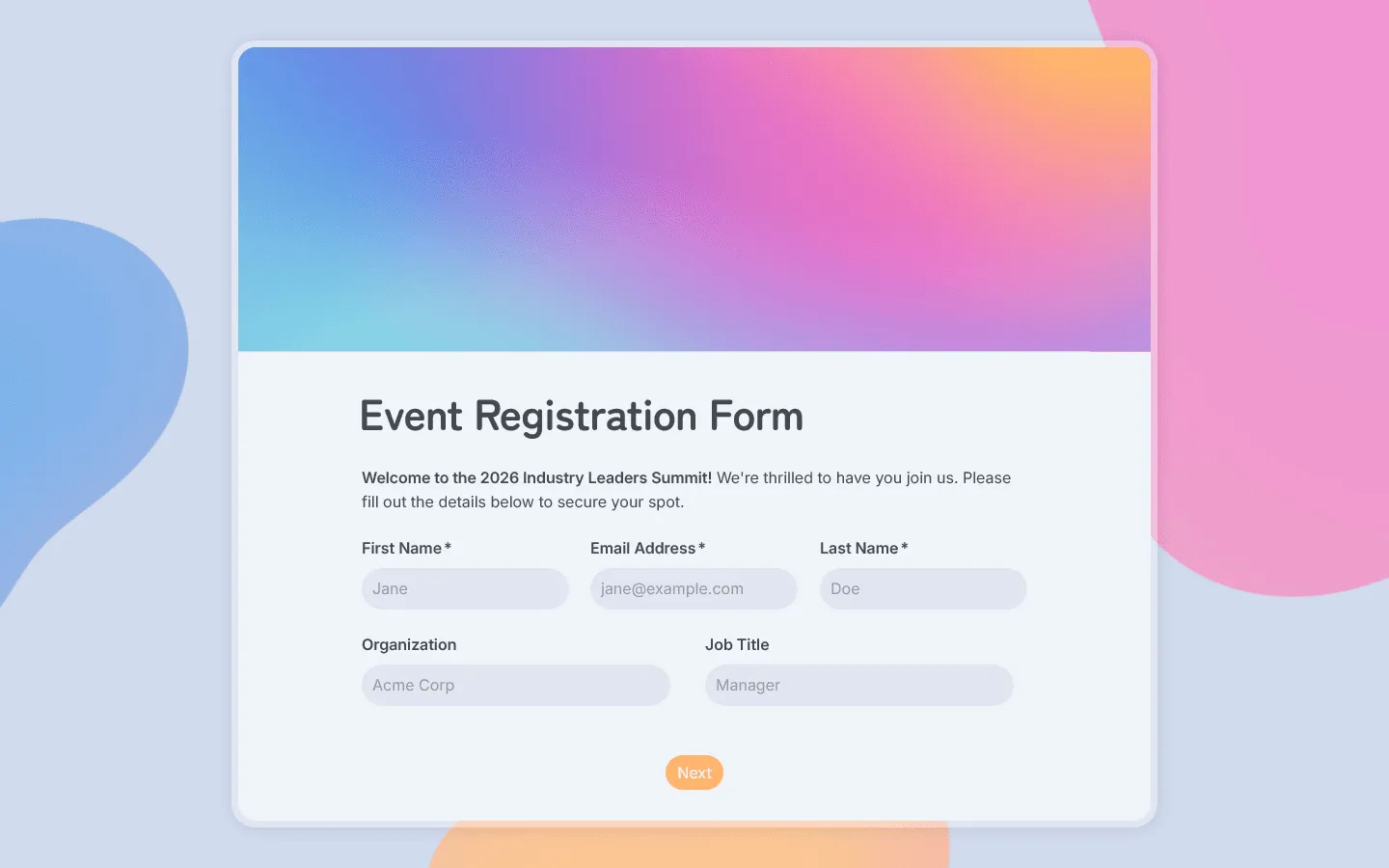
If you’re planning an event, use our event registration form template to collect attendee details, ticket or attendance type, session preferences, dietary needs, accessibility requests, and any extra notes you need before the event.
Community event registration form template
Organizing a neighborhood meetup, fundraiser, public workshop, open house, fair, or local program? Use our community event registration form template to collect attendee details, guest count, registration type, accessibility needs, dietary notes, volunteer interest, consent, and email updates.
Charity event registration form template
Fundraiser signups can get complicated quickly when the same event has guests, donors, sponsors, and volunteers. Use our charity event registration form template for benefit dinners, charity walks, auctions, school fundraisers, and nonprofit campaigns.
Conference registration form template
This conference registration form template is built for programs with more moving parts, such as summits, industry events, academic conferences, and multi-session events. Use it for pass types, workshop choices, badge details, dietary needs, accessibility requests, and consent.
Virtual event registration form template
This virtual event registration form template is focused on the details that make online events easier to run: attendee emails, time zones, session choices, speaker questions, recording consent, access instructions, and automatic follow-up emails.
Company party registration form template
Planning an internal celebration, holiday party, offsite, or team event? Our company party registration form template helps collect attendance, guest details, meal choices, accessibility needs, activity preferences, shuttle needs, and any notes your team needs before the event.
Tournament registration form template
For competitive events, our tournament registration form template helps you collect participant details, team information, event category, schedule preferences, waiver consent, and notes for organizers before registration closes.
Golf tournament registration form template
Charity golf tournaments, school fundraisers, club events, and corporate outings usually need golf-specific details. A golf tournament registration form template can cover player information, team signups, handicap, tee time preference, meal choice, shirt size, sponsorship interest, waiver agreement, and photo consent.
Gaming tournament registration form template
For esports events, LAN parties, Discord competitions, and school gaming tournaments, our gaming tournament registration form template helps organizers collect the player and team details needed before matches begin.
Bowling tournament registration form template
Use our bowling tournament registration form template to organize signups for league events, charity bowling nights, school competitions, club tournaments, and local alley events. It is built around the details bowling organizers usually need before setting up teams and lane assignments.
Webinar registration form template
Webinar registration forms can stay short, but they still need to tell you who is joining and what they care about. Our webinar registration form works for live webinars, product demos, online talks, training sessions, and virtual events.
Vendor registration form template
Vendor registrations often need review before approval. Use a vendor registration form to collect business details, product category, booth or space requirements, website links, social profiles, and supporting documents such as permits, certificates, menus, or portfolios.
Class registration form template
Teaching a class or training session? Our class registration form template gives you a flexible starting point for student signups, schedule preferences, experience levels, and instructor notes.
Workshop registration form template
Use our workshop registration form template to collect signups for hands-on sessions, professional development workshops and online or in-person training events. It gives you a practical starting point for participant details, session choices, experience level, preparation notes, and next steps.
Course registration form template
This course registration form template works for online courses, in-person programs, certificate courses, cohorts, and workplace learning. Use it to collect student details, course choice, schedule preferences, prerequisites, payment notes, and enrollment consent.
Gym membership form template
Use our gym membership form template to sign up new members for gyms, fitness centers, health clubs, and training studios. It includes membership choice, member details, emergency contacts, fitness goals, relevant health notes, and agreement to membership terms.
Fitness class registration form template
A fitness class registration form template works for yoga, pilates, HIIT, bootcamps, online fitness sessions, and small-group training. It helps instructors understand who is joining and whether there are any health or access notes to review before class.
Fitness boot camp registration form template
For outdoor boot camps, gym programs, HIIT challenges, and small-group training, our fitness boot camp registration form template helps collect participant details, session choice, fitness level, health notes, injury history, waiver consent, and emergency contact information.
Marathon registration form template
Use this marathon registration form template for marathons, half marathons, 10Ks, 5Ks, charity runs, relay events, and virtual races. It helps organizers collect runner details, race distance, age group, emergency contact information, shirt size, waiver consent, and packet pickup preferences.
Dance class registration form template
Studios and instructors can use our dance class registration form template to collect student details before class starts.
Cooking class registration form template
Cooking classes need a few practical details before anyone arrives, especially around menu choice, skill level, allergies, and dietary restrictions. Our cooking class registration form template works for culinary workshops, baking classes, private lessons, and group events.
Yoga class registration form template
Running a yoga class, retreat, private session, or wellness workshop? Use our yoga class registration form template to learn who is joining, which session they want, and whether the instructor should know about any health notes before class.
Art class registration form template
Art classes are easier to plan when the instructor knows who is joining, what level they are at, and whether anything needs to be prepared before class. Our customizable art class registration form template works for painting, drawing, pottery, kids’ classes, and community art programs.
Job fair registration form template
Our job fair registration form helps organizers manage signups for career fairs, campus recruiting events, and hiring expos. Use it for employer registrations, attendee signups, booth planning, resume collection, or session interest.
Art exhibition registration form template
For gallery shows, open calls, student exhibitions, and community art events, our art exhibition registration form template helps turn artist submissions into usable review and planning details: artist info, artwork titles, media, dimensions, images, display needs, sales status, and exhibition agreements.
Camp registration form template
Use our camp registration form template when you need a flexible signup form for different camp formats. It works for summer camps, sports camps, church camps, art camps, basketball camps, day camps, retreats, and youth programs.
Summer camp registration form template
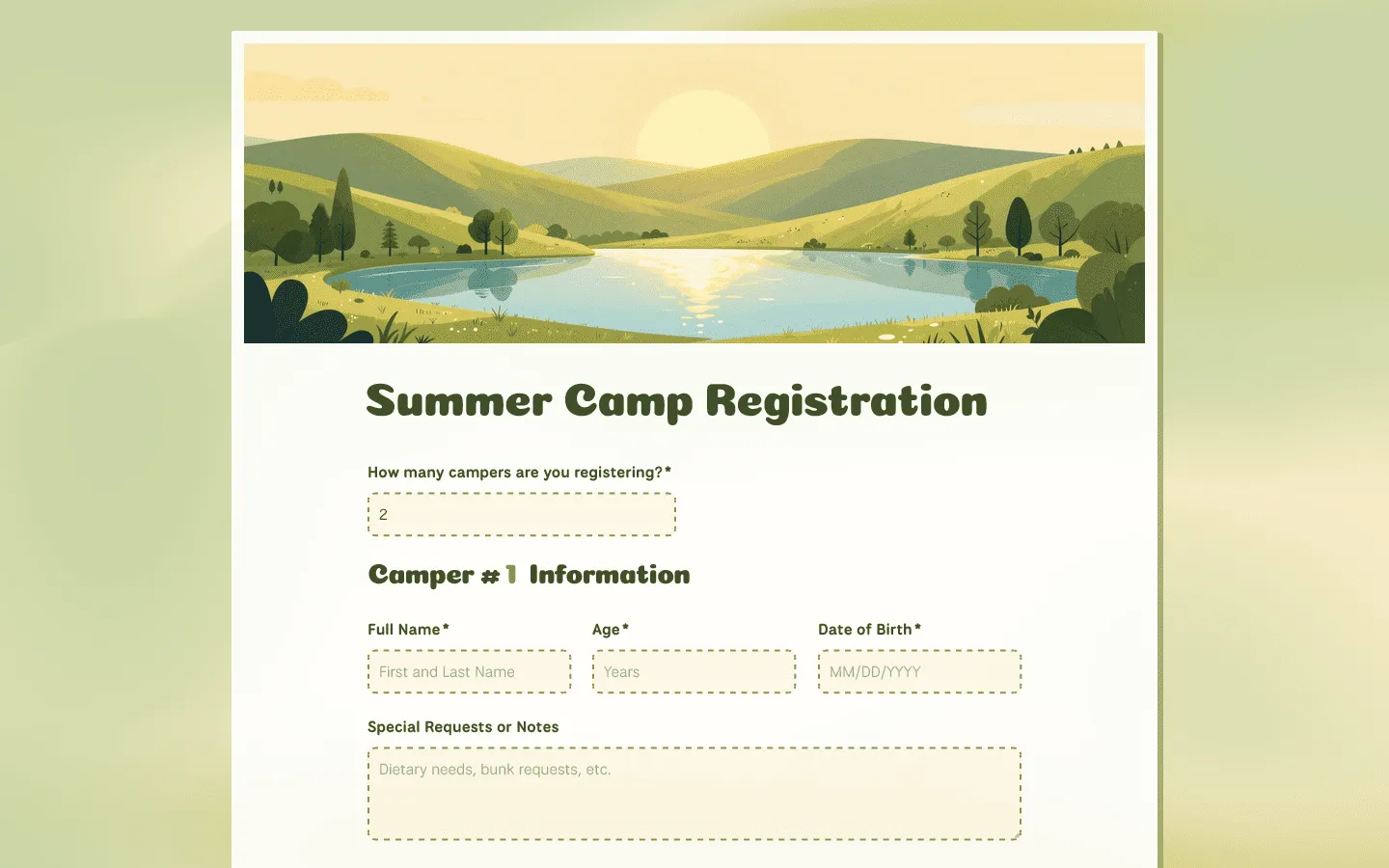
Summer camp signups usually involve parents, guardians, health notes, pickup permissions, and session choices. Our summer camp registration form gives camp teams a practical way to collect the details they need before the program starts.
Basketball camp registration form template
For basketball clinics, school programs, youth camps, and training sessions, our basketball camp registration form helps coaches organize player signups by age group, skill level, session, and health notes.
Sports camp registration form template
Use the sports camp registration form template when your program covers several sports, age groups, or training tracks. It keeps participant, session, emergency, and consent details easier to manage across the camp.
Summer art camp registration form template
Use our summer art camp registration form to manage signups for painting camps, craft programs, studio workshops, and other creative summer programs. It helps organizers prepare for campers, families, materials, and class groups before camp starts.
Church camp registration form template
This church camp registration form template is made for vacation Bible school, weekend retreats, day camps, youth camps, and faith-based summer programs. It helps churches collect camper and family details before the program begins.
Baseball registration form template
Our baseball registration form template helps teams, leagues, clinics, and youth programs collect player details before the season or event starts. Use it for age groups, divisions, preferred positions, uniform sizes, parent contacts, emergency details, and waiver agreements.
Volleyball registration form template
Our volleyball registration form template helps teams, leagues, clubs, schools, and clinics collect player signups before the season, tryout, camp, or program starts. Use it for age groups, divisions, preferred positions, skill level, uniform sizes, parent contacts, medical notes, availability, and waiver agreements.
New patient registration form template
Before a first appointment, clinics and healthcare practices can send our new patient registration form template so patients can share intake information ahead of time. It works for private practices, dental offices, therapy practices, physiotherapy clinics, and other healthcare providers.
How to create a registration form in FormGrid
FormGrid is a free form builder with unlimited submissions. You can use it to create a registration form by starting with a registration form template or by generating a custom form with AI.
To generate a custom form, describe what the registration is for, who will fill it out, what information you need to collect, and what style you want.
For example, you could write: “Create a vendor registration form for a weekend market. Collect contact details, product category, setup needs, uploaded permits, and a signed vendor agreement. Show different follow-up questions for food, drink, and handmade goods vendors. Use a warm local market style.”
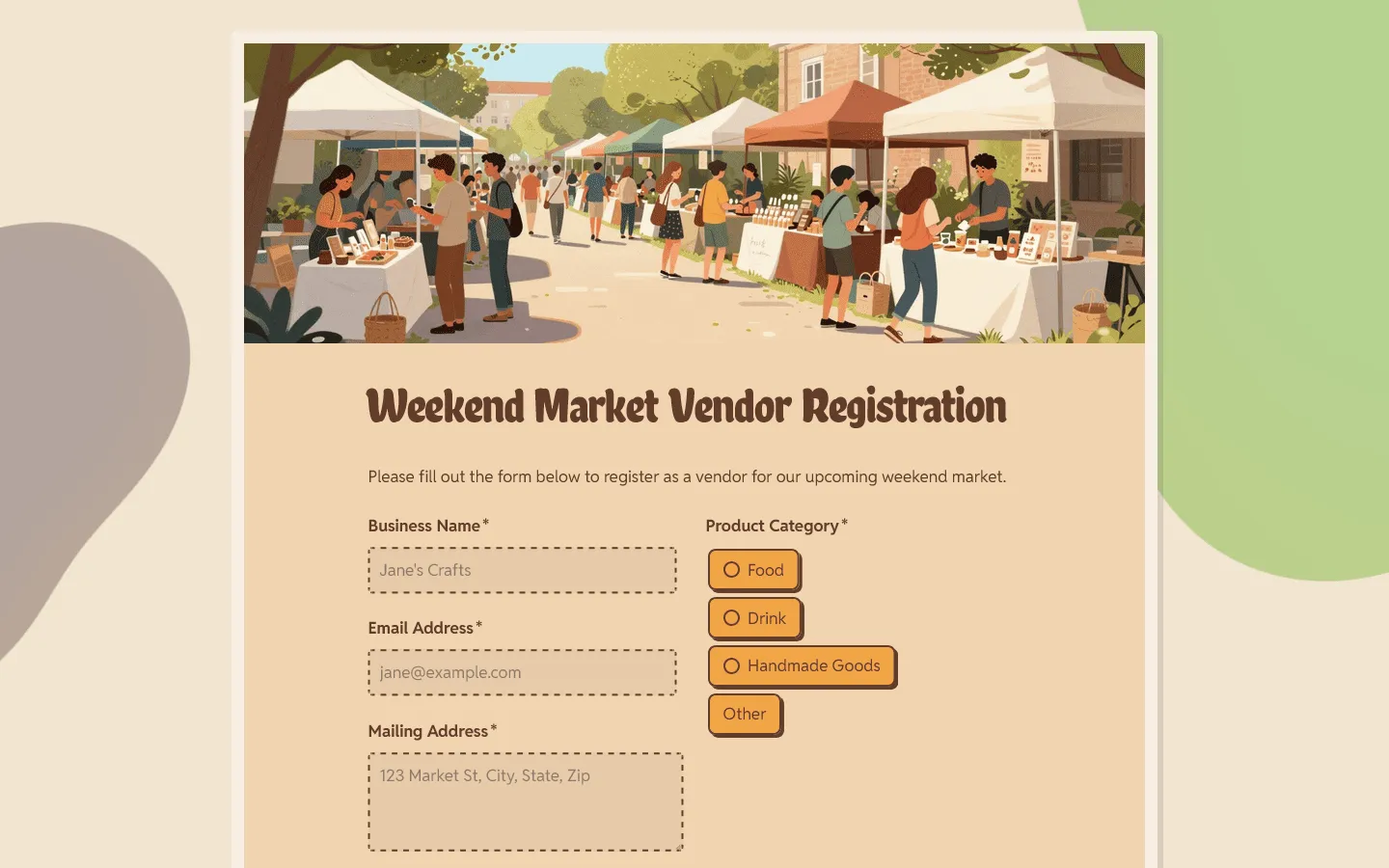
FormGrid will create a first draft with the questions, structure, and design in place. After that, review the form and remove anything you do not need. Add any missing fields, set up conditional logic, add file uploads if needed, and check the confirmation message.
Once the form is ready, publish it and share the link. You can also embed it on your website, landing page, or event page.
How to create a registration form in Google Forms
Google Forms is a quick way to create a basic registration form. Here is the usual process:
- Create a new blank form.
- Add a title and short description.
- Add the main registration fields.
- Mark the required fields.
- Add any extra questions you need.
- Update the confirmation message.
- Test the form.
- Share the link.
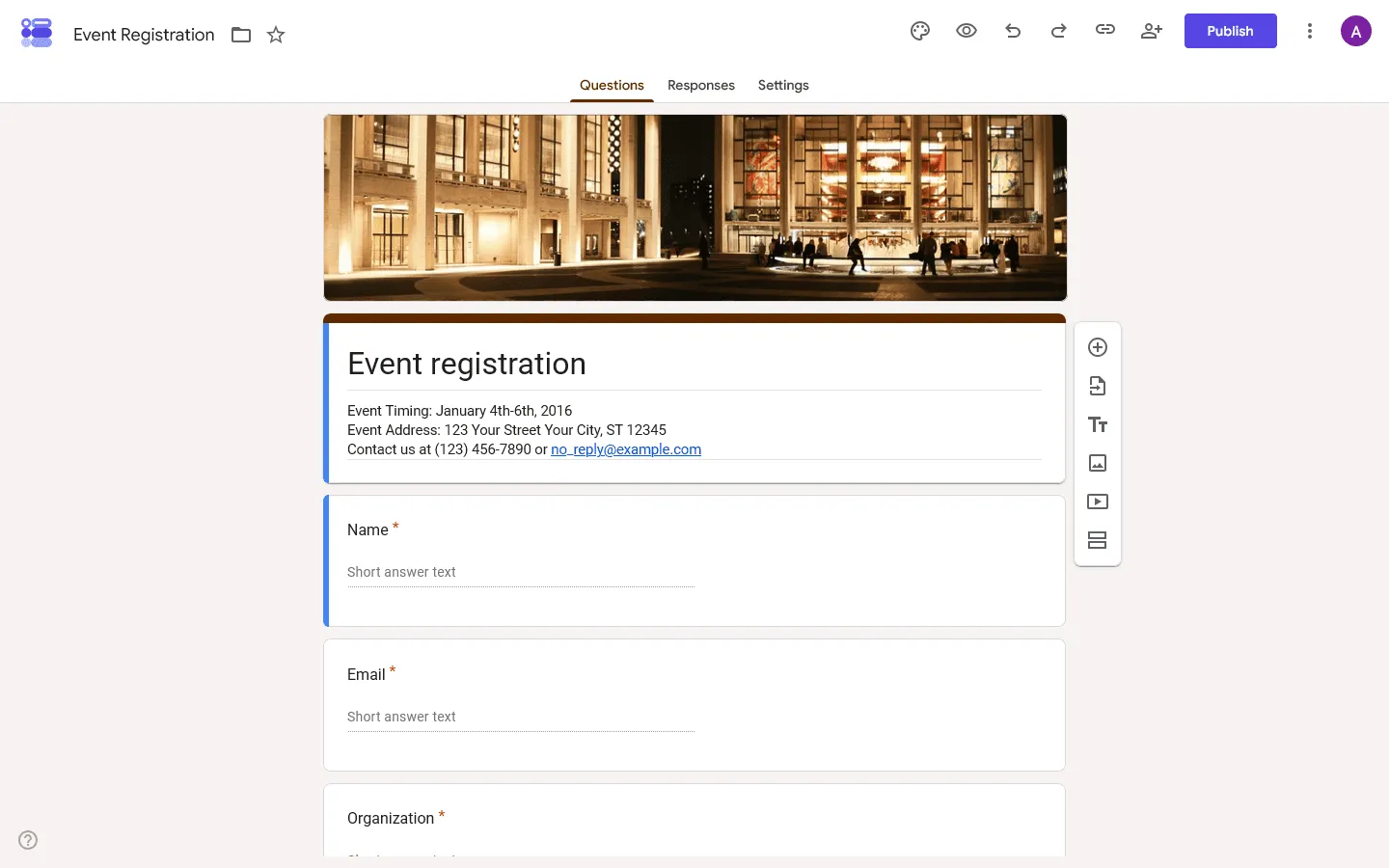
Google Forms works well for simple registrations and internal signups. For forms that need more layout control, richer visual design, or a more tailored first draft, a dedicated form builder such as FormGrid gives you more room to shape the full registration experience.
Common mistakes when creating a registration form
-
Asking for too much: Many registration forms can be shorter than the first draft. If a field is not needed to process the registration, remove it.
-
Starting with a generic template: A basic signup template can create extra work when the registration has specific requirements. Start with a template that matches the actual signup as closely as possible.
-
Forgetting the confirmation step: People should know whether they are confirmed, waitlisted, or waiting for review.
-
Skipping the test submission: Submit the form yourself before publishing. Check the field order, required fields, logic, uploads, mobile layout, confirmation message, and email.
-
Treating every registration form the same: A camp registration form, vendor application, and webinar signup need different questions and a different structure.
FAQs
How do I create a registration form with payment?
Use a form builder that supports payment fields or payment integrations, such as Jotform or Typeform. Add the main registration fields first, then add the payment step for tickets, deposits, fees, or paid sessions. Before publishing, test the full flow to make sure the payment, confirmation message, and confirmation email work correctly.
How do I create a registration form for an event?
The easiest way is to start with an event registration form template. It already gives you a basic structure for collecting attendee details, ticket or attendance type, session preferences, and any event-specific notes. You can customize the fields, add a confirmation message, and publish or embed the form on your event page.
How do I create a registration form in WordPress?
You can create a registration form in WordPress with a form plugin or by embedding a form made in another form builder. Add the fields you need, publish the form, and place it on a page with a shortcode, block, or embed code. Test the form on desktop and mobile before sharing the page.
How do I create a registration form in Google Docs?
Google Docs is not meant for collecting form submissions. A better option is to use Google Forms, then link to the form inside your Google Doc if needed. Google Forms lets you add registration fields, collect responses in a spreadsheet, and share the form with a public link.
How do I create a registration form for a website?
Use a form builder that lets you publish and embed forms. Create the registration form, add the fields and confirmation message, then copy the embed code into your website page. If you use WordPress, Webflow, Squarespace, Wix, or another site builder, you can usually paste the embed code into a custom HTML block.