Job Fair Registration Form Template
Use this free job fair registration form template for career fairs and hiring events. Register employers, candidates, event attendees and more.
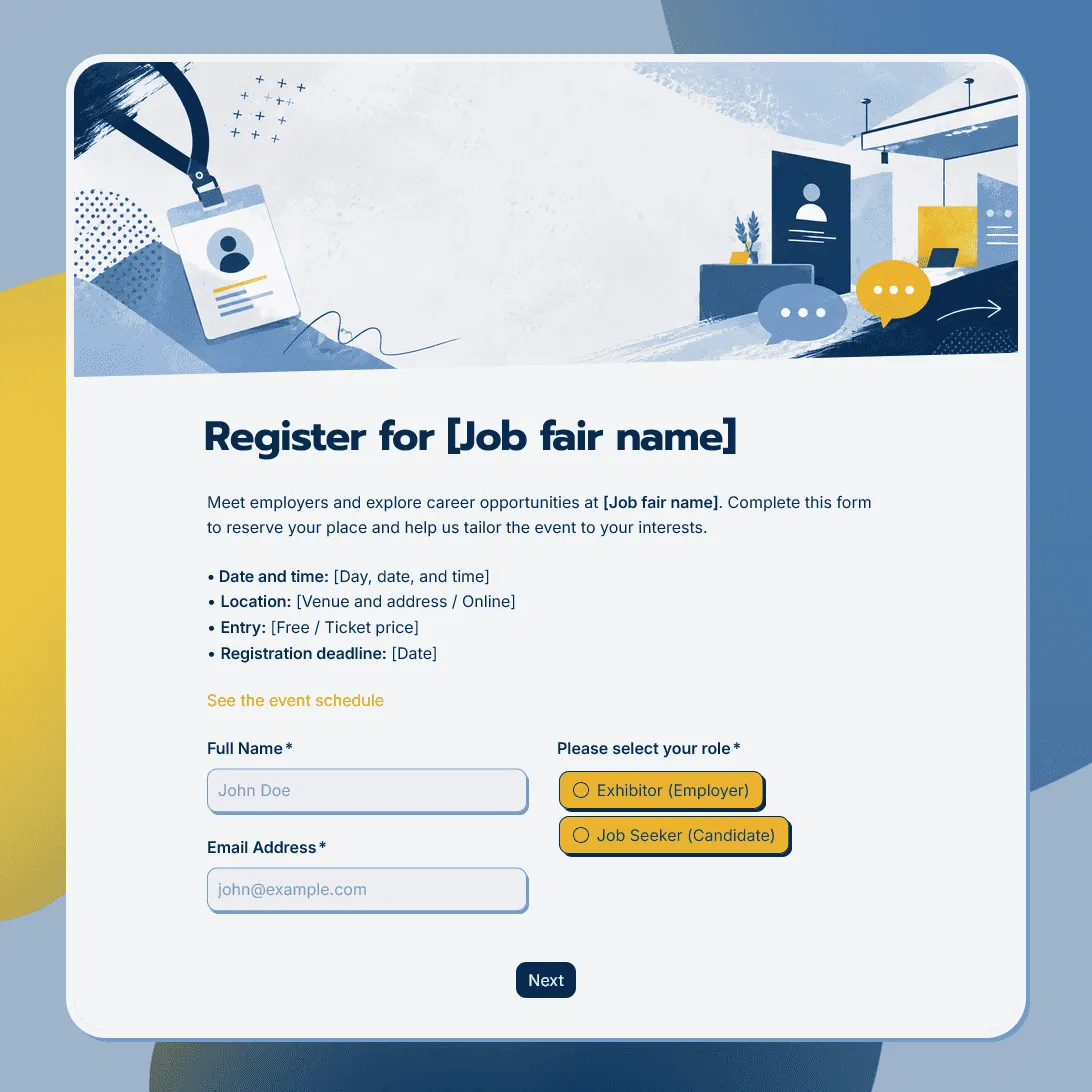
Need a custom job fair registration form?
Describe your job fair and FormGrid will generate a tailored template for your event.
About this job fair registration form template
Job fairs usually need registrations from more than one group. Employers may need to reserve booth space, share hiring details, and explain setup requirements. Candidates may need to register for the event, upload a resume, choose fields of interest, or share what kinds of roles they are looking for.
Our job fair registration form template gives both groups a clear registration path in one form. It works for university career fairs, campus recruiting days, hiring events, recruitment fairs, industry job fairs, community workforce events, virtual job fairs, and employer networking events.
Use this template for employer registration, candidate registration, or both. You can keep one shared form with conditional questions, or duplicate it and create separate forms for exhibitors and job seekers.
What this template includes
Our template covers the details job fair organizers usually need before the event:
- Participant type: employer, exhibitor, recruiter, candidate, student, or attendee
- Employer or company name
- Industry, website, and company description
- Hiring roles or departments
- Number of representatives attending
- Booth, table, chair, power, and setup requirements
- Accessibility or special setup needs
- Candidate name and contact details
- University, graduation year, current role, or experience level
- Field of interest
- Roles, companies, or industries of interest
- LinkedIn profile or portfolio link
- Resume or CV upload
- Consent to share candidate details with participating employers
- Event updates and communication consent
- Automatic confirmation email with next steps
You can edit every part of this template: questions, descriptions, field types, conditional logic, layout, colors, fonts, button styles, confirmation message, and automatic email steps.
How to use this template
Click “Use this template” to open the job fair registration form in FormGrid.
- Add the event details. Update the title, intro text, job fair name, date, time, location, registration deadline, organizer contact, and any eligibility notes.
- Choose the registration paths. Decide whether this form should collect employer registrations, candidate registrations, or both.
- Set up participant-specific questions. Use conditional logic so employers see booth and hiring questions, while candidates see resume, field of interest, and attendance questions.
- Review the employer section. Keep the company profile, representative count, booth requirements, hiring roles, setup needs, and accessibility fields that help you plan the event.
- Review the candidate section. Keep the contact details, field of interest, resume upload, LinkedIn profile, education, experience, and consent fields that match your event.
- Add resume uploads if needed. Use a file upload field if candidates should attach a resume, CV, portfolio, transcript, or supporting document.
- Customize the design. Change the layout, theme, colors, fonts, button styles, and descriptions so the registration page fits your university, company, nonprofit, or hiring event brand.
- Send confirmation emails automatically. Add a send email block to email registrants after they submit. You can include event details, booth instructions, arrival time, parking notes, preparation tips, or next steps.
- Publish and share the form. After you publish the form, share the link through your career center, email list, LinkedIn event, employer network, student portal, or event page. You can also add it to your website with an embed code.
Responses appear in your response table, where you can review employers, candidates, resumes, booth requirements, fields of interest, and attendance details. You can also export responses when you need a spreadsheet for floor planning, candidate lists, employer packets, check-in lists, or event reporting.
Tips for managing job fair registrations
A good job fair form should help you plan the event before anyone arrives.
-
Separate employer logistics from candidate details. Employers need booth and setup questions. Candidates need registration, interest, and resume questions. Conditional logic keeps each path shorter.
-
Use clear participant types. Label options such as employer, recruiter, student, alumni, job seeker, sponsor, volunteer, or staff so responses are easier to sort later.
-
Ask candidates for consent before sharing resumes. If resumes or attendee lists will be shared with employers, include a clear consent question.
-
Collect booth requirements early. Tables, chairs, power, Wi-Fi, accessibility needs, and setup notes affect floor planning and should not be left until the last week.
-
Make confirmation emails useful. Employers may need arrival times and setup instructions. Candidates may need parking details, preparation tips, company lists, or a reminder to bring copies of their resume.
For a full walkthrough of the setup process, read how to create a registration form.
Job fair registration form template FAQs
Can I use this template for both employers and candidates?
Yes. Use one form with conditional questions, or create separate versions for employers and candidates. A shared form is easier to manage in one response table. Separate forms can be cleaner when each group needs a very different registration experience.
Can I use this for a university career fair?
Yes. Our template works for university career fairs, campus recruiting days, alumni hiring events, student employment fairs, internship fairs, and department-specific recruiting events.
Can candidates upload their resume?
Yes. Add a file upload field so candidates can upload a resume, CV, portfolio, transcript, or other document during registration.
Can employers register for booth space?
Yes. Add booth size, table, chair, power, Wi-Fi, setup time, representative count, and accessibility questions to the employer section.
Can I collect registrations for a virtual job fair?
Yes. Replace booth logistics with virtual event details, such as time zone, video platform, meeting format, digital booth link, recruiter availability, and session preferences.
Can I send registrants an automatic confirmation email?
Yes. Add a send email block to send a confirmation email after submission. You can include event details, preparation tips, arrival instructions, parking information, virtual access links, or next steps.
How do I handle limited employer booths or event capacity?
Add registration deadlines, eligibility notes, or capacity details to the form description. You can also close the form manually when registration is full, then link to a waitlist form if needed.
Can I embed this job fair registration form on our website?
Yes. After publishing, you can add the form to your career center, event page, company website, or school website with an embed code, or share the form link directly.
Can I customize this job fair registration form?
Yes. You can customize the full template around your job fair, including the employer and candidate paths, form questions, logic, design, images, confirmation message, and event emails.
Is this job fair registration form template free?
Yes. This template is free to use, and you can collect unlimited job fair registrations on the free plan.
Related templates
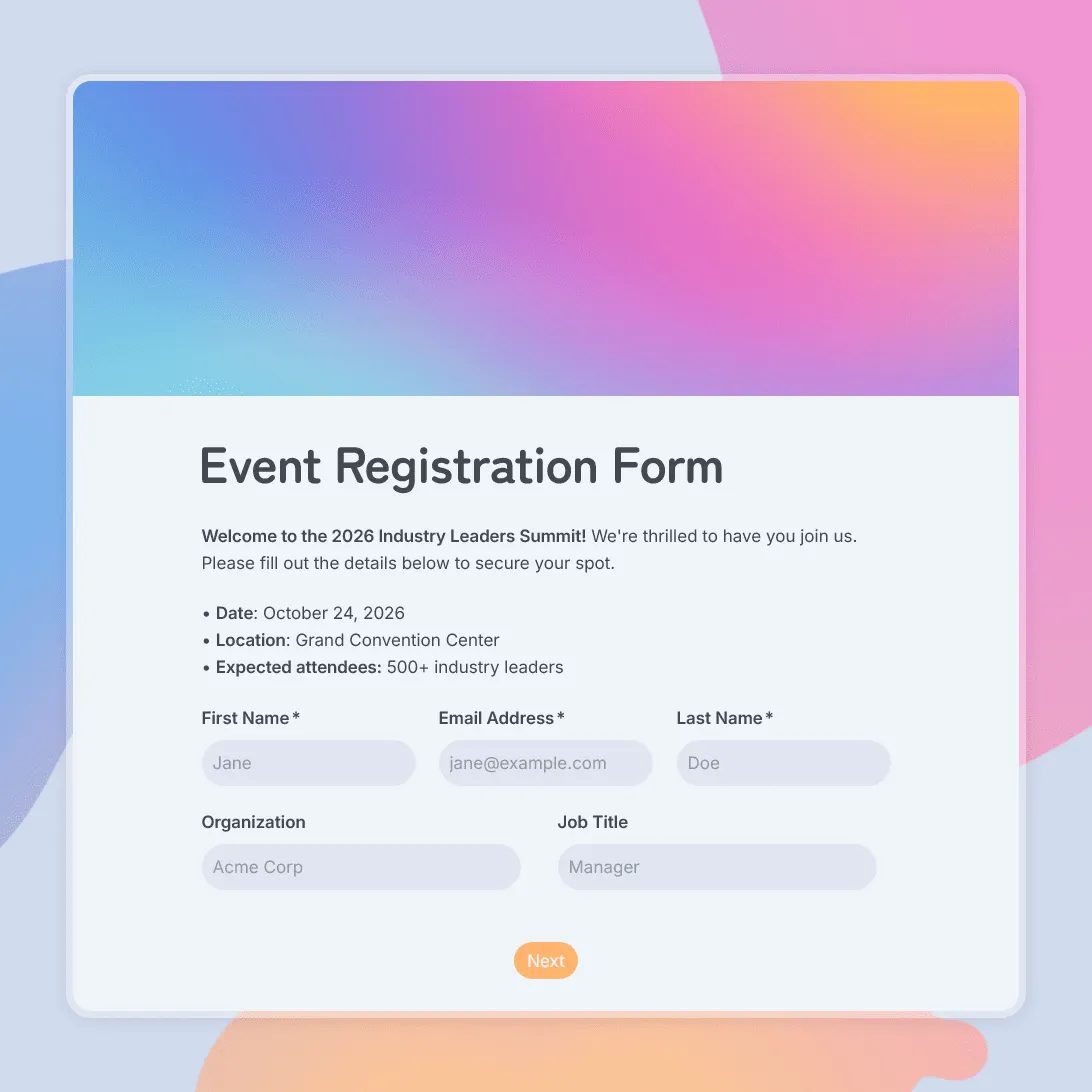
Event Registration Form Template
Use this free event registration form template to collect attendee details, preferences, and more.
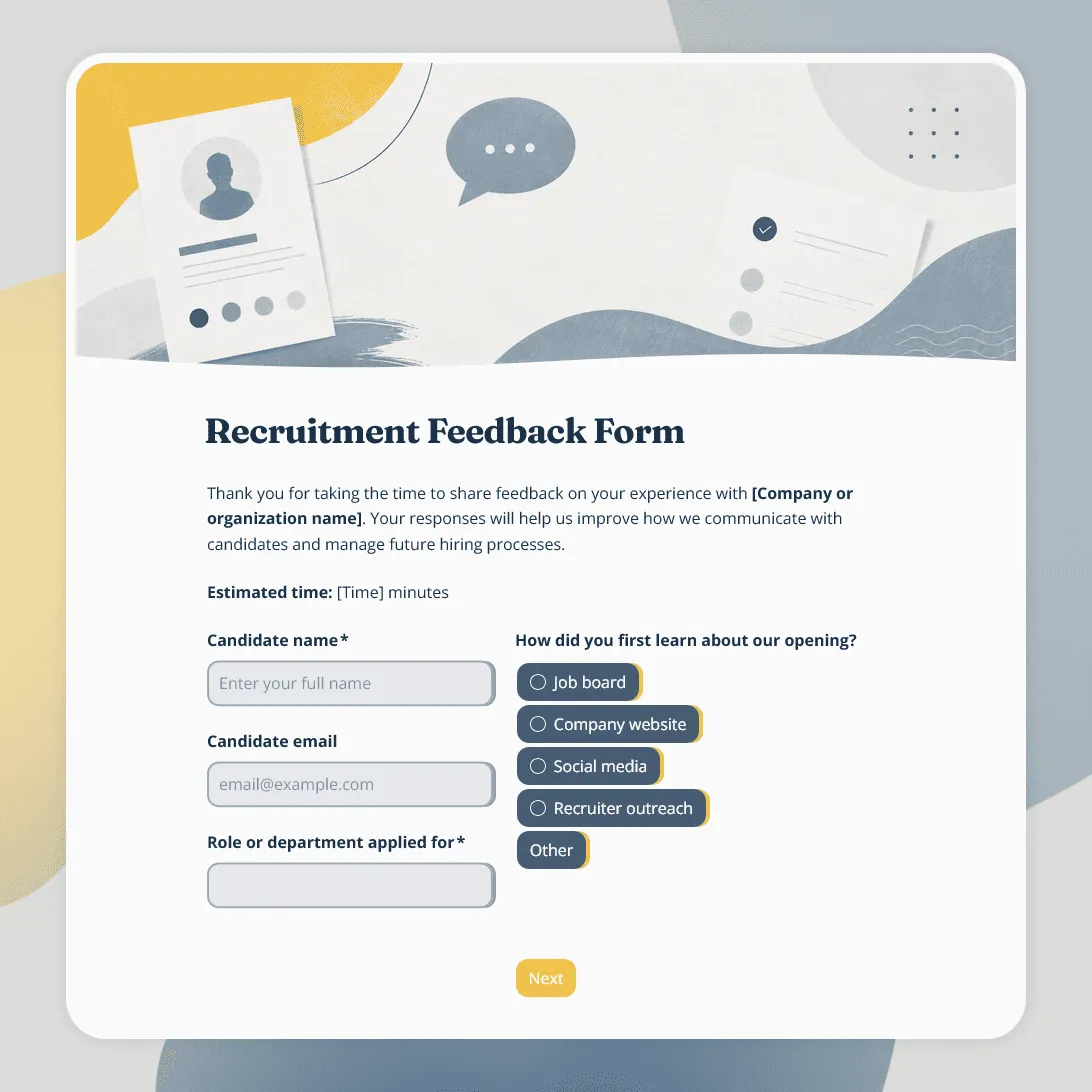
Recruitment Feedback Form Template
Free recruitment feedback form template for collecting candidate feedback after applications, interviews, and hiring events.
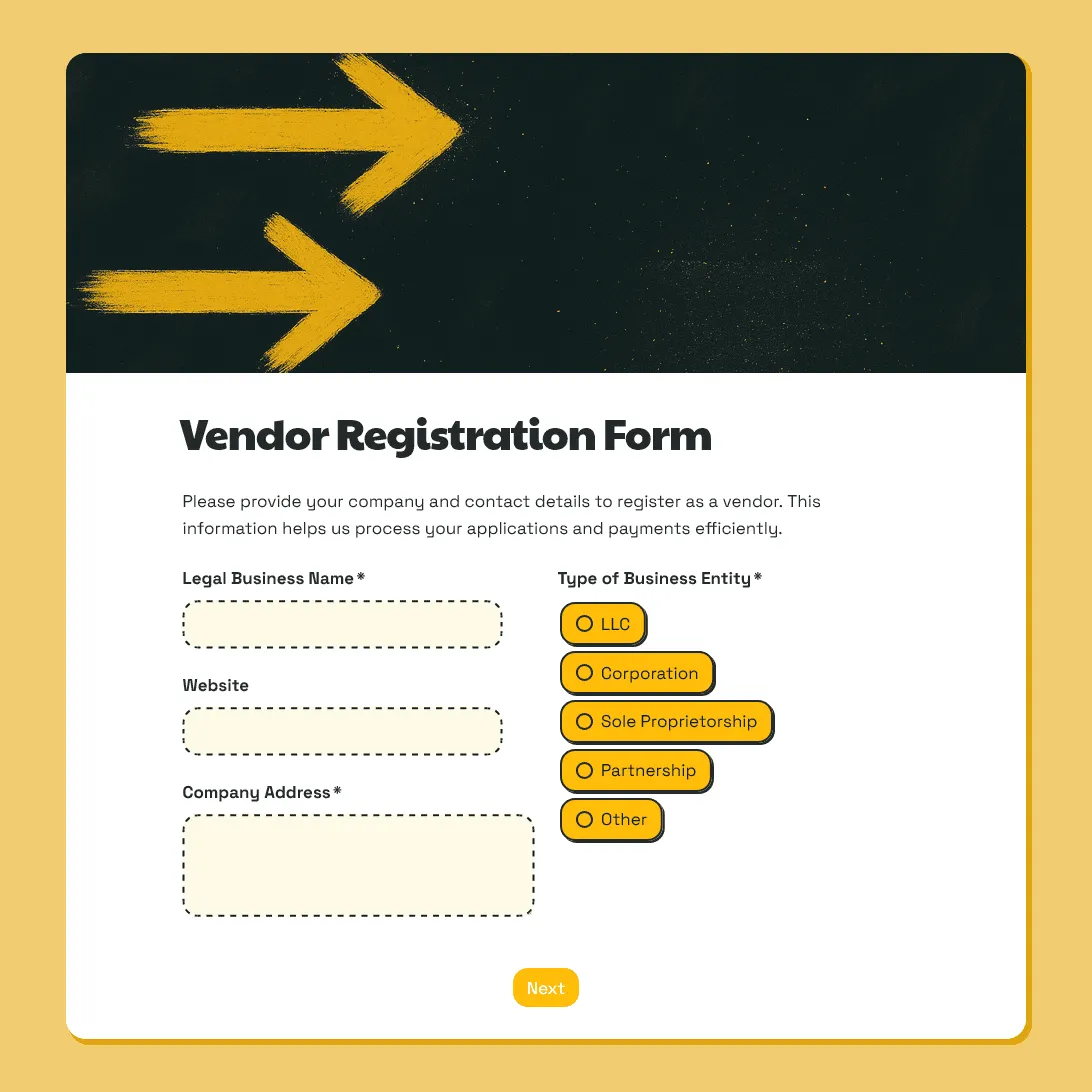
Vendor Registration Form Template
Free vendor registration form template for collecting vendor details, products or services, setup needs, documents, payment details, and agreements.