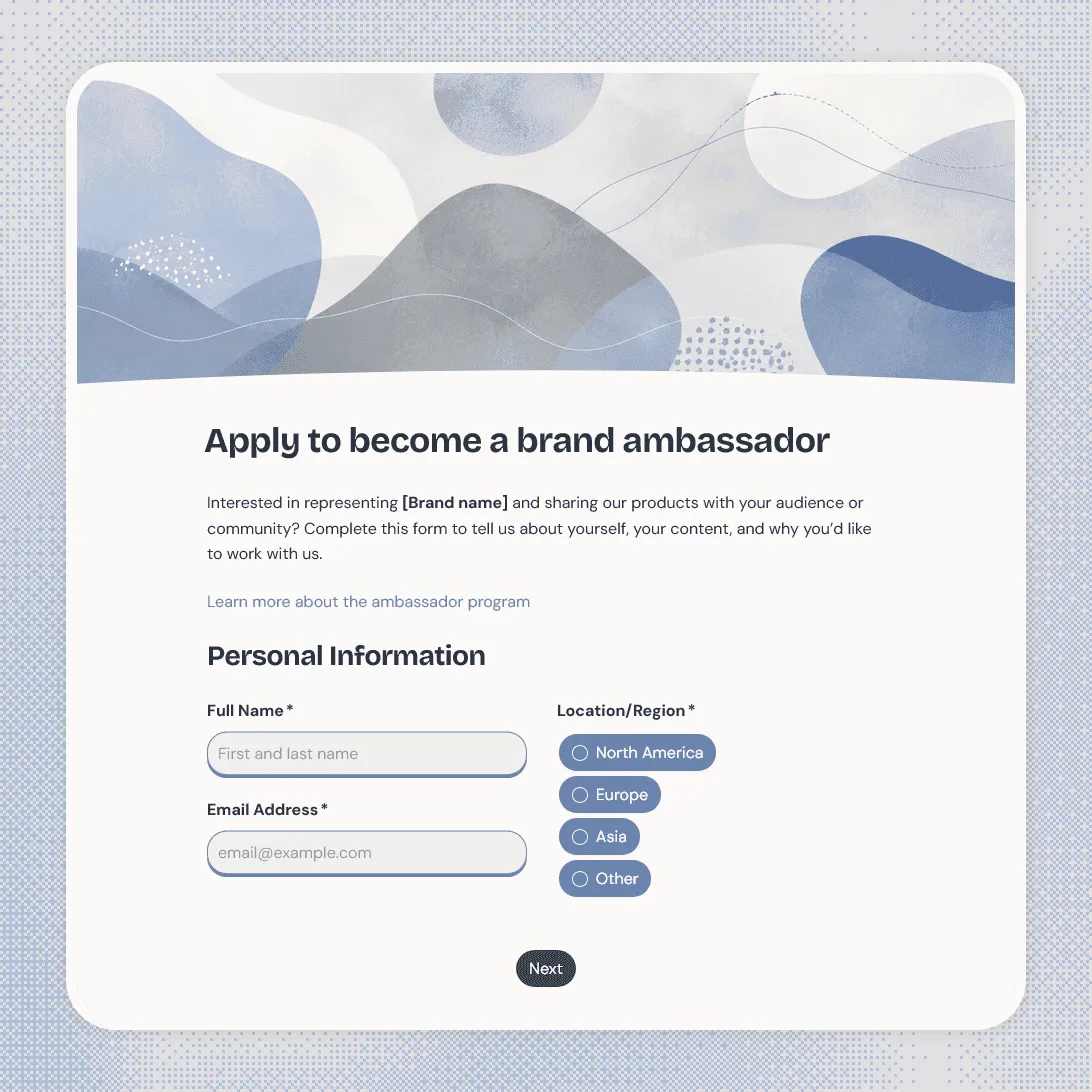
Brand Ambassador Application Form Template
Free brand ambassador application form template for creator programs, influencer partnerships, and community marketing campaigns.
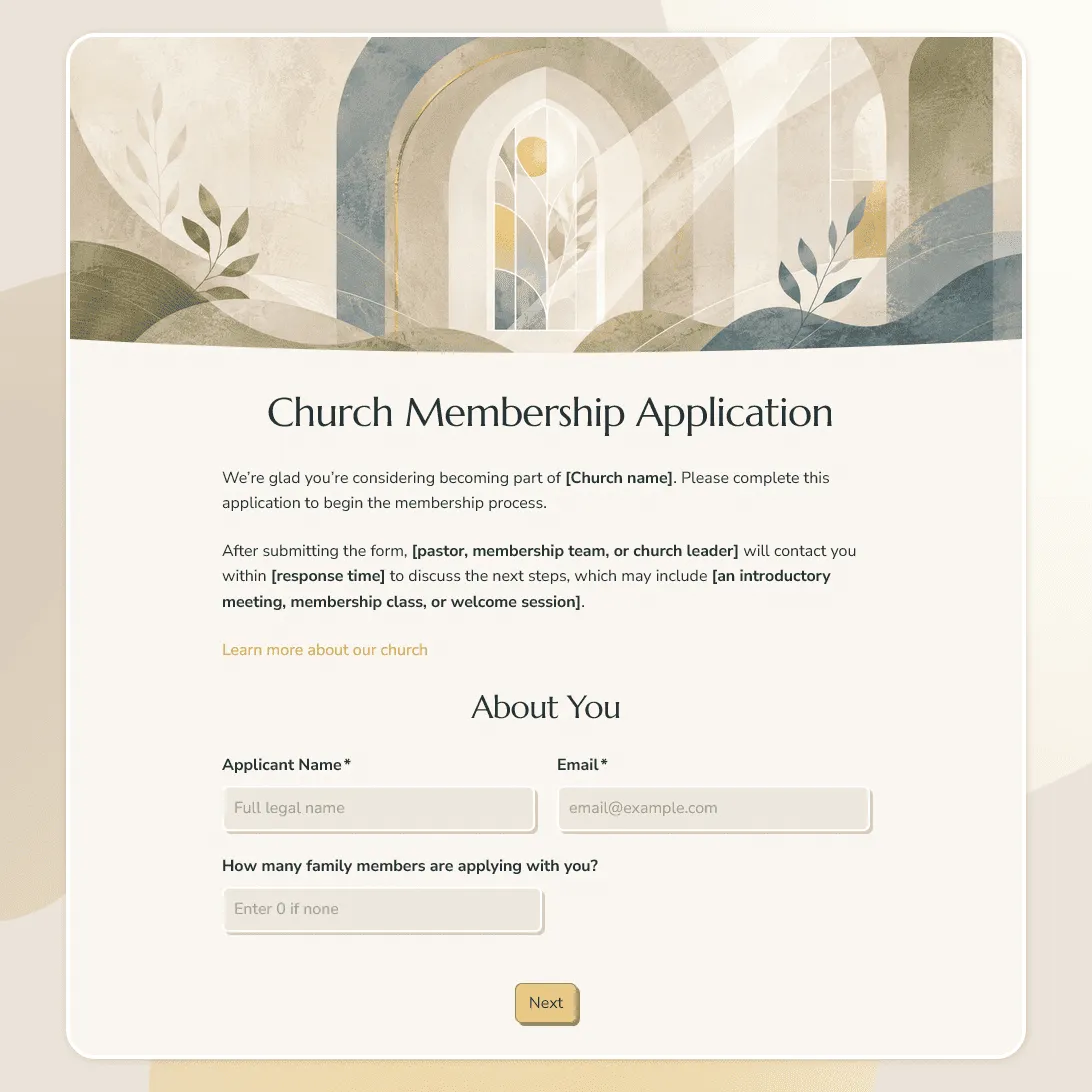
Church Membership Application Form Template
Free church membership application form template for collecting contact details, church background, family information, and more.
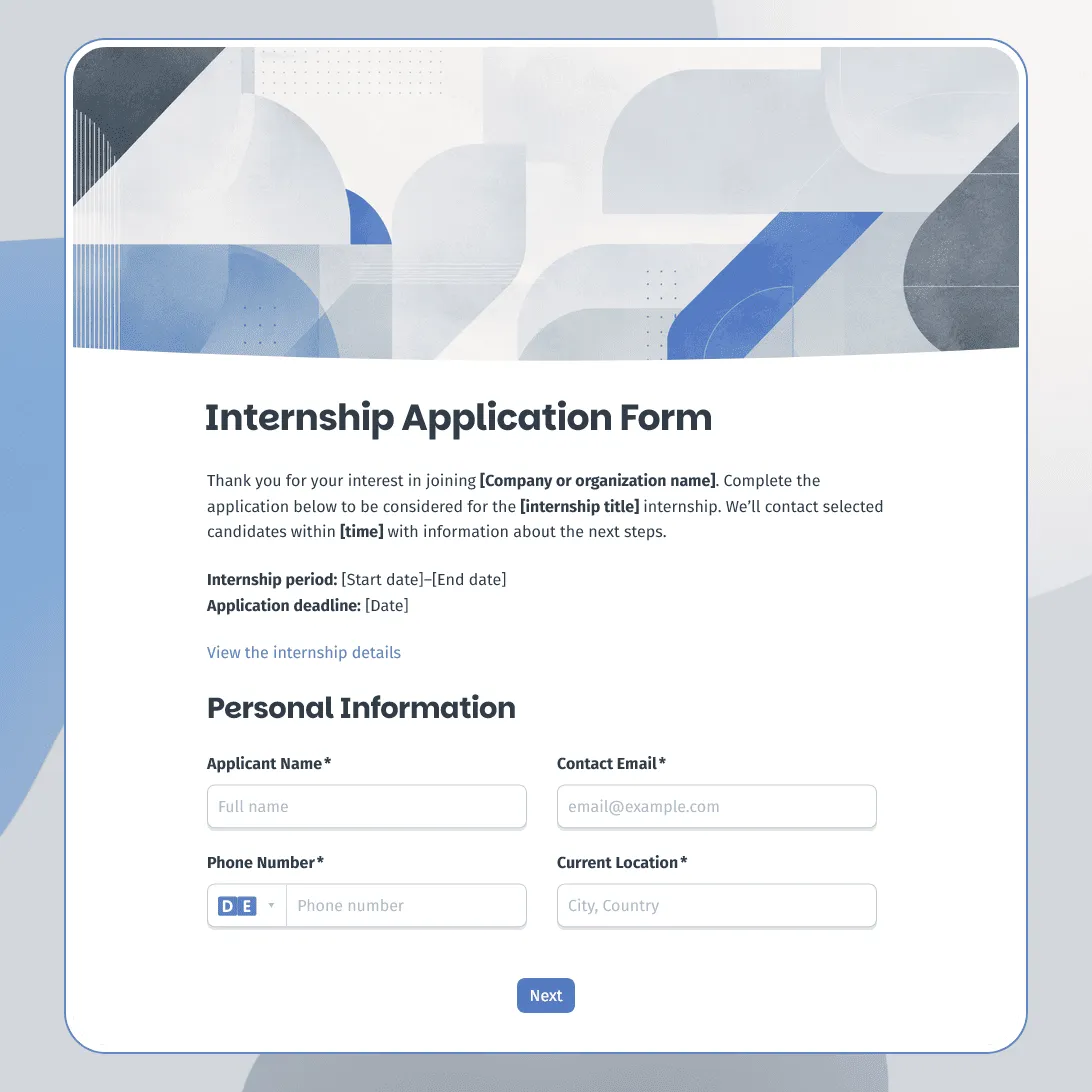
Internship Application Form Template
Free internship application form template for companies, nonprofits, schools, and startups. Fully customizable.
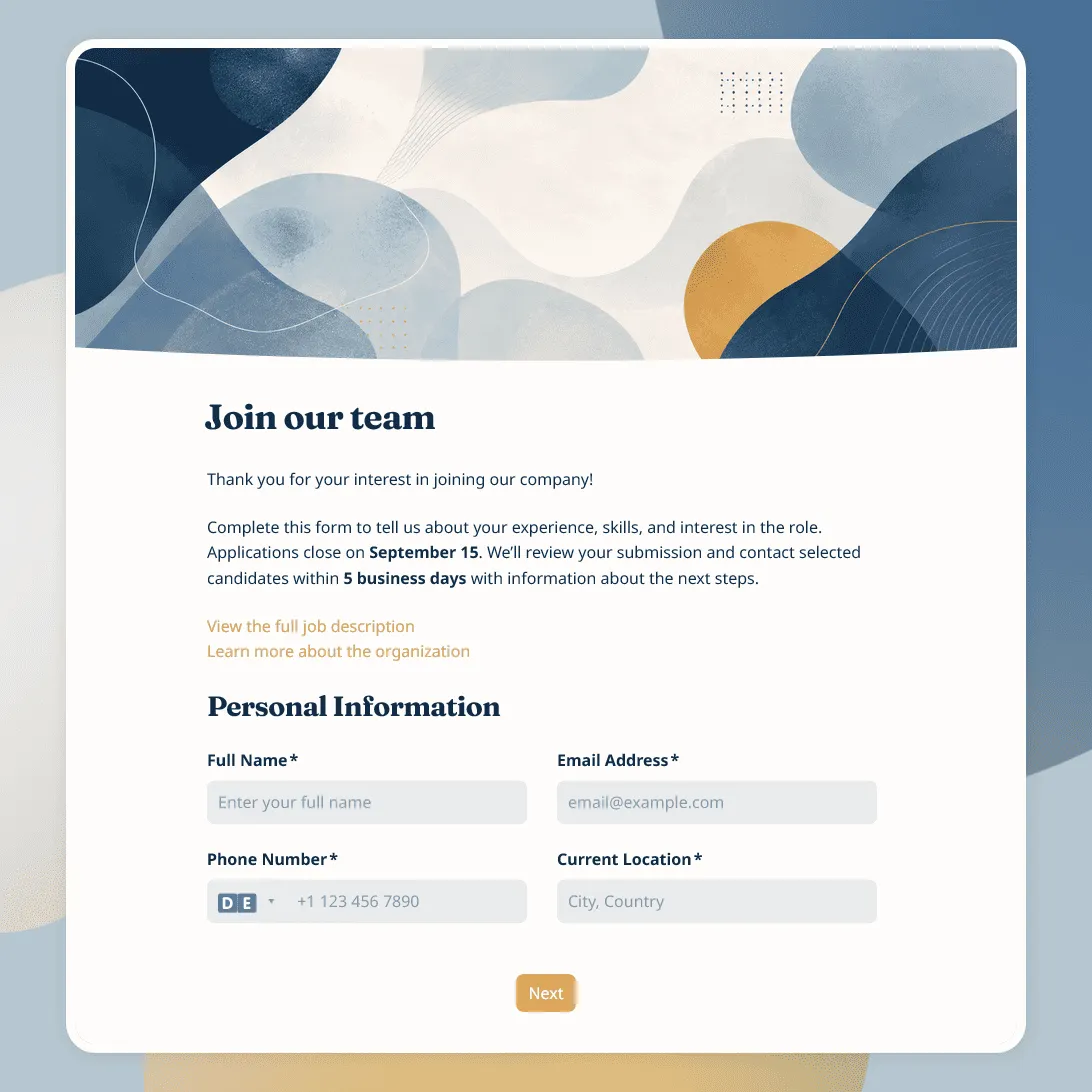
Job Application Form Template
Free job application form template for recruiters. Use it to collect candidate details, resumes, availability, salary expectations, and more.
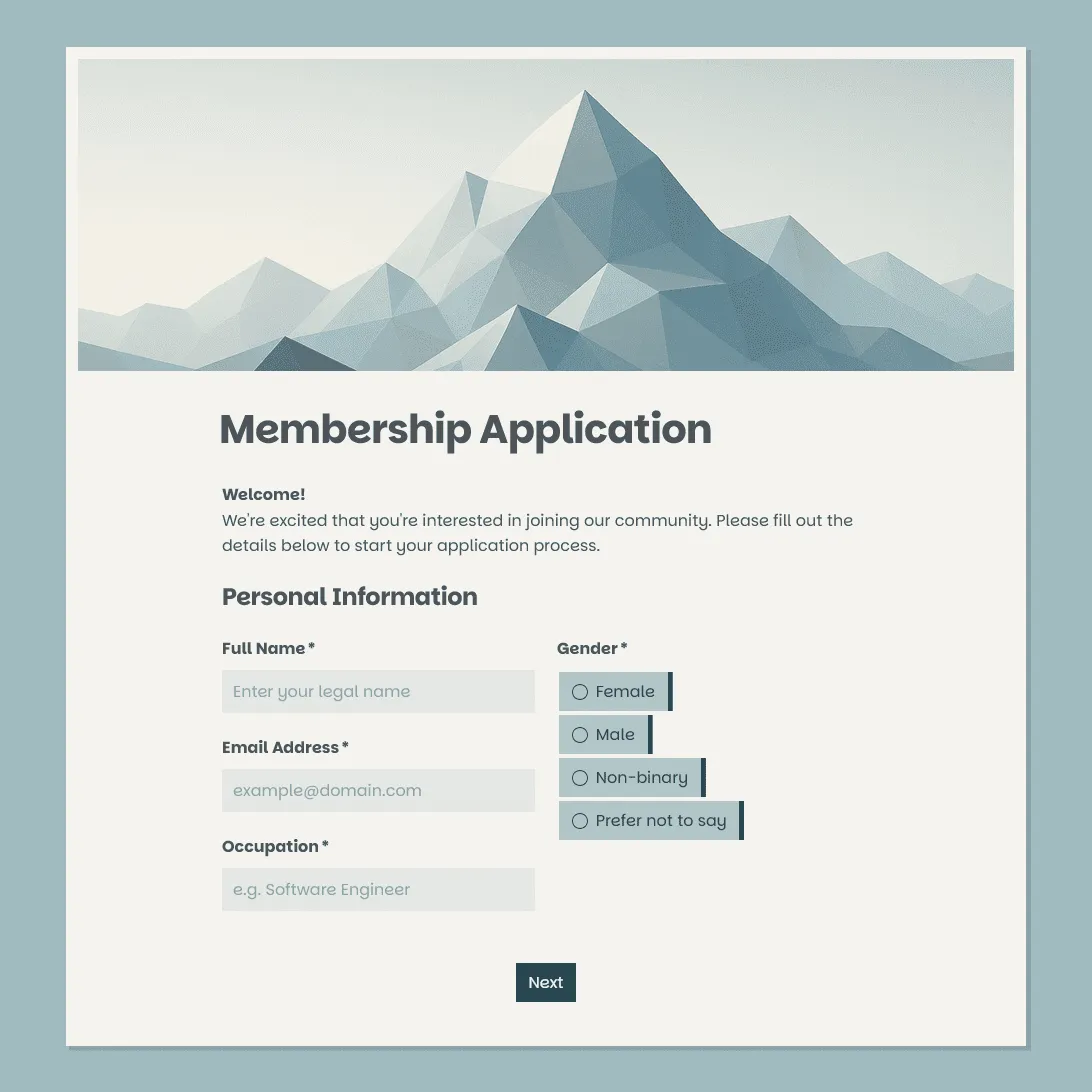
Membership Application Form Template
Free membership application form template for clubs, associations, nonprofits, communities, and member-based organizations.
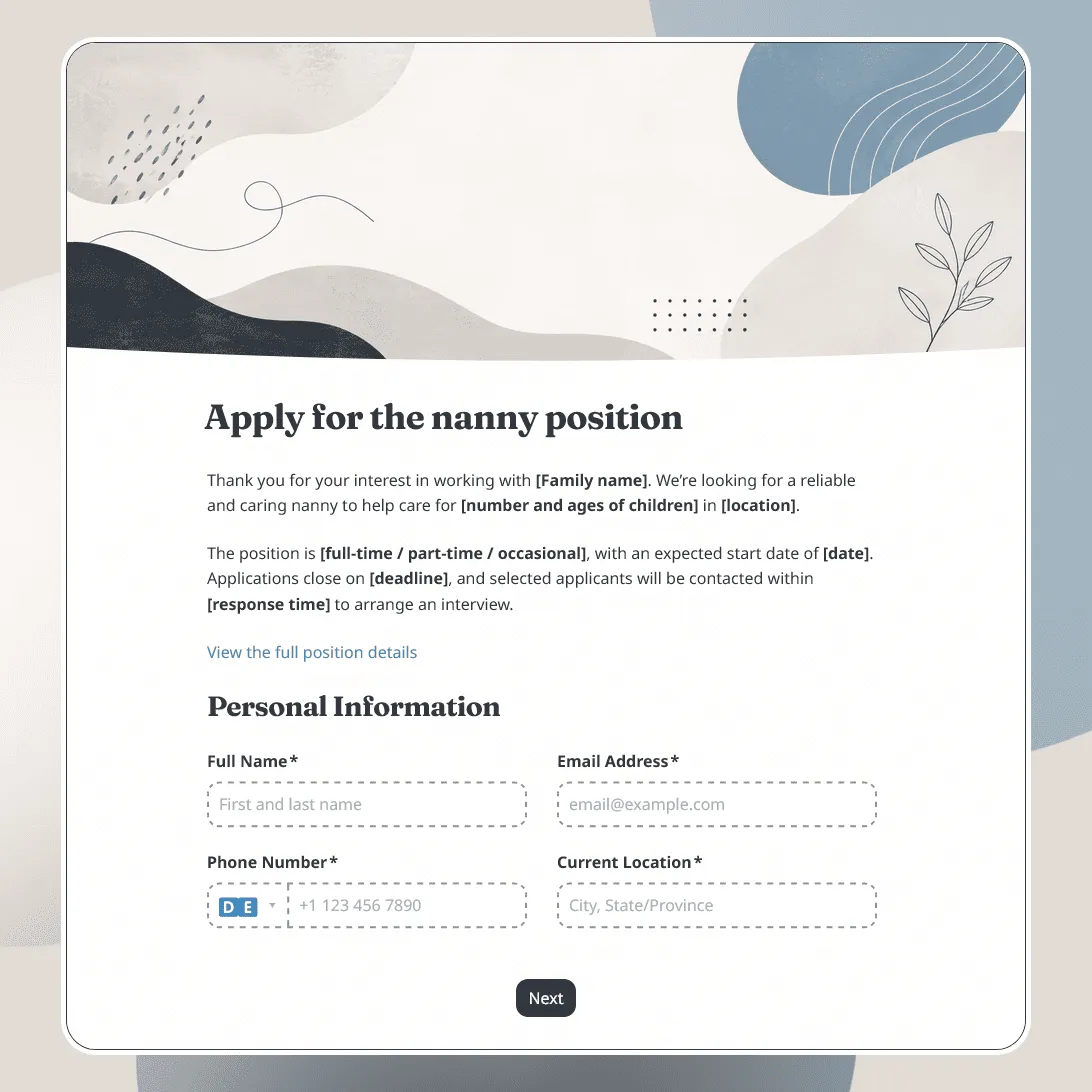
Nanny Application Form Template
Free nanny application form template for hiring nannies and babysitters. Collect experience, availability, references, certifications, and more.
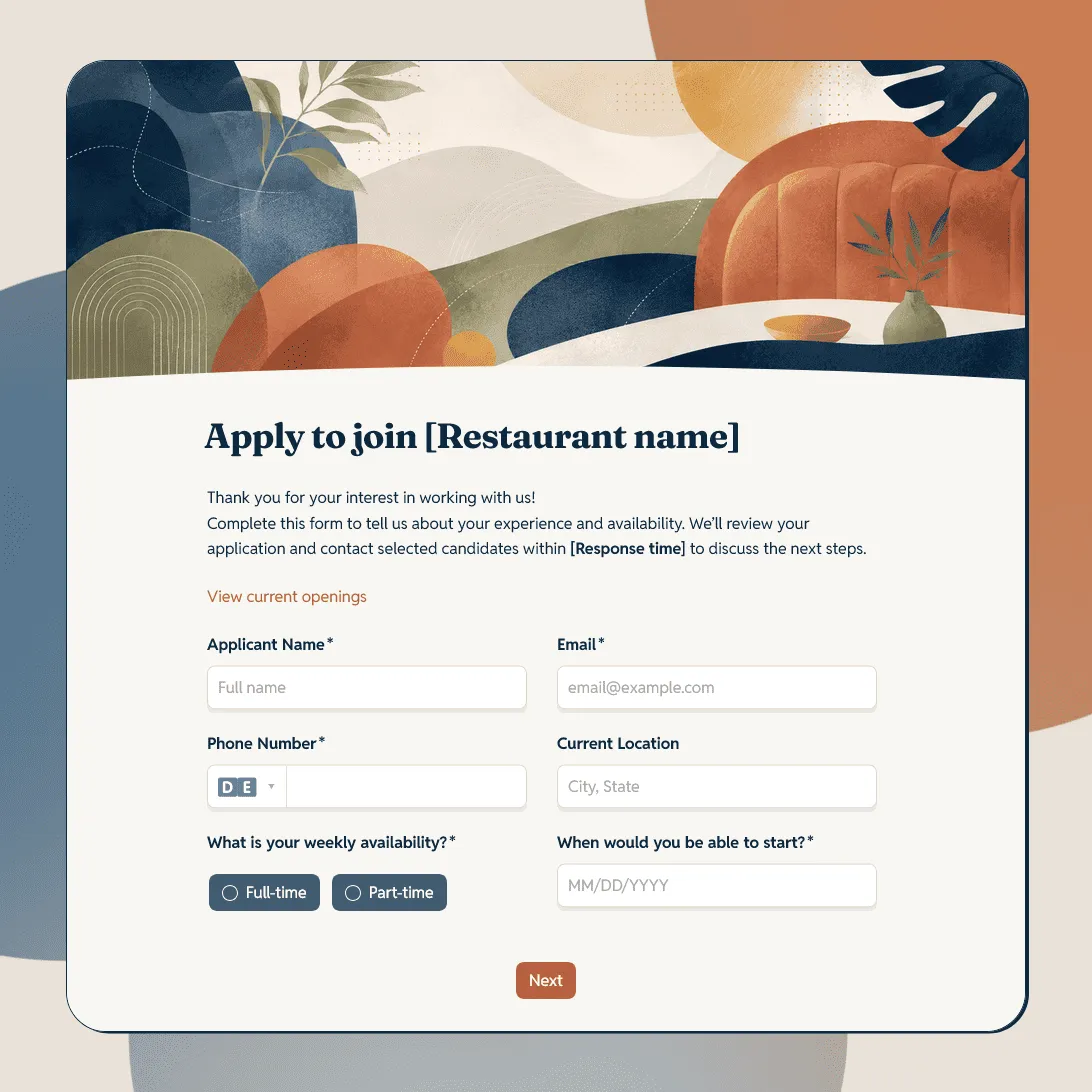
Restaurant Job Application Form Template
Free restaurant job application form template for hiring servers, bartenders, cooks, hosts, dishwashers, managers, and restaurant staff.
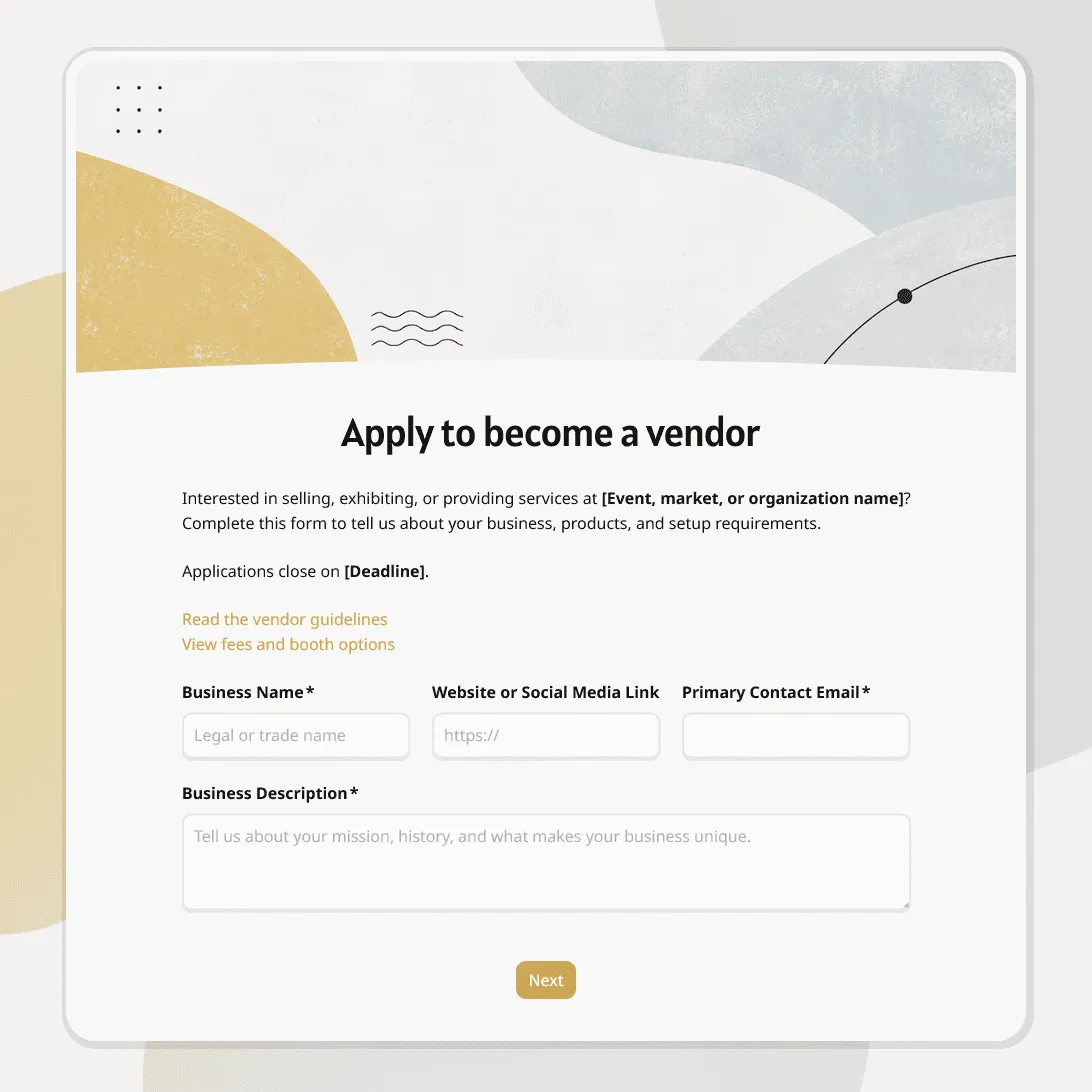
Vendor Application Form Template
Free vendor application form template for markets, events, suppliers, contractors, and seller applications. Fully customizable.
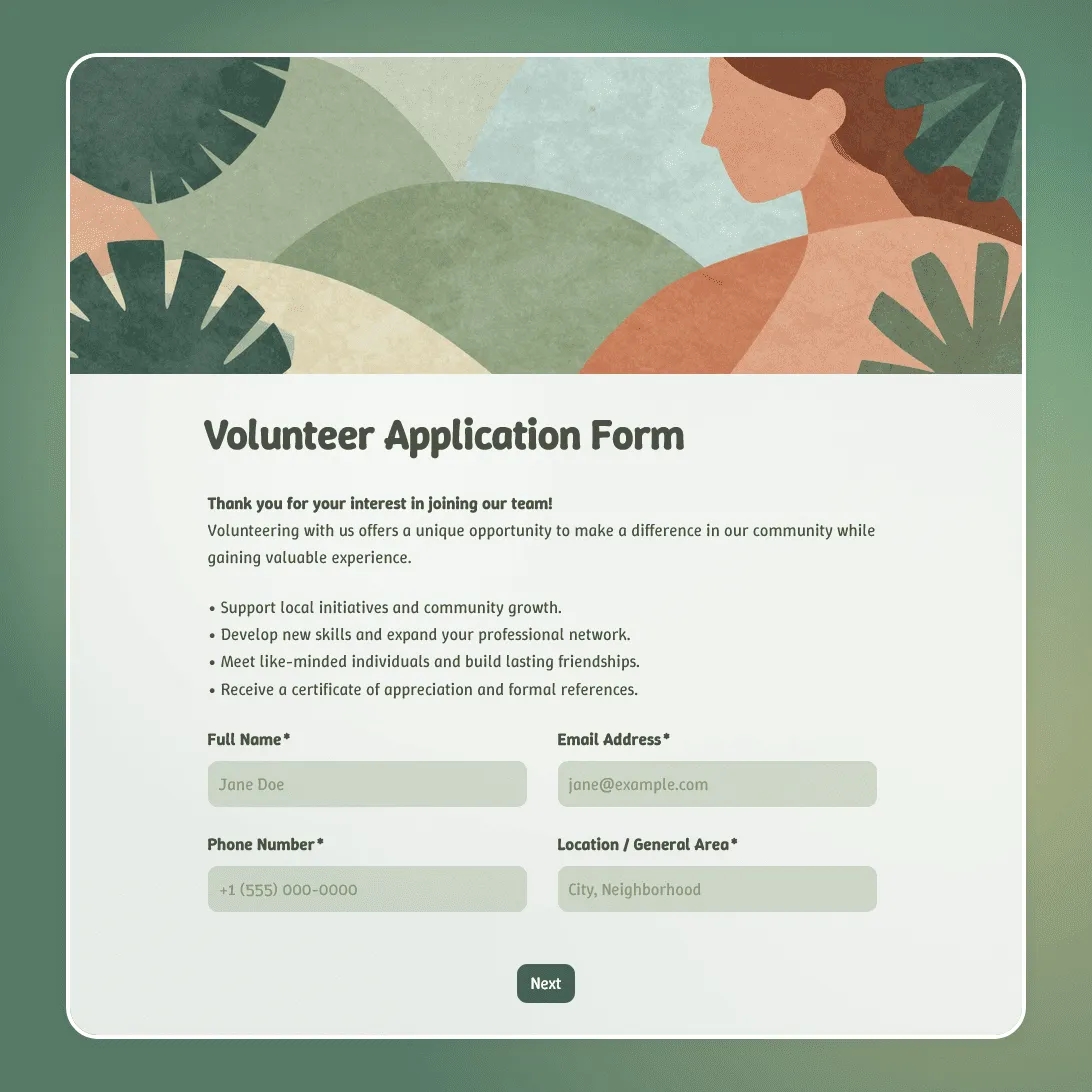
Volunteer Application Form Template
Free volunteer application form template for nonprofits, events, and community organizations. Collect skills, availability, and contact details.
About application forms
An application form is how you screen people before bringing them in. Whether you are recruiting volunteers for a community event, selecting vendors for a market, or accepting new members into an association, an application form does the same job: it collects the right information from everyone who applies and puts it all in one place so you can make a fair, informed decision.
The key difference between an application form and a registration form is intent. A registration form is used once you have already decided to include someone. An application form is used to figure out whether to include them.
For a more detailed setup guide, read how to create an application form. It covers review questions, required fields, file uploads, conditional paths, confirmation messages, and response management.
What information should an application form collect?
The right questions depend on your use case, but most application forms should cover these areas:
- Personal or business information. Name, contact details, website or social media (for vendors), and any relevant credentials or registration numbers.
- Relevant experience or qualifications. What skills does the applicant have? Have they done this before? Do they have references? For vendor applications, this might be a catalog or menu rather than a resume.
- Availability or logistics. When can they start? How many hours can they commit? For event vendors, what are their space or power requirements?
- Compliance and acknowledgment. Any waivers, terms of participation, or background check consent that needs to be agreed to before the process moves forward.
- Supporting documents. A file upload field lets applicants attach resumes, portfolios, food safety certificates, or business registrations alongside their written answers.
How to customize an application form in FormGrid
All the templates in this section are free. Once you pick one, making it yours takes only a few minutes.
- Open the template. Click “Use this template” to copy it into your FormGrid workspace.
- Add and remove fields. Delete the default questions you do not need and add specific ones relevant to your process. You can add dropdown menus, checkboxes, date pickers, file upload fields, or long text boxes from the form builder sidebar.
- Set up a file upload (if needed). If your application requires a resume, portfolio, or compliance document, add a file upload field and specify the acceptable file types.
- Write a clear success message. Tell applicants what happens next. When will you review submissions? When should they expect to hear back? A clear confirmation screen goes a long way.
- Share the link. Copy the form URL to post on a job board, your organization’s website, or in a social media announcement. If you want to embed it directly in a page, grab the embed code from the publish settings.
If you need a custom application form for something not covered here, click “Generate your form” and describe your requirements. FormGrid will build one for you.
Frequently asked questions
What is the difference between an application form and a registration form?
A registration form is used to sign up people who are already accepted or welcome. An application form is used to collect and evaluate candidates before deciding whether to accept them. If your process involves reviewing submissions and selecting who gets in, that is an application form.
Can applicants upload documents like resumes or portfolios?
Yes. You can add a file upload field to any FormGrid application form. Applicants can attach PDFs, images, Word documents, or other files directly to their submission. Supported file types and size limits can be specified in the field settings.
How do I review and compare the submissions?
All submissions are organized in your FormGrid dashboard. You can view each application individually, including any attached files. You can also export all submissions to a spreadsheet to share with other team members or to filter and sort candidates side by side.
Can I set a deadline for applications?
Yes. You can set a closing date in the form settings. Once that date passes, the form automatically stops accepting new submissions and displays a message you can write yourself (something like “Applications for this cycle are now closed.”).
Can I limit the number of applications I accept?
Yes. You can set a maximum submission count if you have a fixed number of spots. Once that number is reached, the form closes automatically. This is useful for volunteer programs with limited capacity or vendor markets with a fixed number of booths.
How do applicants know when their submission was received?
When someone submits your form, they are shown a confirmation page with a message you write. You can also set up an automatic confirmation email that is sent to the applicant immediately after they submit.
Can multiple team members review the applications?
Yes. You can invite collaborators to your FormGrid workspace so they can view and export submission data. This makes it easy to involve multiple reviewers in the selection process.
Is this application form template free?
Yes. All FormGrid templates are free. You can collect unlimited applications, attach unlimited files, and use every feature in the form builder without paying anything.
Can I use this template for a multi-stage application process?
You can use separate forms for different stages and link them through your own workflow. For example, an initial screening form might be short with just a few qualifying questions, and then a second form is shared only with shortlisted applicants asking for more detail.