How to Create a Feedback Form in Google Forms
Google Forms is a practical choice for simple feedback forms. It is free, easy to set up, and includes the question types most teams need for basic feedback collection. For a short customer survey, event follow-up, or internal check-in, you can usually build a working form in under ten minutes.
It also connects to Google Sheets, making it easier to review, sort, and organize responses later.
This guide shows you how to create a feedback form in Google Forms, with example questions, recommended settings, and a few tips that can help you get better answers.
Steps to make a feedback form in Google Forms
- Go to Google Forms and create a blank form or choose a template.
- Add a title and short description.
- Add your feedback questions.
- Adjust your form settings and theme.
- Test the form, publish it, and copy the responder link.
That is the basic process. Below, we will go through each step in more detail.
How to create a feedback form in Google Forms
Step 1: Create a new Google Form
Go to Google Forms and click Blank form to start from scratch. You can also open the template gallery if you want a rough structure to edit. Google Forms includes a basic customer feedback template, though most forms still need some cleanup before sharing.
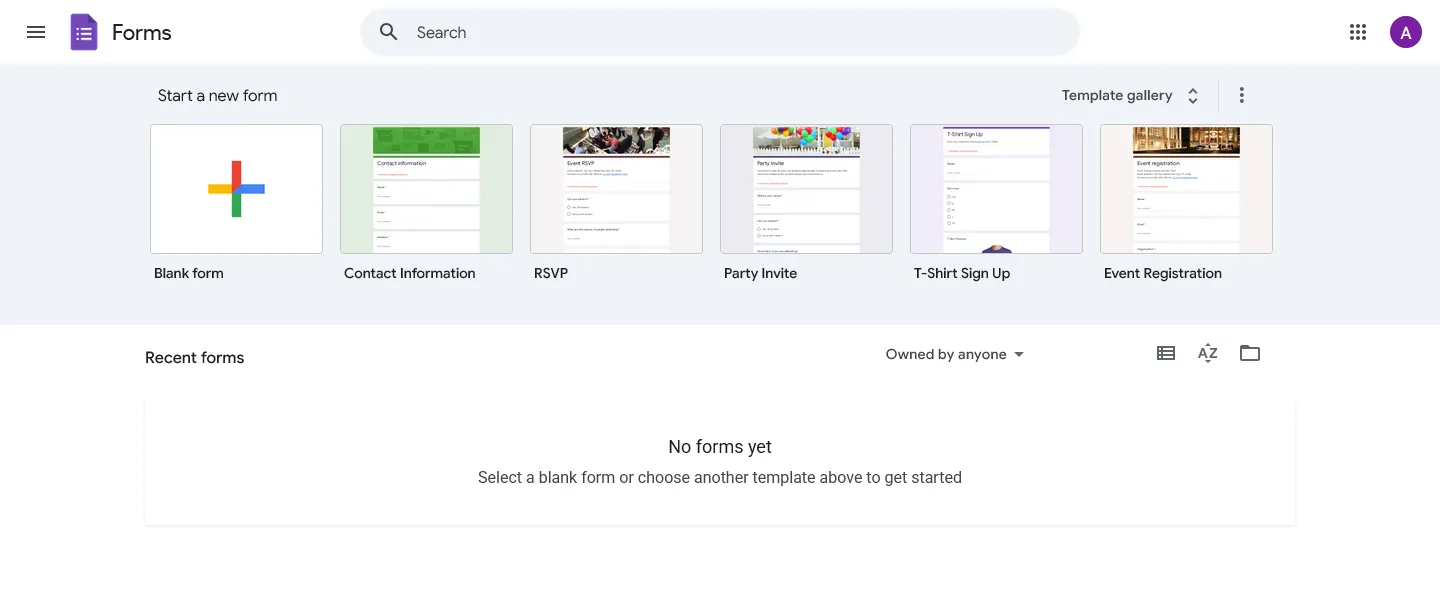
Start with a specific title. “Feedback Form” is fine for an internal draft, but respondents should immediately understand what they are being asked to review.
Better examples:
- How was your experience with [Product]?
- Tell us what you thought of your order
- Share your feedback on [Event Name]
- What did you think of the new feature?
Then add a short description. Tell people what the form is for, how long it should take, and how their answers will be used. A simple note is enough, for example: “Thanks for taking a few minutes to share your feedback. Your answers will help us improve future events.”
That small bit of context can make the form feel more worth filling out.
Step 2: Add your feedback questions
Next, add the questions you want people to answer. Most feedback forms do not need many question types. A basic form usually works well with a rating question, one or two open-ended questions, and an optional contact question, for example:
- How would you rate your overall experience? (linear scale 1-5)
- What worked well? (paragraph)
- What could we improve? (paragraph)
- Can we contact you about your feedback? (multiple choice: Yes/No)
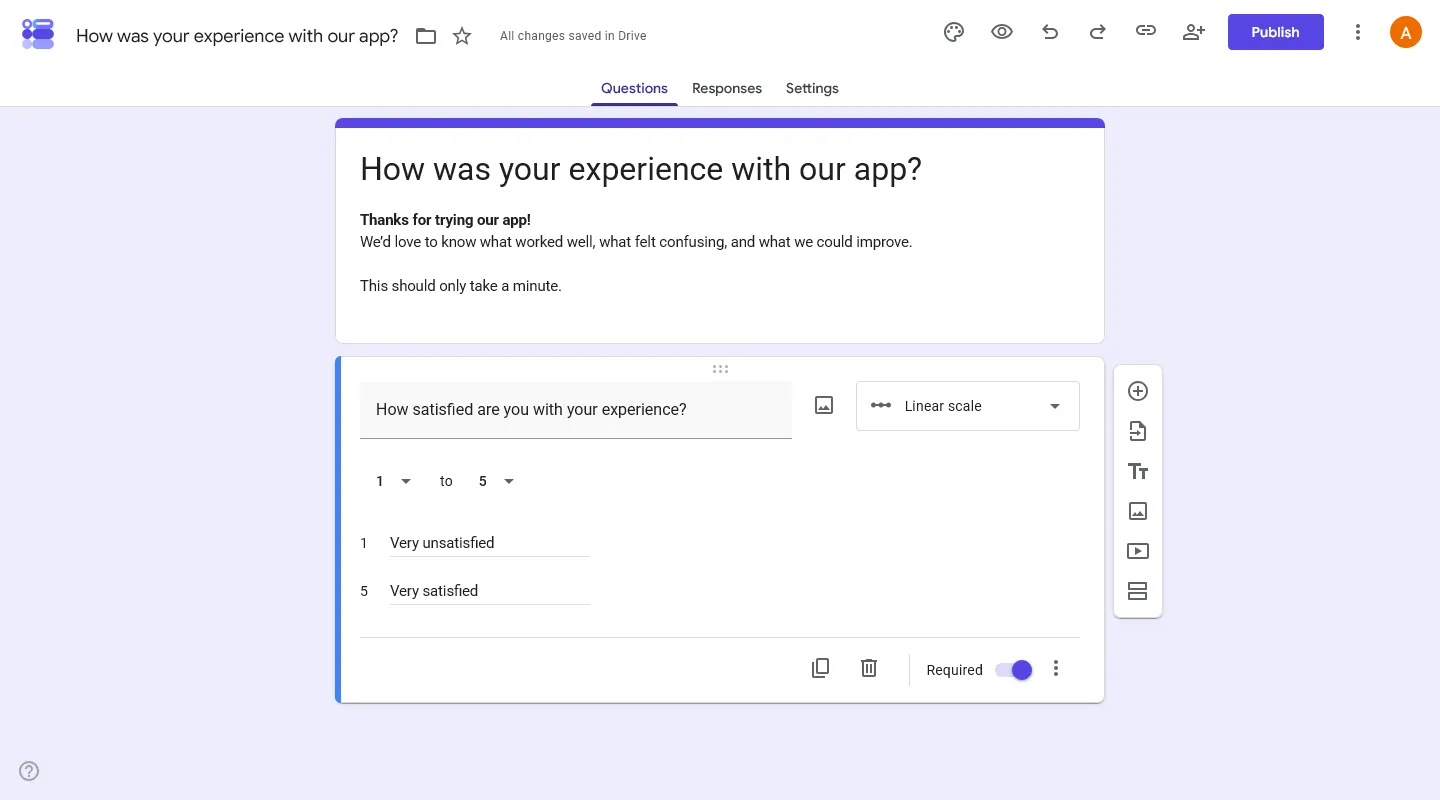
For each question, decide whether it should be required. You can turn this on using the toggle at the bottom right of each question card.
Be selective with required questions. Main rating questions can be required, but open-ended questions often work better when they are optional. People are more likely to write something useful when they do not feel forced to fill every box.
If you want more ideas, here are some feedback survey templates.
Step 3: Customize the form and settings
Click the palette icon at the top of the page to open the theme settings. Google Forms lets you change the header image, form color, and font.
Next, open the Settings tab. Review these options before sharing the form:
- Collect email addresses. Keep it off for anonymous feedback forms.
- Limit to 1 response. Use this only when you need one response per person. Note that it will require sign-in, which can lower the number of responses.
- Allow response editing. Turn this on if respondents may need to update their answers later.
- Confirmation message. Write a short message people see after submitting the form.
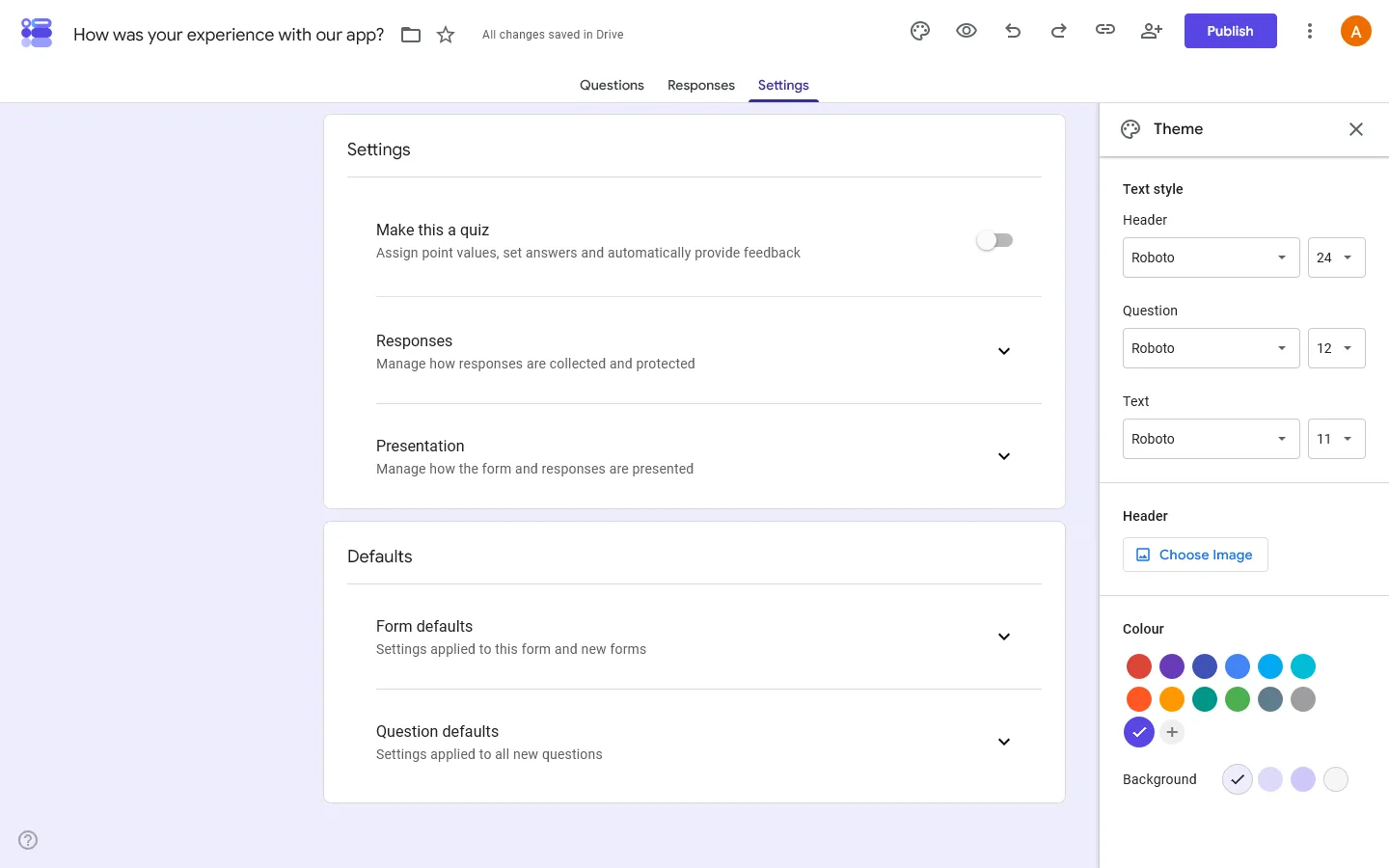
The most important setting is email collection. If you tell people the form is anonymous, make sure the settings match that promise. Also avoid asking for names, emails, employee IDs, or other details that could identify the respondent.
Step 4: Preview and test the form
Before sharing the form, click the preview icon and fill it out yourself.
Check that:
- the title and description are clear
- every required question should actually be required
- rating scales have clear labels
- open-ended questions are easy to understand
- the form works on mobile
- the confirmation message is correct
If your form uses sections or follow-up questions, test every path.
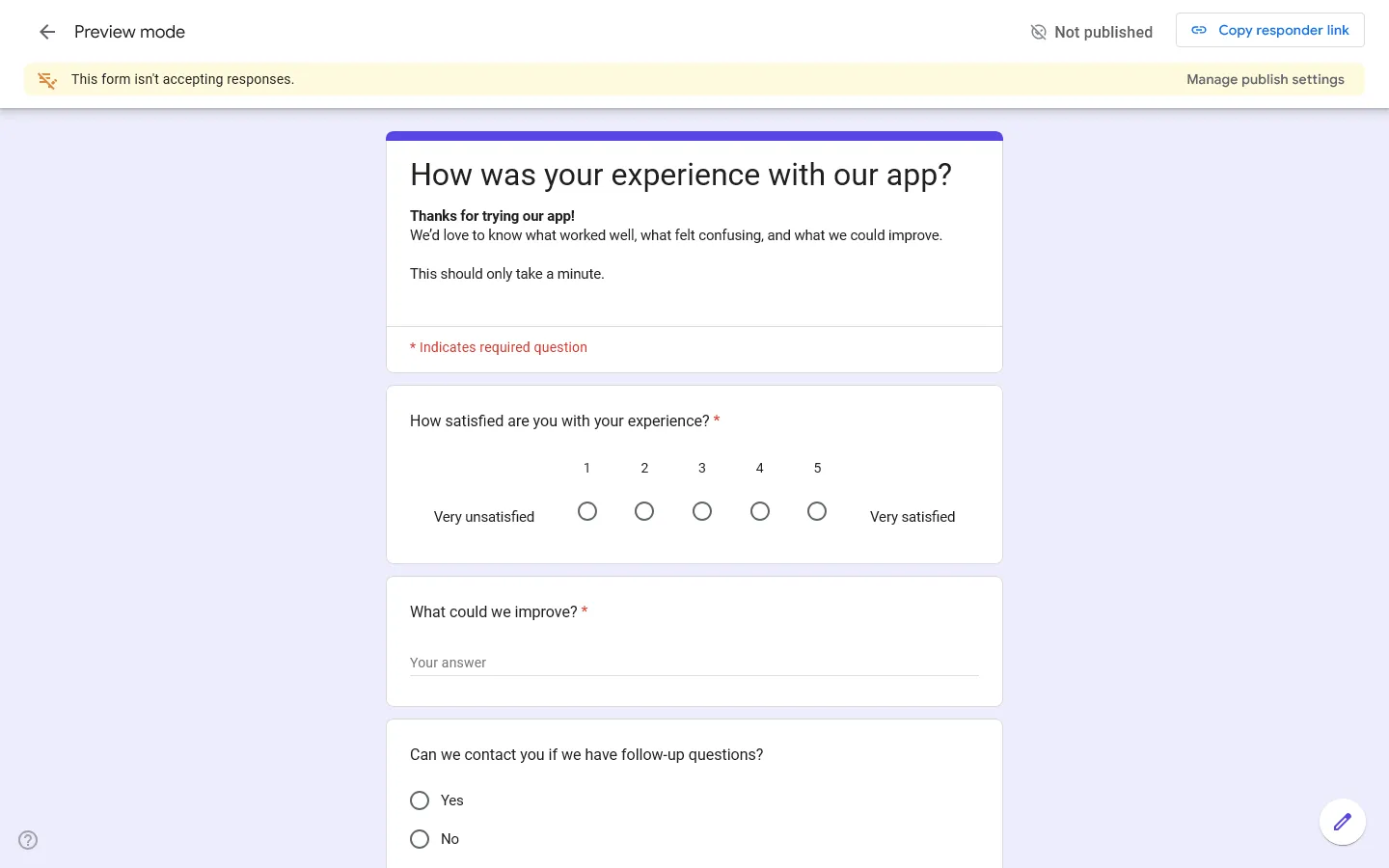
Google Forms lets you send respondents to different sections based on their answers. Google calls this Go to section based on answer. You can use it for simple conditional logic, such as asking for contact details only when someone agrees to be contacted. Google has a guide on how to show questions based on answers.
Step 5: Share the form and review responses
When your feedback form is ready, click Publish in the top-right corner and the copy the link. You can add it to an email, newsletter, Slack message, event follow-up, help center article, or website.
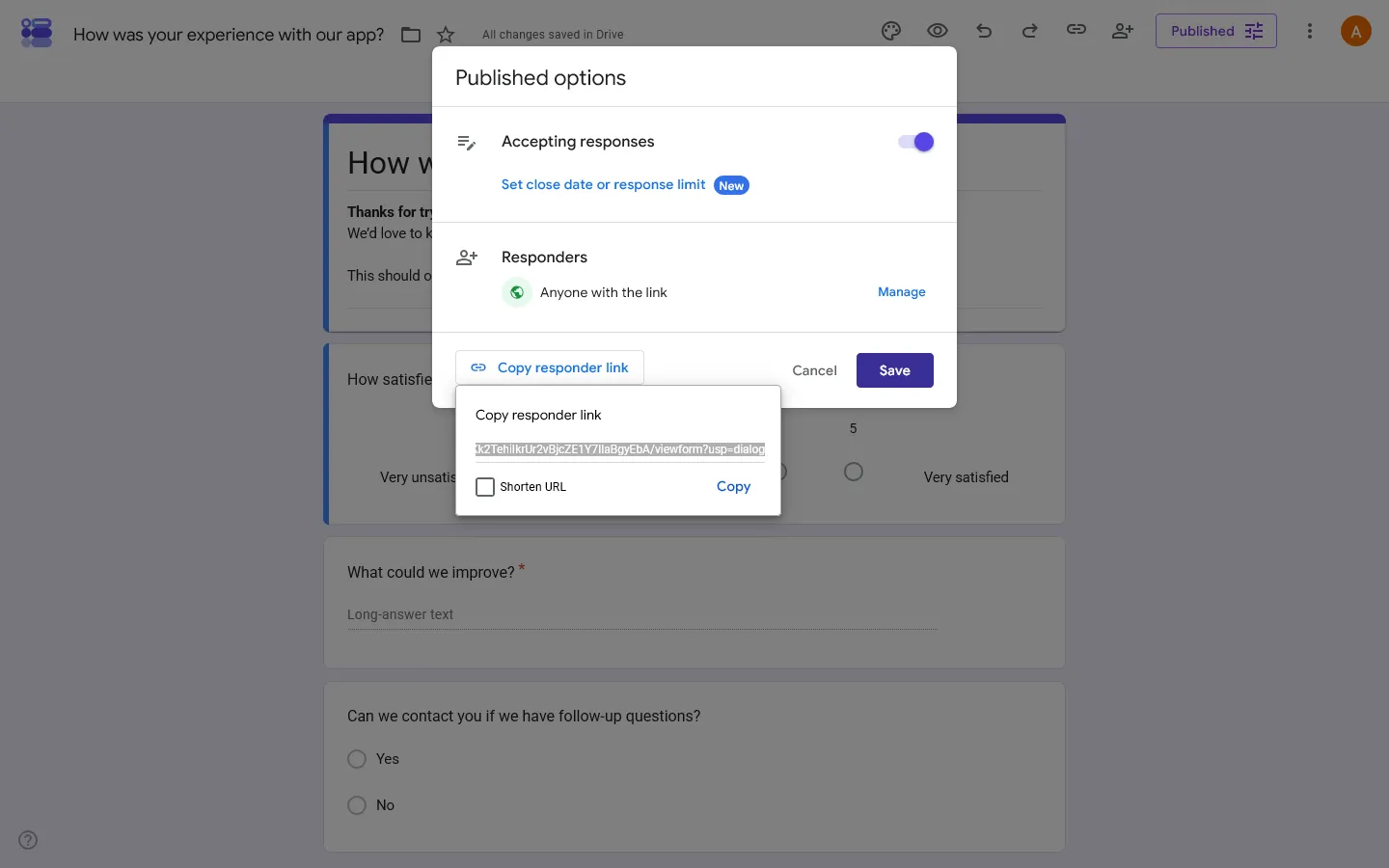
After responses start coming in, open the Responses tab. For deeper analysis, connect the form to Google Sheets. This gives you a spreadsheet with every response in one place. It is useful for filtering, sorting, tagging open-ended feedback, and comparing responses over time.
Limitations of using Google Forms for a feedback form
Google Forms works well for simple feedback collection. The limits usually become noticeable when the form is public-facing or part of a larger feedback process.
Design options are basic
You can change the header image, colors, and font style, but you cannot fully control the layout. Every Google Form follows the same general structure.
Layout control is limited
Google Forms uses a standard vertical layout. You cannot place questions side by side, create richer visual sections, or build a more custom page around the form.
Conditional logic can get hard to manage
Google Forms supports section-based routing, but longer forms can become hard to maintain. If you have several paths, follow-up questions, or different endings, it takes more effort to keep the structure clear.
Feedback can become hard to organize
Google Forms collects responses, but it does not give you a full feedback workflow. For ongoing feedback, you may still need to tag comments, group similar issues, remove duplicates, and decide what to act on first.
It is hard to close the feedback loop
Google Forms helps you collect feedback, but it does not give you a built-in way to follow up, mark feedback as reviewed, or show people what changed based on their input.
A more flexible way to create feedback forms
Google Forms works well when you need a quick, simple, internal feedback form. But for public-facing surveys, event follow-up forms, and customer feedback pages, design and presentation often matter more.
FormGrid makes it easier to create a feedback form that fits your brand and looks more polished and professional. Like Google Forms, it is free to use and includes unlimited forms and responses.
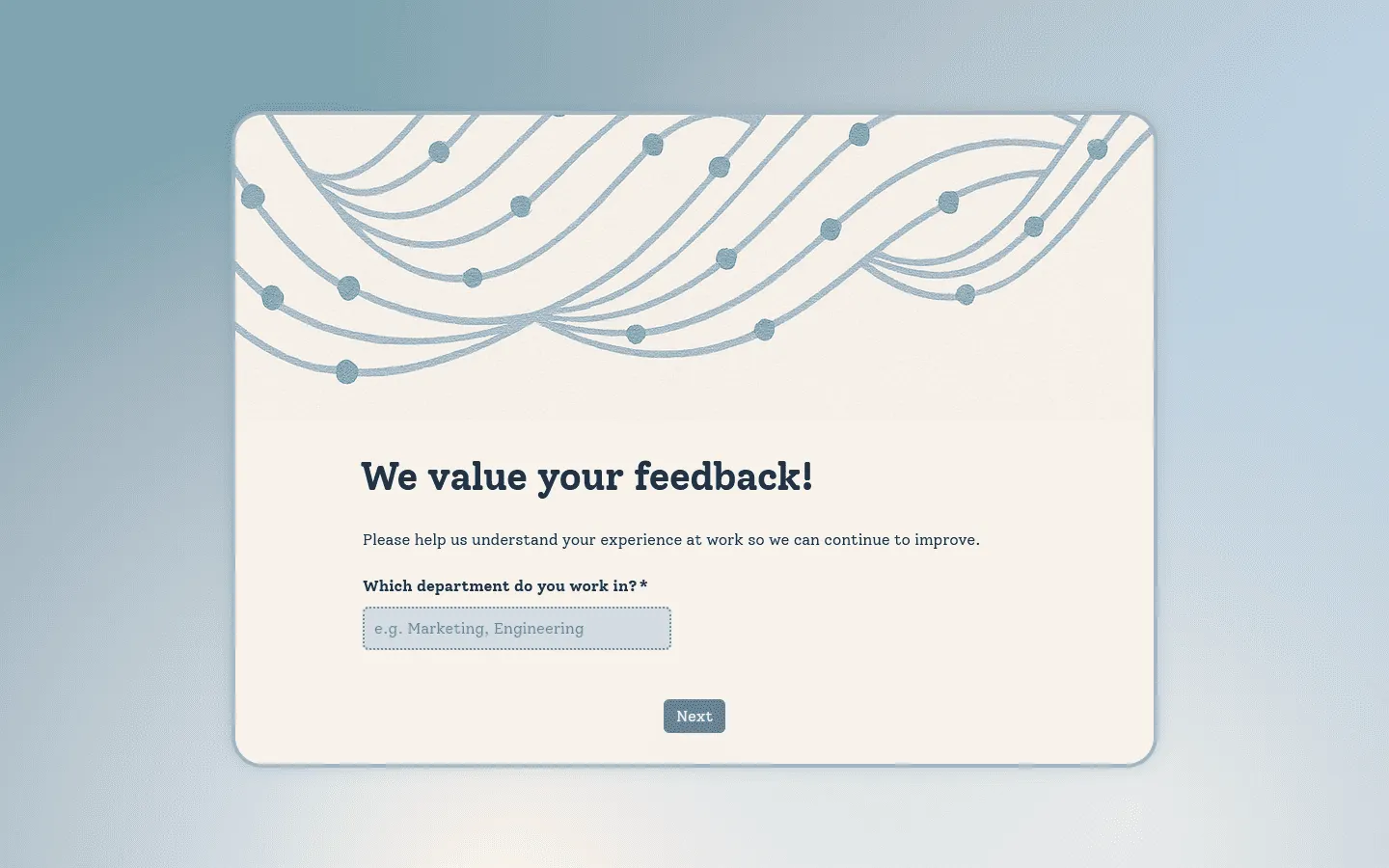
You can create a feedback form from scratch or generate one from a short description. From there, you can edit the questions, adjust the layout, customize the design, and publish the form for free.
You can also start from one of our feedback survey templates if you want a ready-made structure
- Feedback survey templates
- Customer feedback form template
- Class feedback form template
- Event feedback survey template
- Restaurant feedback form template
- Workshop feedback form template
You can also read our guide to the best Google Forms alternatives if you are interested in comparing different form builders.
Feedback form question examples
Here are some simple questions you can use when you make a feedback form in Google Forms.
Customer feedback form questions
- How satisfied are you with your experience?
- What did you like most?
- What could we improve?
- How easy was it to find what you needed?
- Did anything feel confusing?
- How likely are you to recommend us to someone else?
- What is the main reason for your score?
- Can we contact you about your feedback?
You can also start from a feedback survey template if you want a faster starting point.
Event feedback form questions
- How would you rate the event overall?
- How useful was the event content?
- How would you rate the speakers?
- How would you rate the organization of the event?
- What was your favorite part of the event?
- What could we improve next time?
- Would you attend another event like this?
- Is there anything else you would like to share?
You can use our event feedback survey template or read our full guide to post-event survey questions.
Employee feedback form questions
- How satisfied are you with your current work experience?
- Do you feel supported by your manager?
- Do you have the tools and information you need to do your work well?
- What is working well in the team?
- What should we improve?
- Do you feel comfortable sharing feedback?
- Is there anything else you would like leadership to know?
For internal feedback, you can start with an employee feedback survey template.
Meeting feedback form questions
- Was this meeting useful?
- Was the goal of the meeting clear?
- Did the meeting stay focused?
- Was there enough time for discussion?
- What should we keep doing?
- What should we change for the next meeting?
For a short team check-in, use a meeting feedback survey template.
Tips for creating a better feedback form
Keep the form short
The longer your feedback form is, the fewer people will finish it. For most feedback forms, 5 to 8 questions is enough. For a quick pulse check, 3 questions may be enough.
Start with the questions you truly need. A short form people finish is more useful than a long form people abandon.
Ask one thing at a time
Avoid questions like “How satisfied were you with the event speakers, venue, and schedule?”. That question asks about too many things at once. Someone may have loved the speakers but disliked the schedule.
Split it into separate questions:
- How satisfied were you with the speakers?
- How satisfied were you with the schedule?
- How satisfied were you with the venue?
This makes the responses easier to understand.
Use clear rating scale labels
A rating scale should tell people what the numbers mean. Avoid questions like “Rate your experience from 1 to 5.” Write something like: “How would you rate your experience? 1 = Very poor, 5 = Excellent.”
Do not make every question required
Required questions can help you avoid missing data, but too many required fields make the form feel demanding. Make the most important questions required. Leave sensitive or open-ended questions optional.
Always include one open-ended question
Ratings are useful, but written feedback usually explains what the numbers mean. A simple final question works well: “Is there anything else you would like to share?” This gives people room to mention something you did not ask about.
Frequently asked questions
Is Google Forms good for feedback forms?
Yes, Google Forms is good for simple feedback forms. It is free, easy to use, and connects to Google Sheets. The main downside is limited design and layout control.
How do I make a Google Forms feedback form anonymous?
Open the form settings and make sure email collection is turned off. Do not ask for names, email addresses, employee IDs, or other identifying details. If the form is shared inside an organization, check that the settings do not require sign-in unless needed.
What questions should I ask in a feedback form?
A good basic feedback form should ask for an overall rating, what worked well, what could be improved, and any final comments. For customer feedback, you may also ask whether you can contact the respondent about their feedback.
Can I add rating scales in Google Forms?
Yes. Use the linear scale question type to add rating scales. You can create scales such as 1 to 5 or 0 to 10 and add labels to explain what the lowest and highest values mean.
Can I use conditional logic in a Google Forms feedback form?
Yes. Google Forms lets you send respondents to different sections based on their answers. This is useful for follow-up questions, contact details, or different paths for different respondent groups.
Can I embed a Google Forms feedback form on my website?
Yes. Click Send, choose the embed option, copy the embed code, and paste it into your website. The form will appear directly on the page.
What is the best free alternative to Google Forms for feedback forms?
FormGrid is a good free alternative if you want more control over the design and layout of your feedback form. It includes unlimited forms and responses on the free plan, and you can create a custom feedback form without signing up. For a comprehensive guide on how to design and structure these surveys across different channels, see our guide on how to create a feedback form.