Beta Testing Feedback Form Template
Free beta testing feedback form template for collecting bug reports, usability feedback, screenshots, tester details, and device info.
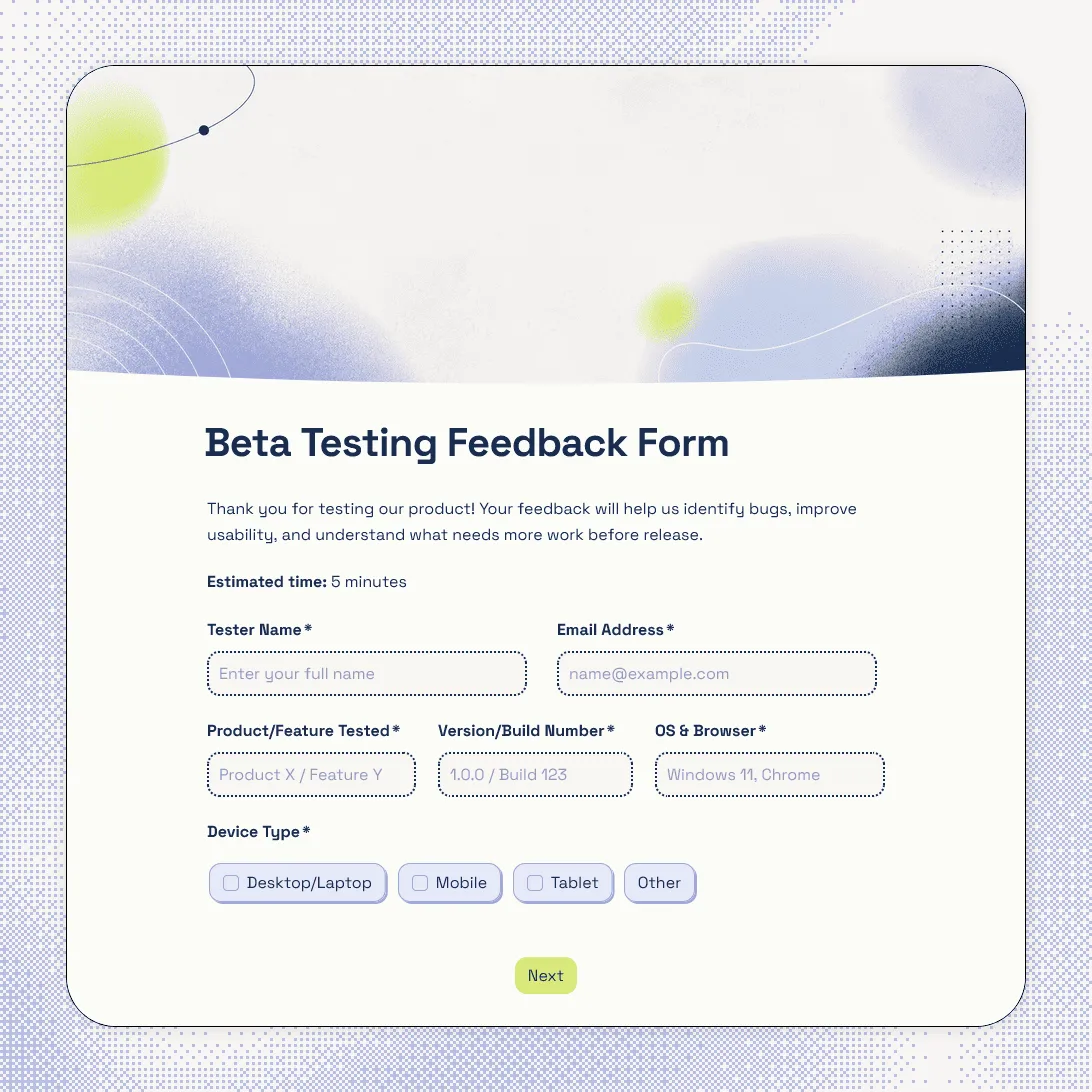
Need a custom beta testing feedback form?
Describe your beta program and FormGrid will generate a custom feedback form for you.
About this beta testing feedback form template
This beta testing feedback form template gives testers a structured way to report what they tested, how it worked, and what needs attention before launch.
It is designed for early product releases where your team needs both broad usability feedback and specific bug reports. Testers can share their technical setup, describe the scenario they tested, rate the experience, report one or more issues, upload supporting files, and leave final notes for follow-up.
The template works for app betas, SaaS products, websites, games, browser tools, internal tools, feature previews, private launches, and early-access programs.
What this template includes
This template includes:
- tester name and email
- feature name and product version
- operating system, browser, and device type
- testing scenario
- overall experience rating
- usability rating
- additional feedback field
- conditional bug reporting
- issue count
- repeatable issue details for each bug
- severity, expected behavior, actual behavior, and steps to reproduce
- file upload for screenshots, recordings, logs, or other files
- product utility and missing feature questions
- future usage likelihood rating
- follow-up permission
- final notes
- success page
Customize this beta testing feedback form template
Open this beta testing feedback form template in FormGrid. You can edit it manually, or describe the changes you need in the AI chat.
For example, you can ask FormGrid to:
- “Adapt this for a mobile app beta and add app build number, device model, and crash details.”
- “Make this work for a SaaS beta and focus the scenario question on a specific feature or workflow.”
- “Shorten the form for a quick weekly beta check-in.”
FormGrid can update the questions, repeating issue section, conditional logic, field descriptions, layout, colors, design, and success page.
Check before sending it to beta testers
Before sharing the form, review the details that should match your beta program:
-
Product details: Make sure the feature name, product version, build number, or testing round is clear.
-
Technical environment: Check that the device, browser, operating system, and version fields match the platforms you support.
-
Testing scenario: Give testers enough context to describe what they tried, especially if they were asked to complete a specific task.
-
Bug report fields: Review the severity options, issue title, expected behavior, actual behavior, steps to reproduce, and file upload instructions.
-
File uploads: Explain what testers should attach, such as screenshots, screen recordings, logs, or other files.
-
Success page: Update the final message with the next step, reward details, another testing task, or a simple thank-you note.
Tips for collecting better beta testing feedback
Beta feedback should help your team decide what to fix, clarify, remove, or improve before a wider launch.
-
Ask which version was tested. Build number, feature version, test group, or release date can save a lot of confusion when feedback comes in across several beta rounds.
-
Separate bugs from general feedback. A broken checkout flow and a confusing label should not land in the same vague comment field. Use different sections for bugs, usability issues, feature requests, and overall impressions.
-
Collect steps to reproduce. For bug reports, ask testers what they did before the issue appeared, what they expected, and what actually happened.
-
Make screenshots easy to attach. A file upload field can turn a vague issue report into something your team can understand quickly.
-
Ask about the task, not only the product. Feedback is easier to interpret when you know what the tester was trying to do: complete onboarding, invite a teammate, publish something, export data, join a game, or finish a purchase.
-
Use follow-up permission. Some issues need a short conversation. Add a question asking whether your team can contact the tester for more details.
Send beta feedback where your team needs it
Before collecting responses, decide where submissions should go.
You can export responses to CSV or Excel for bug triage, QA review, product planning, research notes, and launch-readiness reports.
You can also send new beta feedback to the tools your team already uses. Send responses to Airtable or Notion, add rows to a spreadsheet, post new bug reports in Slack, or start a Zapier or Make workflow when a tester submits the form.
Add a send email block before publishing if testers should receive a confirmation email, next testing task, reward details, or thank-you message after submitting feedback.
Related guides and resources
- Product feedback form template
- Website feedback form template
- Customer feedback form template
- How to create a feedback form
Beta testing feedback form FAQs
What should a beta testing feedback form ask?
A beta testing feedback form should ask what the tester tried to do, which version they tested, what device or browser they used, whether they found a bug, what happened, what they expected, how serious the issue was, and what would make the product better before launch.
Can testers upload screenshots or screen recordings?
Yes. Add a file upload field so testers can attach screenshots, screen recordings, logs, PDFs, images, or other files with their feedback.
Can bug report questions appear only when someone finds a bug?
Yes. With conditional logic, testers who report a bug can see technical follow-up questions, while testers with general feedback can skip them.
Should beta testing feedback be anonymous?
Beta testing feedback can be anonymous, but bug reports are often easier to investigate when your team can follow up. A practical setup is to make contact details optional and ask whether the tester is open to follow-up.
Can this template work for app, SaaS, website, or game betas?
Yes. You can adjust the template for app betas, SaaS products, websites, browser tools, mobile apps, games, internal tools, feature previews, private launches, and early-access programs.
Can I send testers an automatic confirmation email?
Yes. Add a send email block before publishing. The email can confirm that feedback was received and include the next testing task, reward details, beta timeline, or a thank-you note.
Is this beta testing feedback form template free?
Yes. This beta testing feedback form template is free, and you can collect unlimited beta feedback responses on the free plan.
Related templates
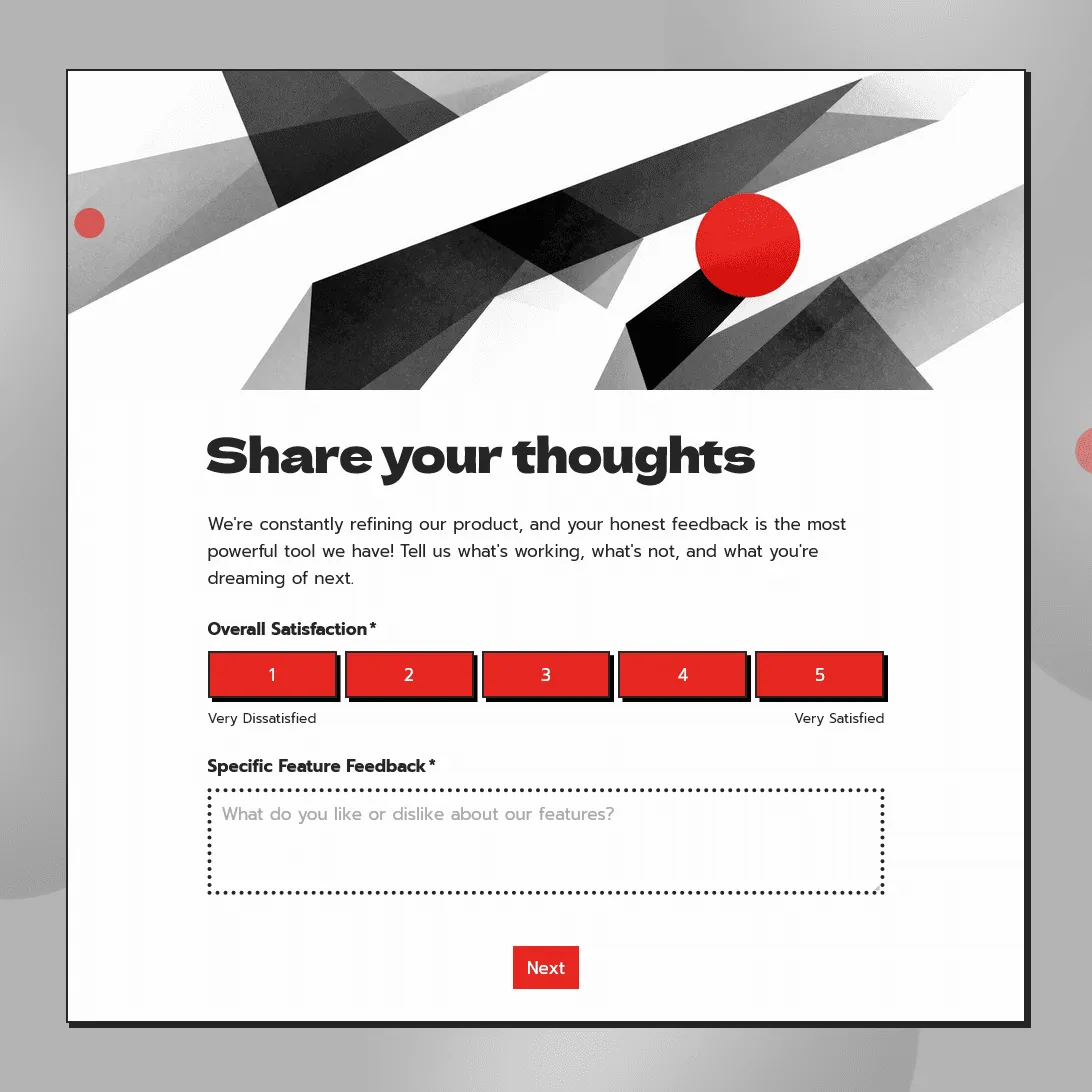
Product Feedback Form Template
Use this free product feedback form template to collect ratings, feature requests, bug reports, comments, screenshots, and follow-up details.
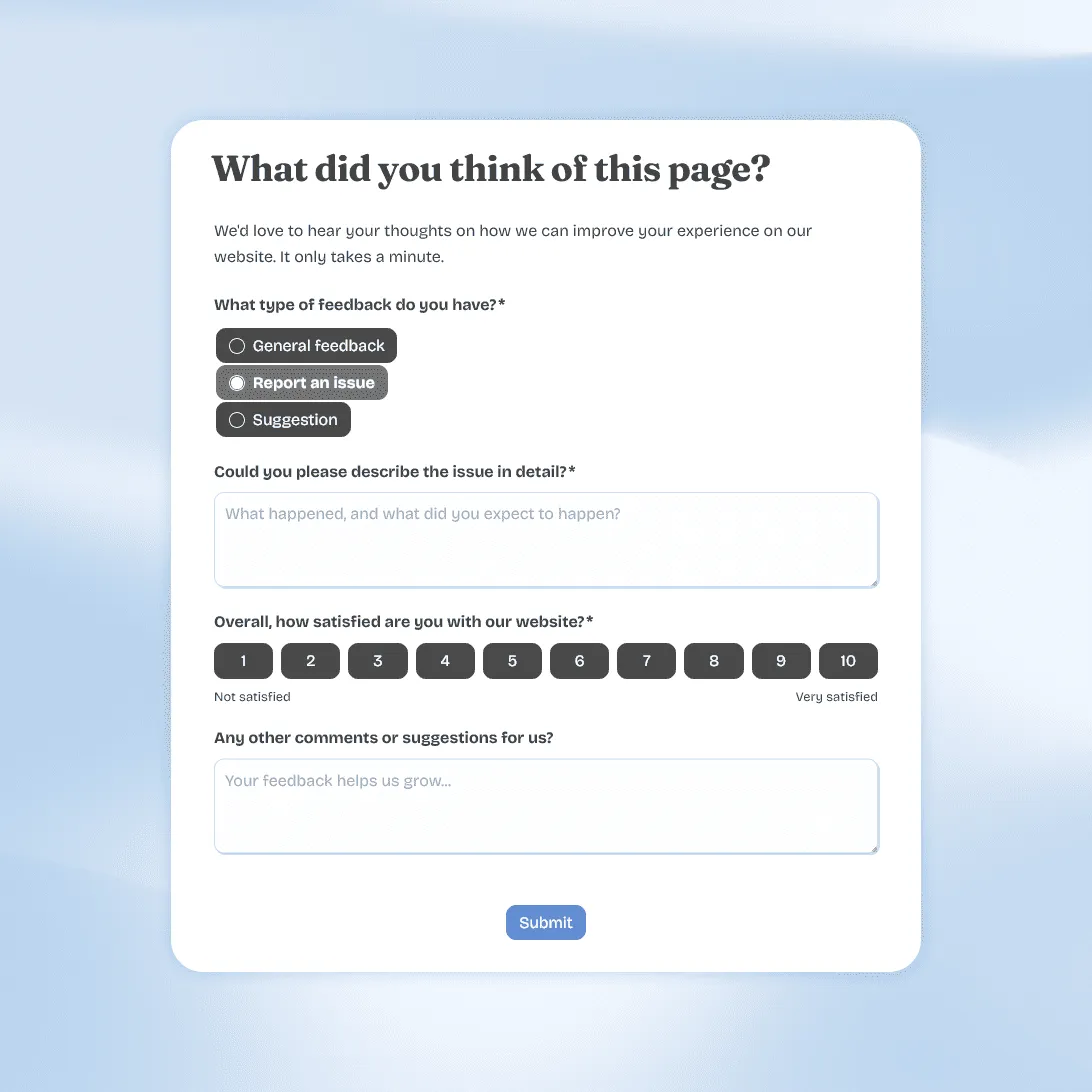
Website Feedback Form Template
Use this free website feedback form template to collect visitor feedback, UX issues, bug reports, and suggestions directly on your site.
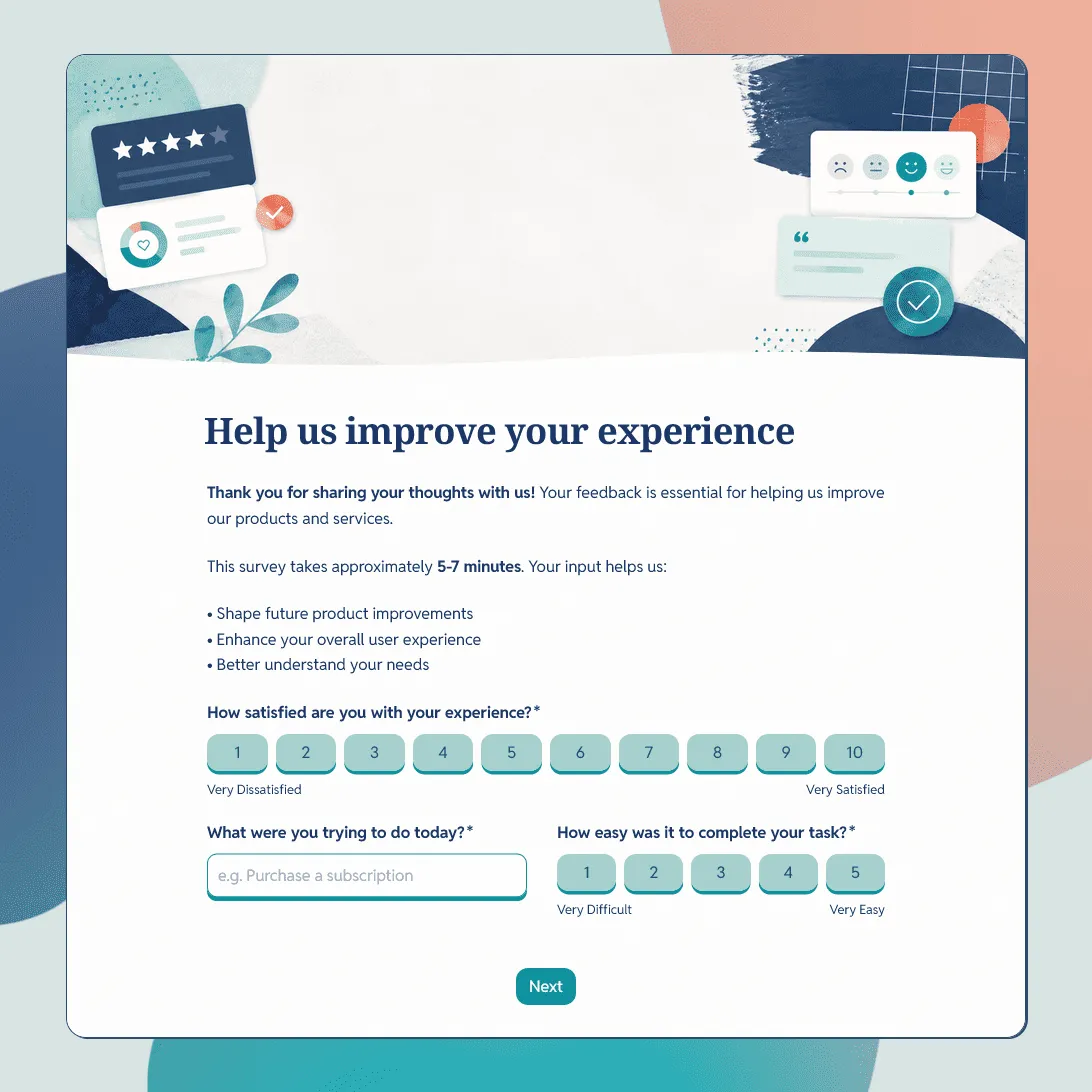
Customer Feedback Form Template
Use this free customer feedback form template to collect ratings, comments, suggestions, NPS, contact details, and follow-up consent.