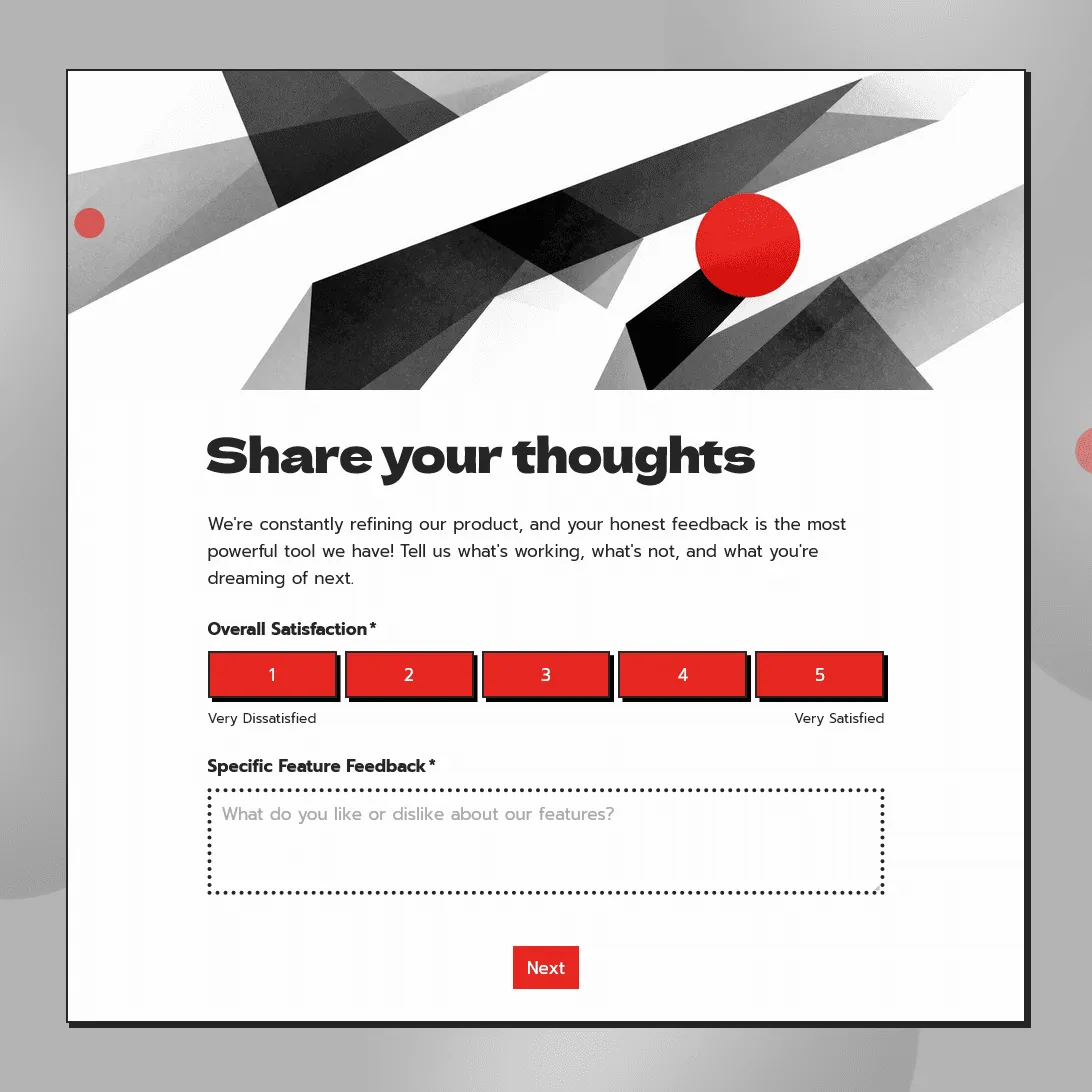
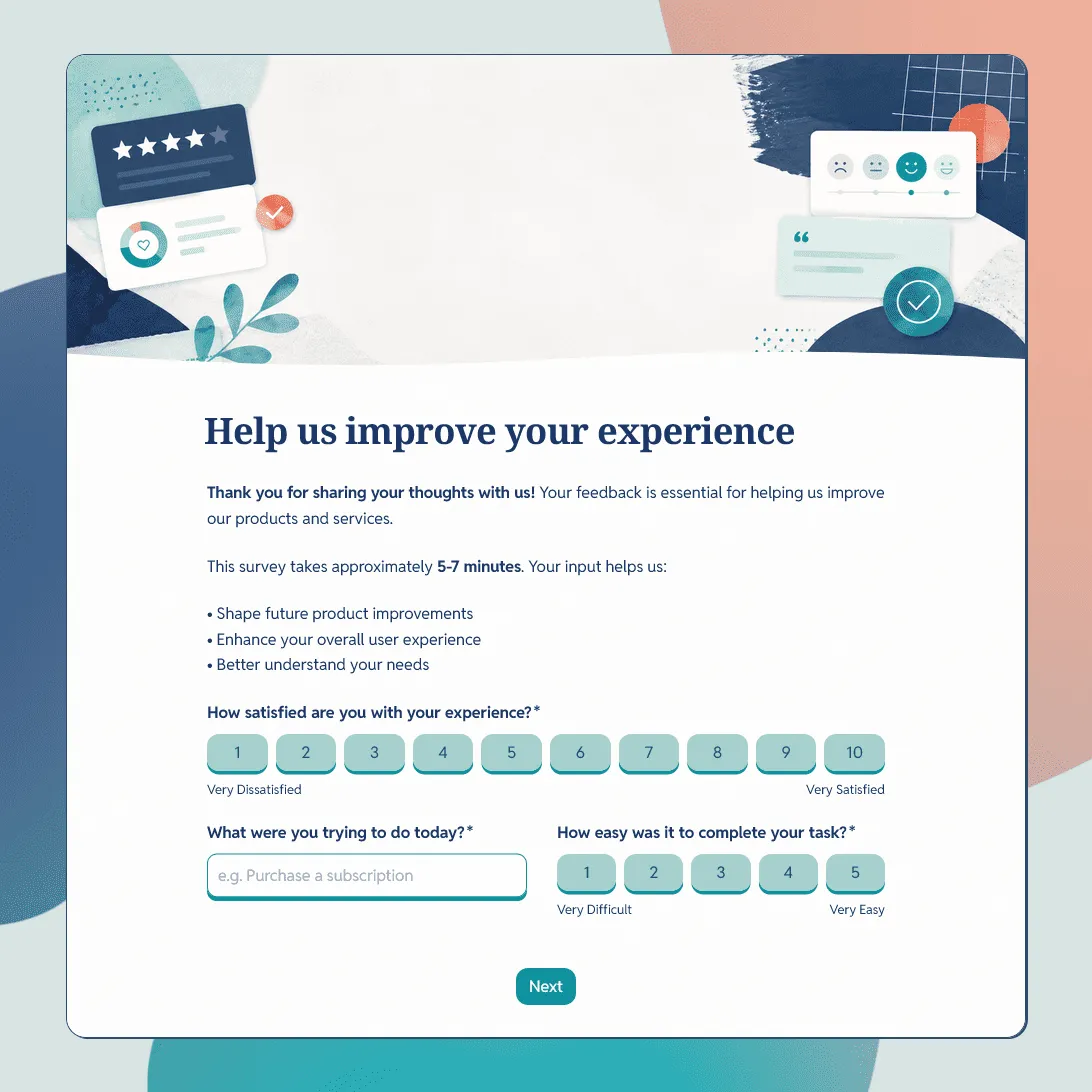
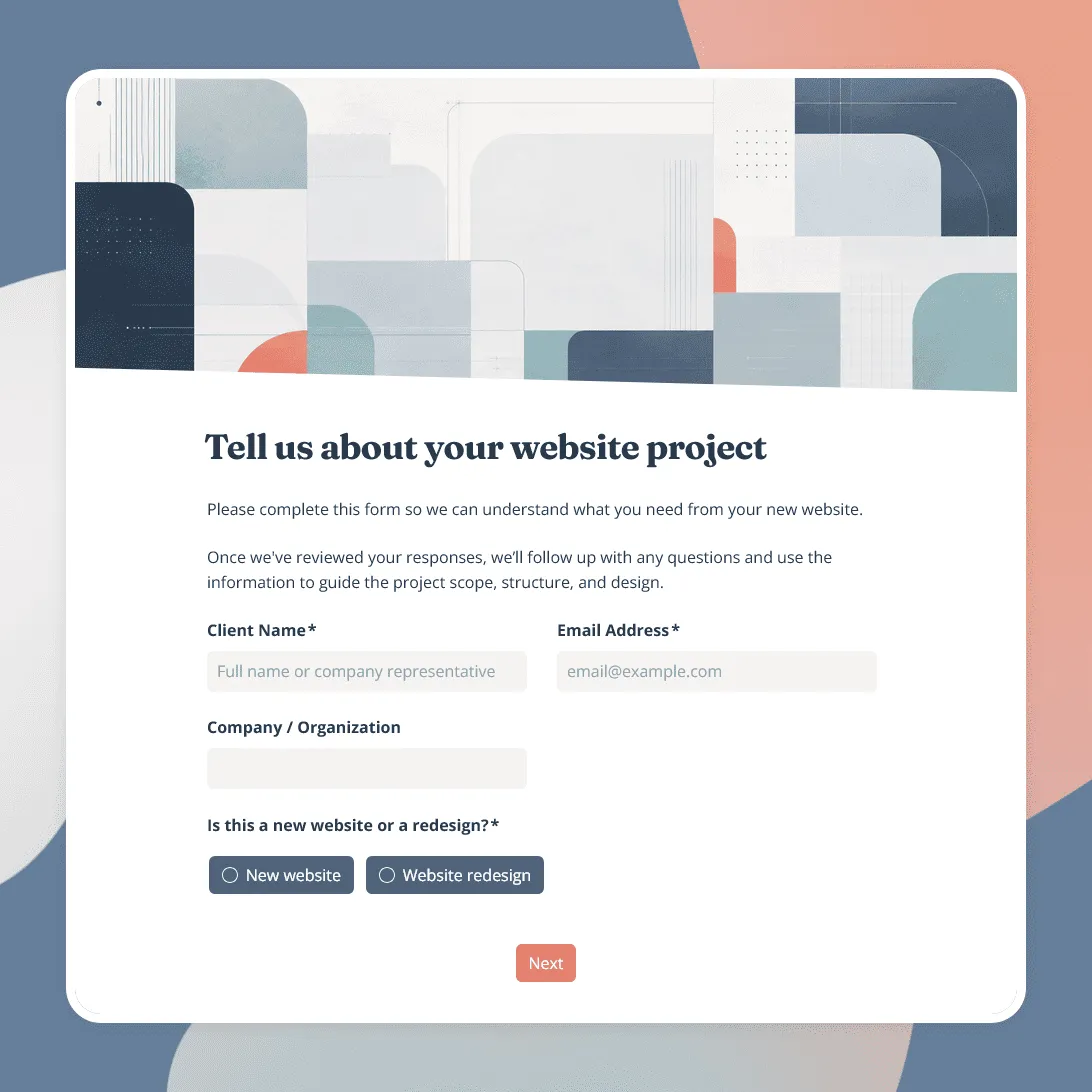
Website Feedback Form Template

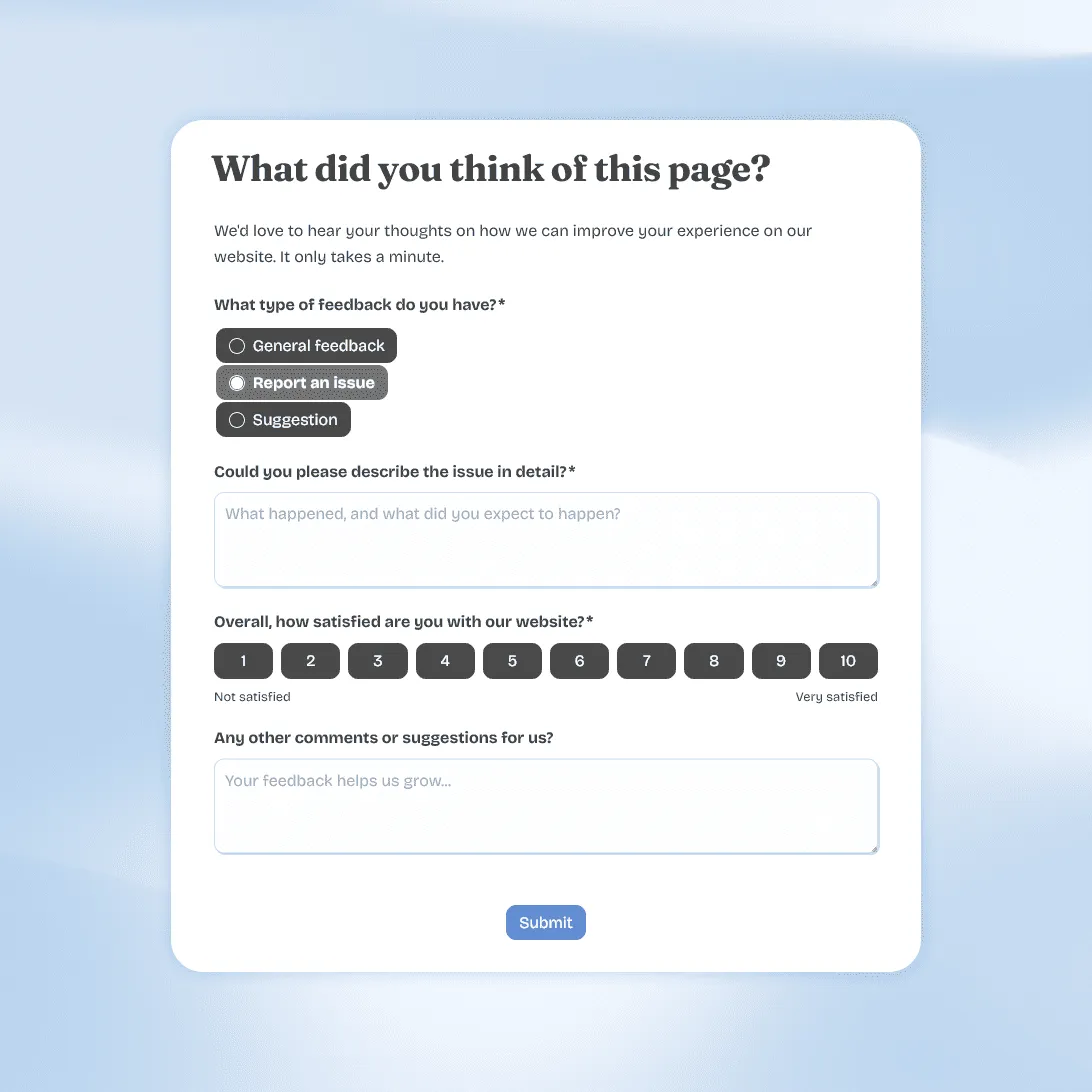
Use this free website feedback form template to collect visitor feedback, UX issues, bug reports, and suggestions directly on your site.
Use this template
No signup required / Free unlimited responses
Website Feedback Form Template

Need a custom website feedback form?

Describe what kind of feedback you want to collect, and FormGrid will generate a tailored form for you.

About this website feedback form template

A website feedback form helps visitors tell you what is confusing, broken, missing, or hard to use while they are still on your site. That matters because most visitors will not email you about a broken link, unclear pricing table, mobile layout issue, or help article that did not answer their question. They will usually leave.

This editable website feedback form template gives them a quick way to report the issue in context. You can use it as a feedback button, an embedded form on a dedicated feedback page, or a popup that appears after a specific action, such as a button click, scroll depth, page load, or exit intent.

How to set up your website feedback form

  1. Open the template. Click “Use this template” to copy it into your FormGrid workspace.
  2. Pick one main placement. Start with a feedback button, a dedicated feedback page, or a popup on one important page.
  3. Match the question to the page. A pricing page, help article, checkout page, and blog post should not all ask the exact same question.
  4. Add the page URL field. This helps you connect each response to the right page.
  5. Keep technical fields optional. Device, browser, and screenshot fields are useful for bugs, but they can make general feedback feel like work.
  6. Make email optional. Some visitors will share more honest feedback when they can stay anonymous.
  7. Test the form on mobile. Many website feedback responses come from phones, especially when the form appears as a popup.
  8. Review responses regularly. Group feedback by page and issue type so you can spot patterns.

How to adjust this feedback form for different website pages

A website feedback form works best when the questions match the page where it appears.

Pricing page

Ask what feels unclear about the plans, limits, billing, or included features. Visitors on this page are often comparing options, so vague feedback questions are less useful.

Good questions:

  • Is anything unclear about our pricing?
  • What information is missing from this page?
  • What would help you decide?

Help center article

Ask whether the article answered the visitor’s question. Keep the form short, because the person may already be frustrated.

Good questions:

  • Did this article answer your question?
  • What were you trying to do?
  • What information was missing?

Signup or checkout page

Ask what stopped the visitor. Avoid a long form here.

Good questions:

  • What stopped you from completing this step?
  • Did anything look broken?
  • Was the next step clear?

Product or feature page

Ask whether the page explained the feature clearly and what else the visitor expected to see.

Good questions:

  • What is still unclear after reading this page?
  • What information would make this page more useful?
  • Were you looking for a specific example?

Blog post

Ask whether the post was helpful and what else the reader wanted to know.

Good questions:

  • Was this post useful?
  • What should we explain in more detail?
  • Is anything outdated or missing?

These related pages can help you collect feedback in other contexts:

Website feedback form FAQs

What should a website feedback form include?

A website feedback form should include the feedback type, page URL, short description, optional rating, and optional contact details. For bug reports, add device, browser, screenshot, and steps to reproduce the issue.

Should I use a feedback button or a popup?

A feedback button is better for ongoing website feedback because visitors can open it when they need it. A popup is better for targeted feedback on a specific page or action, such as pricing page hesitation, help article quality, or exit feedback.

What is the best trigger for a website feedback popup?

For general feedback, use a button click. For help articles or long pages, use scroll depth. For pricing, signup, and checkout pages, exit intent can help you understand hesitation. For beta pages or private previews, page load can work if you clearly explain why you are asking.

How many questions should a website feedback form have?

For general feedback, keep it to 3 to 5 questions. Ask for the feedback, the page URL, the feedback type, and optional contact details. Add technical fields only when you expect bug reports.

Can I use this form for bug reports?

Yes. Add fields for what happened, what the visitor expected, the page URL, device, browser, screenshot, and steps to reproduce the issue. That gives your team enough detail to investigate without sending follow-up emails for every report.

Can I use this form for exit feedback?

Yes. Keep the exit version short. Ask what stopped the visitor or what information they were looking for. This works best on pricing pages, signup pages, checkout pages, and landing pages.

Can I use this form on multiple pages?

Yes. If you use the same form across multiple pages, include a page URL field. For better feedback, create slightly different versions for important pages such as pricing, help center, signup, and checkout.

Is this website feedback form template free?

Yes. This template is free to use. FormGrid also includes unlimited forms and unlimited responses on the free plan, so you can collect website feedback without response caps.