Tally Forms vs Google Forms: Which form builder is better? (2026)
If you are comparing Tally Forms vs Google Forms, you have probably already noticed that these two tools feel very different, even though they are both free and built around simplicity.
Google Forms is the obvious default for a lot of people. It is free, works instantly with Google Sheets, and takes almost no setup.
Tally is the more modern option. The editor is text-first, the forms look better by default, and you get features Google Forms does not really cover, like calculations, payments, and more flexible logic.
This guide compares the pricing, design, editor experience, logic, integrations, and team features of Google Forms and Tally.
Tally vs Google Forms: Quick summary & feature comparison
The main difference between Tally and Google Forms is that Google Forms is built for fast, simple internal forms and survey, while Tally.so is designed for forms that need a better user experience and more flexibility.
Google Forms keeps things basic: quick setup, built-in Sheets integration, simple branching, and almost no design decisions to make. Tally gives you a more modern builder, more customization, more capable logic, payment support, and a better-looking result out of the box.
Here is the high-level breakdown before we get into the details:
| Feature | Tally Forms | Google Forms |
|---|---|---|
| Capterra rating | 4.9/5 (30+ reviews) | 4.7/5 (11,000+ reviews) |
| Best for | Creators, startups, public-facing forms | Internal surveys, education, Google Workspace users |
| Free plan | Unlimited forms & responses | Unlimited forms & responses |
| Starting price | Free (Pro at $29/month) | 100% free |
| Editor style | Document-style (like Notion) | Card-based (drag and drop) |
| Design | Clean and modern | Basic, generic “Google look” |
| Conditional logic | Advanced (show/hide fields, calculations, answer piping) | Basic (section branching only) |
| Payments | Yes (free, with 5% commission) | No |
| Spreadsheet sync | Google Sheets (via integration) | Google Sheets (native, automatic) |
| Collaboration | Team workspaces (paid) | Real-time co-editing (free) |
| Notion integration | Yes (native) | No |
| Remove branding | Paid (Pro plan) | Not possible |
The bottom line:
- Choose Tally if the form is public-facing, you want it to look decent without much effort, or you need things like calculations, payments, or more flexible logic.
- Choose Google Forms if speed matters most, your team already works in Google Workspace, or you mainly just want responses in Google Sheets.
If you find yourself wanting more design flexibility than Tally offers, without Google Forms’ limitations, you might also want to try FormGrid. It uses a similar doc-style editor to Tally but gives you significantly more control over layout, visual styling, and typography, all on a free plan with no response limits.
What is Tally?
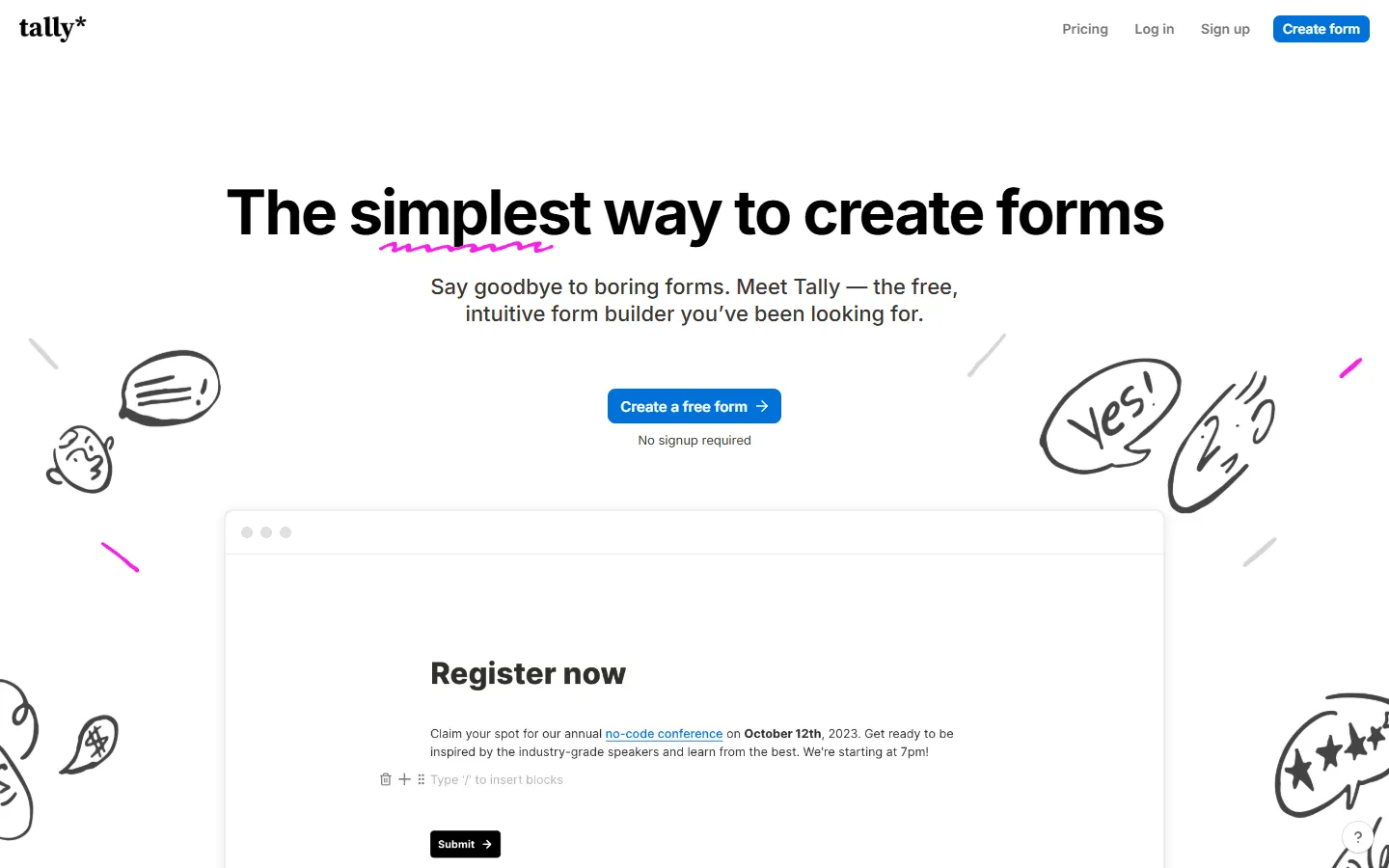 Tally is a form builder with a text-first editor. You build by typing into the page and inserting blocks with slash commands, so it feels closer to Notion than to a traditional drag-and-drop form builder.
It’s a free tool that offers unlimited forms and unlimited submissions, which is unusual in this space.
Tally supports conditional logic, payment collection, file uploads, answer piping, calculations, and multi-page forms. It also has a native Notion integration, which lets responses flow directly into a Notion database.
What are the advantages of Tally?
- Free plan with unlimited forms and responses
- Advanced features like logic, calculations, payments, signatures, and file uploads available on the free plan
- Fast to build: the keyboard-first editor keeps your hands off the mouse
- Cleaner, more modern default look than Google Forms
- Native Notion integration for teams that organize there
What are the disadvantages of Tally?
- Tally supports more design and layout customization than Google Forms, but the options are still limited (and only available on paid plans)
- Removing Tally branding from the form URL and end screen requires Pro
- Team workspaces and collaboration features are gated behind the paid plan
- Response analysis stays fairly basic within the tool itself
What is Google Forms?
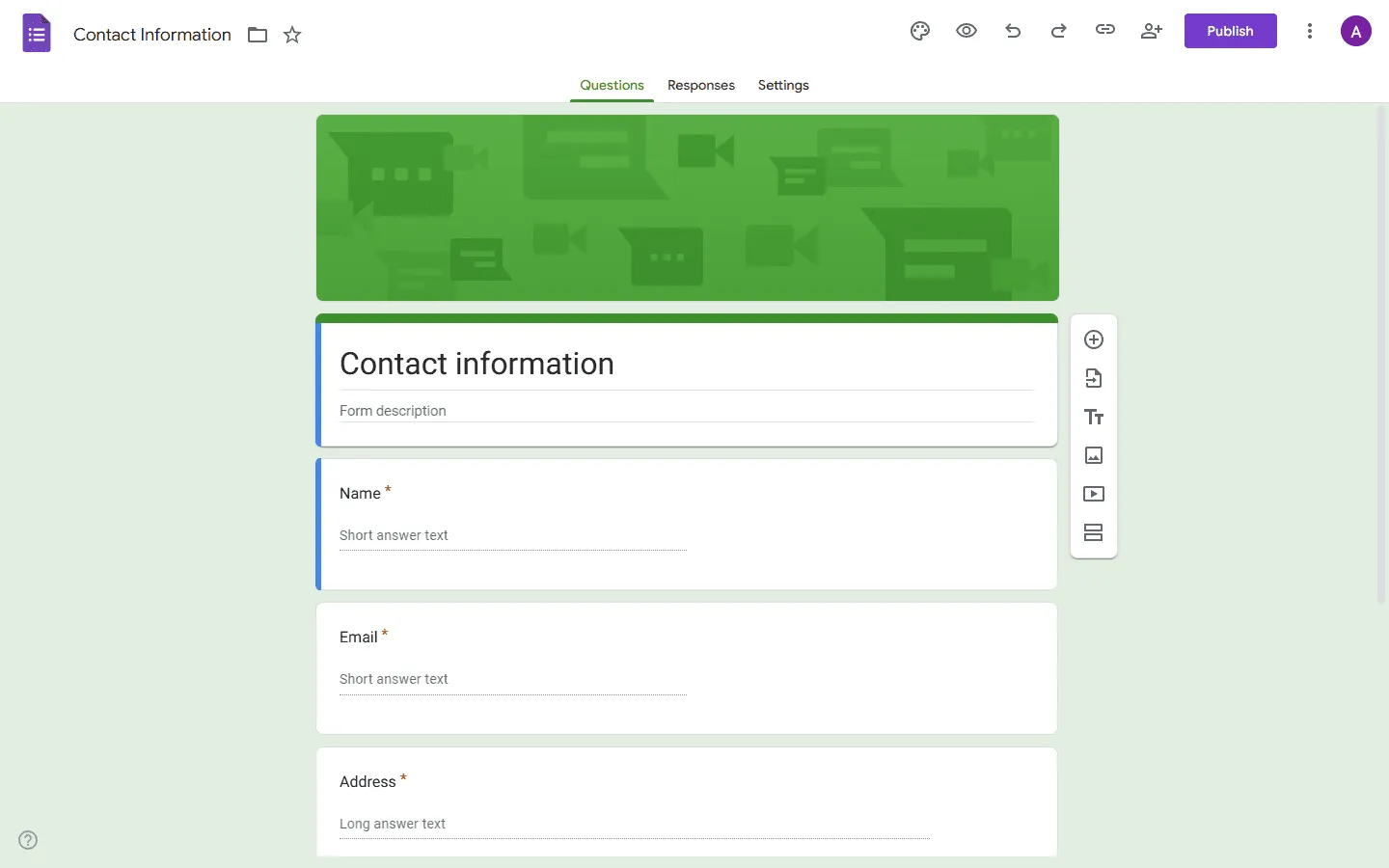 Google Forms is part of Google Workspace. It’s built for speed. If you already use Google, you can open it and start collecting responses in minutes. If you have a Google account, you already have full access. There is nothing to install, nothing to sign up for, and no limitations on how many forms you can create or how many responses you can collect.
The editor is simple and card-based. You add questions one at a time and drag to reorder. Responses flow automatically into Google Sheets, which is its most powerful feature. For teams already living in Google Workspace, this direct sync is often the deciding factor.
If you’re weighing Google Forms against other modern tools, our full list of Google Forms alternatives covers the landscape in detail.
What are the advantages of Google Forms?
- Completely free with no response or form limits
- Zero setup, accessible with any Google account
- Automatic response sync to Google Sheets
- Real-time collaboration with anyone on your team
- Works well for quizzes with built-in grading mode
What are the disadvantages of Google Forms?
- Limited branding and design control compared with modern form builders
- You can customize the basics, but the overall look still feels unmistakably like Google Forms
- Logic is limited to section-based branching (no field-level show/hide)
- No payment collection
- No calculations or answer piping
- Poor fit for public-facing or branded forms
Tally vs Google Forms: Detailed comparison
Pricing
Both tools are free, but they use that free tier very differently.
Tally pricing
Tally’s free plan is one of the most generous in the industry:
- Unlimited forms
- Unlimited responses
- Conditional logic, calculations, and answer piping
- Payment collection (with a 5% commission)
- File uploads
You only need the Pro plan ($29/month) if you want:
- Custom domain for your forms (forms.yourdomain.com)
- No Tally branding
- Team workspaces with multiple collaborators
- 0% payment commission
Google Forms pricing
Google Forms is completely free. No paid plan, no response limits, no feature tiers. The only caveat is that uploaded files count toward your Google Drive storage (15 GB for personal accounts).
For business users, Google Forms is included in any Google Workspace subscription, which starts at $6/user/month for companies already invested in the Google ecosystem.
The verdict: Both tools offer unlimited forms and responses for free, which is rarely the case in this industry. The real difference is what you get on top. Tally includes logic, payments, and calculated fields for free. Google Forms charges nothing for anything, but also offers nothing beyond basic data collection.
Editor and building experience
The way you build in these two tools is fundamentally different.
Tally: The Notion-style editor
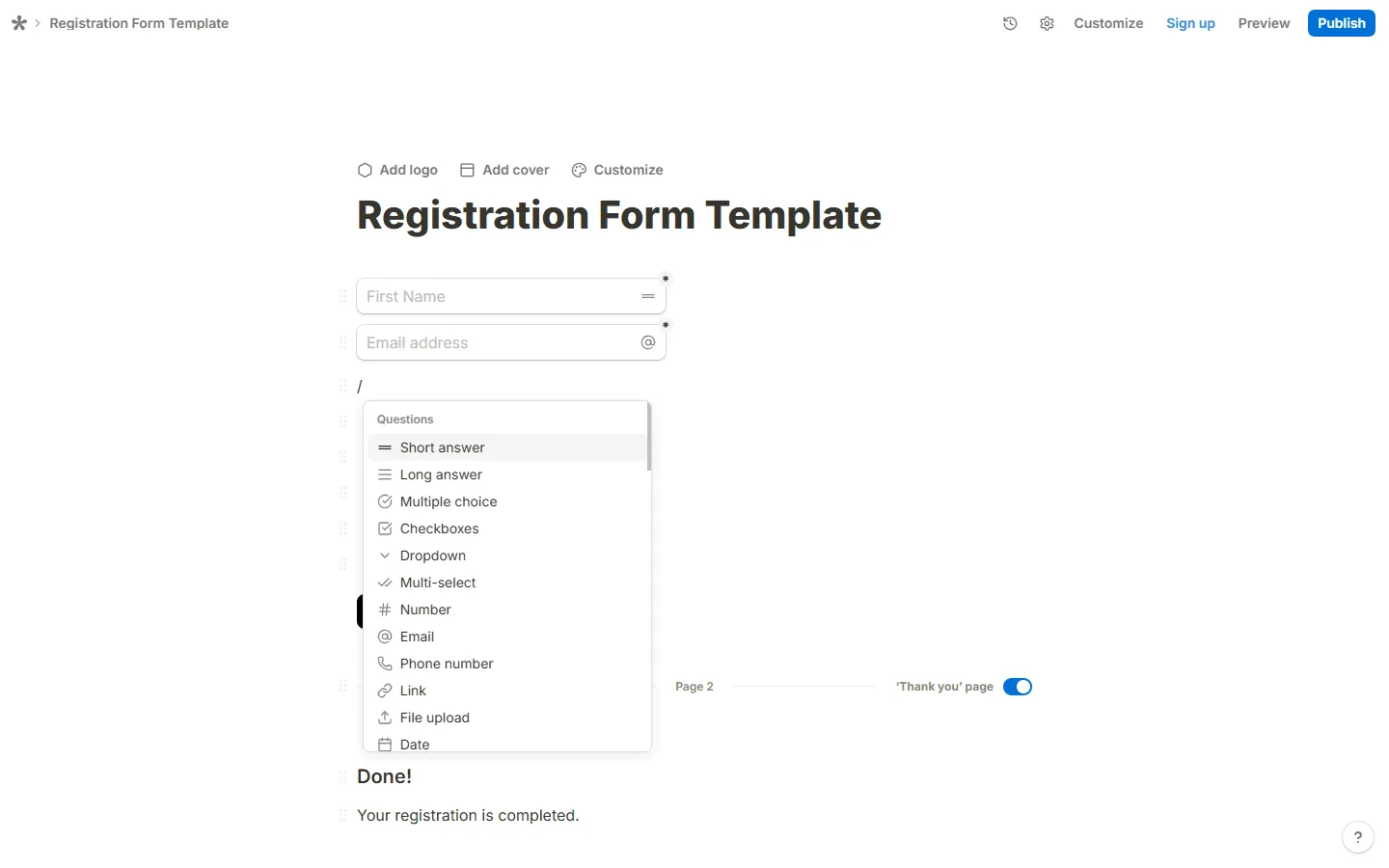
If you have used Notion, Tally will feel immediately familiar. You open a blank white page and start typing. Hit / and a menu appears with question types, blocks, payment fields, and section breaks. You never have to click into a sidebar or open a settings panel just to add a new question.
This makes Tally unusually fast for long or complex forms. You can build a multi-step form with conditional logic in minutes without breaking your writing flow. The tradeoff is discovery: because there is no persistent sidebar showing your options, new users sometimes miss features until they explore the slash menu.
Google Forms: The card-based editor
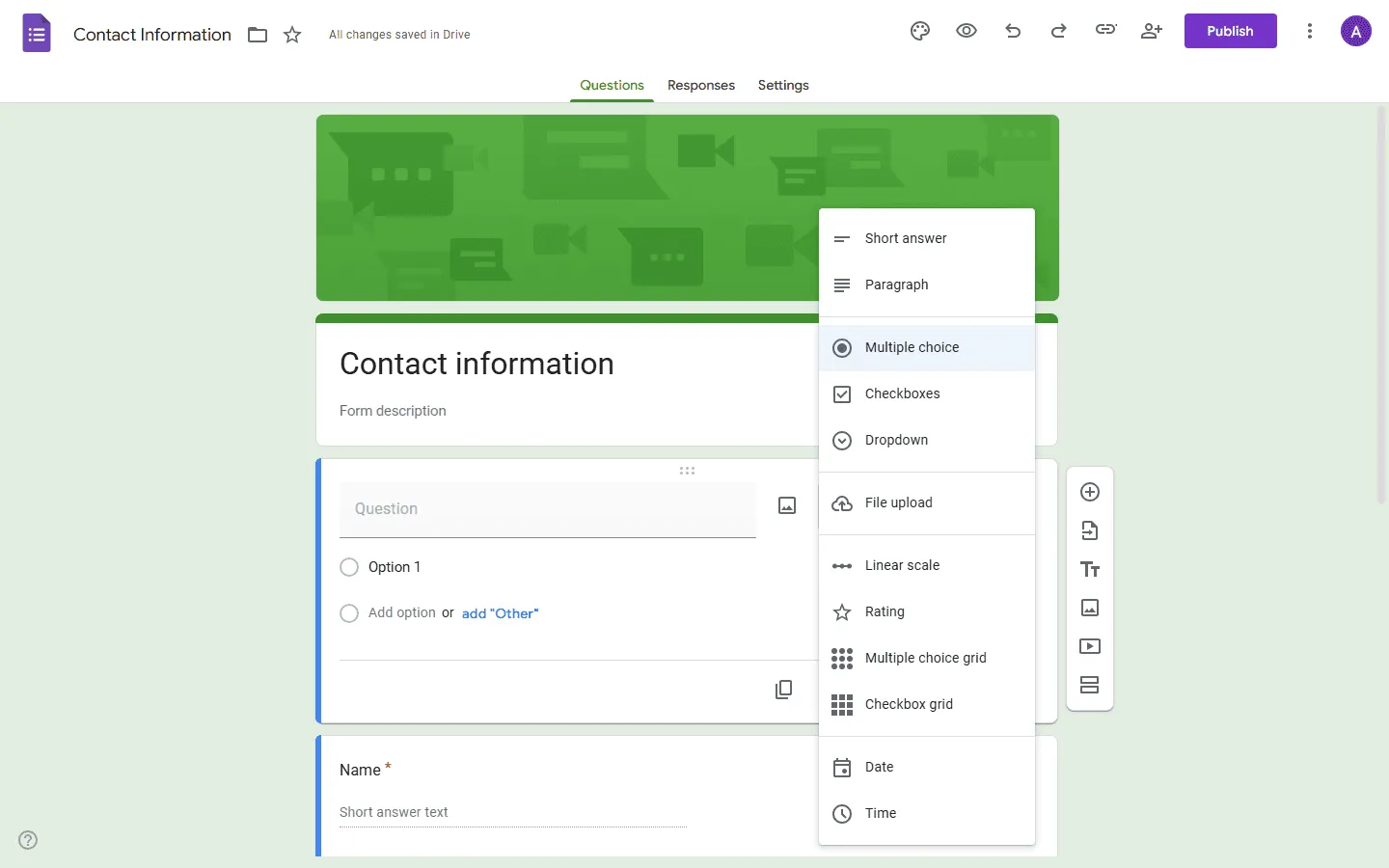
Google Forms takes the opposite approach. You click a button to add a question, choose a question type from a dropdown, and fill it in. The interface shows you everything it can do upfront: there is no hidden menu to discover.
It is arguably faster to learn because there is almost nothing to learn. The tradeoff is speed and power. You can’t build forms by just typing, and the limited feature set means there is a ceiling to what you can do.
The verdict: Tally is faster for people comfortable with keyboard-first tools. Google Forms is more beginner-friendly because everything is visible and explicit.
Design and visual appearance
This is where the gap between the two tools becomes obvious.
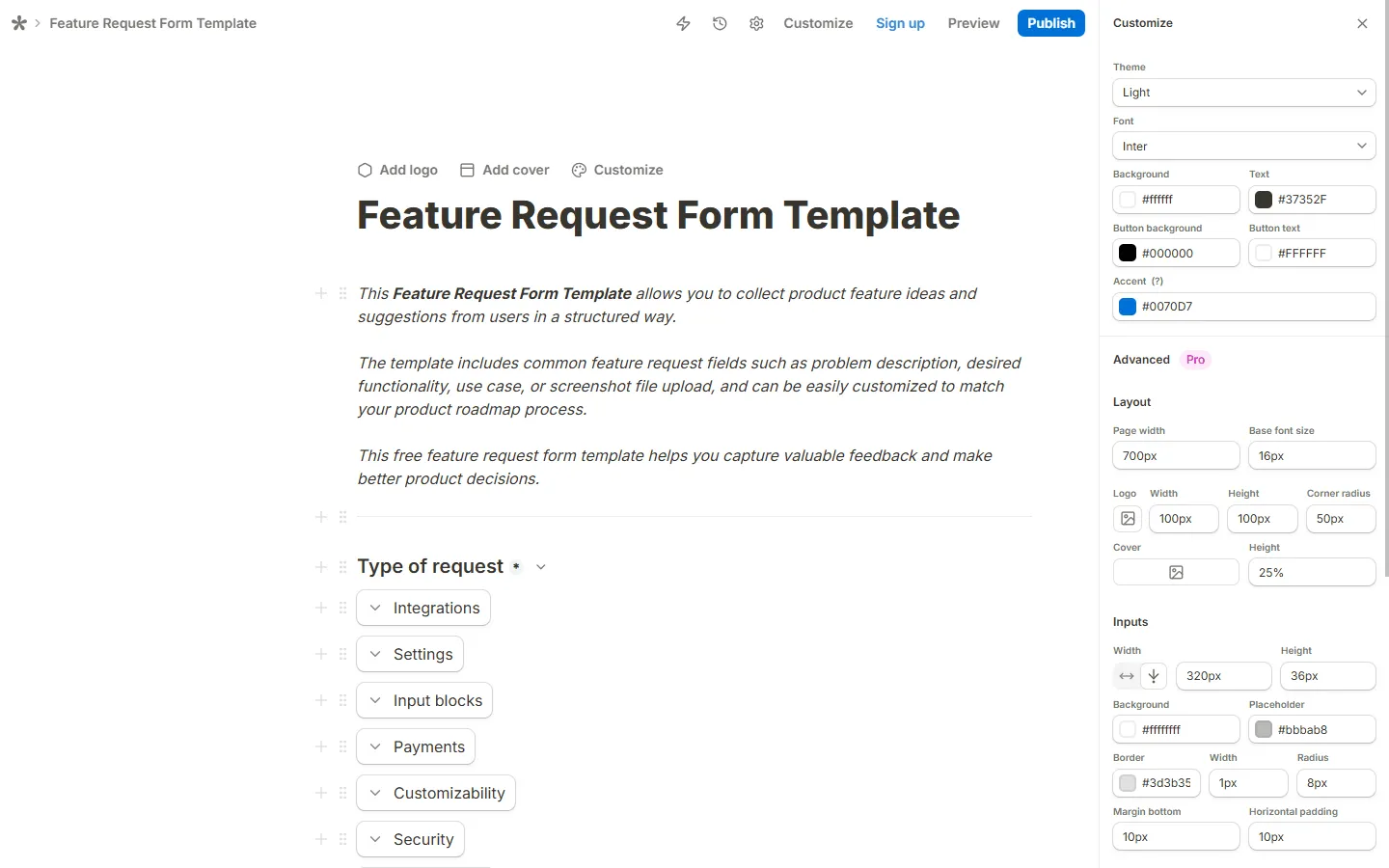
Tally produces clean, polished forms by default and gives you noticeably more visual control than Google Forms. You can customize colors, fonts, logos, cover images, and overall styling much more freely, and Tally also supports layouts that go beyond the rigid single-path structure people usually associate with basic form builders.
That said, it still is not a fully freeform design tool. If you want deeper visual control over layout, spacing, inputs, buttons, or custom CSS, those more advanced customization options sit on Tally’s paid plans.
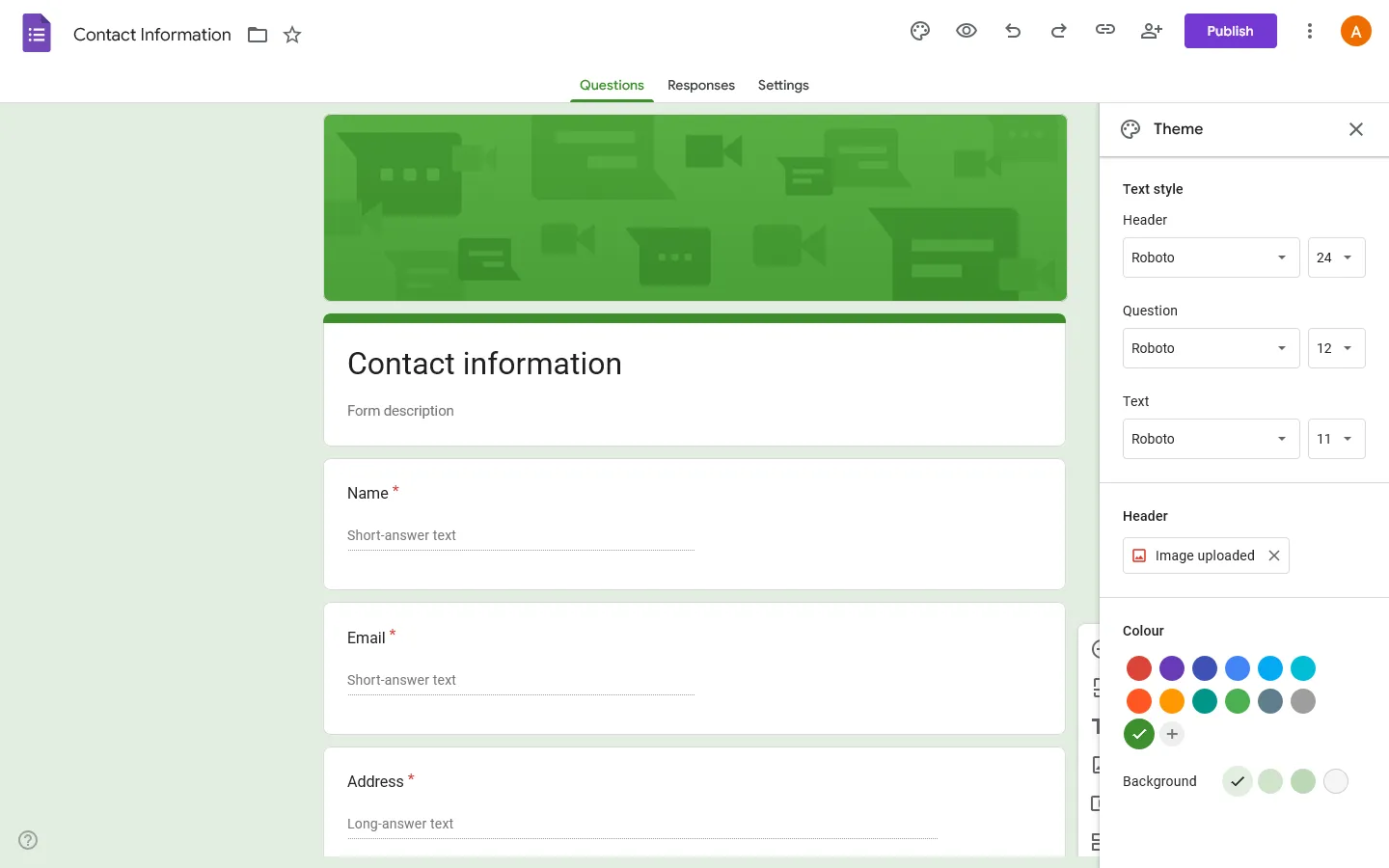
Google Forms is locked to Google’s visual style. You can upload a header image (and the tool will auto-generate a matching color palette), but beyond that, the design is fixed. Fonts, spacing, field sizes, and form structure are all predetermined. Every Google Form looks like a Google Form, which can feel dated or unprofessional for anything client-facing.
The verdict: Tally wins clearly on design. The default output looks modern and intentional. Google Forms is functional but generic.
Conditional logic and advanced features
If your form needs to react to answers, this comparison matters a lot.
Google Forms logic
Google Forms supports “Go to section based on answer” logic. You can route respondents to a different section depending on what they select. For example: if someone answers “Yes” to a question, they go to Section 2; if “No,” they skip to Section 4.
This works for basic decision trees, but it has hard limits:
- You cannot show or hide individual fields on the same page
- You cannot do math or calculations
- You cannot pipe an earlier answer into a later question’s text
Tally logic
Tally gives you considerably more power. You can show or hide individual fields based on previous answers, not just jump between pages. This creates a much smoother experience where the form feels like it is adapting in real time.
Beyond branching, Tally supports:
- Calculations: Build a price calculator, score a quiz, or sum up values as respondents work through the form
- Answer piping: Reference a previous answer in a later question (e.g., “Thanks, Sarah. What is your main challenge?”)
- Hidden fields: Pass data via URL into the form without asking respondents to re-enter it
The verdict: If you need real logic, calculations, or any kind of personalization, Tally is in a different category. Google Forms covers simple linear surveys but hits a wall quickly once logic requirements grow.
Integrations and data handling
Google Forms has one killer integration: Google Sheets. Responses appear there in real time, automatically, with zero setup. If your team lives in Sheets, this is genuinely hard to match. For connections to other tools, you typically need Zapier or a third-party connector.
Tally connects to Google Sheets as well (via its native integration), but it also connects natively to Notion, Airtable, Slack, and Webhooks. For teams that organize their work in Notion specifically, Tally’s direct database integration is a significant advantage.
The verdict: Google Forms wins for pure Sheets integration, nothing connects more directly. Tally is more flexible if your workflow extends beyond Google’s ecosystem.
Team collaboration
Google Forms treats collaboration the same way Google Docs does. Multiple people can edit the same form simultaneously, share access using Google’s standard permissions system, and there are no seat limits or extra costs. If your organization uses Google Workspace, everyone already has access.
Tally supports collaboration through workspaces, but this is a Pro-only feature. On the free plan, you can share forms but not co-edit them with teammates. For solo creators and freelancers this is rarely an issue; for small teams it may be a deciding factor.
The verdict: Google Forms is better for collaborative teams that want everyone to have editing access without paying for it. Tally’s collaboration requires upgrading.
Common use cases: When to use which?
Use Tally for:
- Client intake forms and lead capture (where design and impression matter)
- Waitlist signups and product launch forms
- Order forms with payment collection
- Quizzes with scoring and calculated results
- Multi-step applications with conditional paths
Use Google Forms for:
- Internal team polls and quick feedback surveys
- Classroom quizzes with automatic grading
- Event RSVPs for internal meetings or company events
- Any form where the audience is internal and design doesn’t matter
- Data collection that needs to land directly in Google Sheets
Tally and Google Forms alternatives
If you are comparing Tally and Google Forms and neither feels exactly right, you are usually stuck between the same tradeoff: Google Forms is free and simple but looks generic; Tally is more polished and capable but still limits your design freedom.
For a fuller view of the market, our guides on Tally alternatives and Google Forms alternatives cover the tools people most commonly switch to from each.
One option that sits between these two is FormGrid.
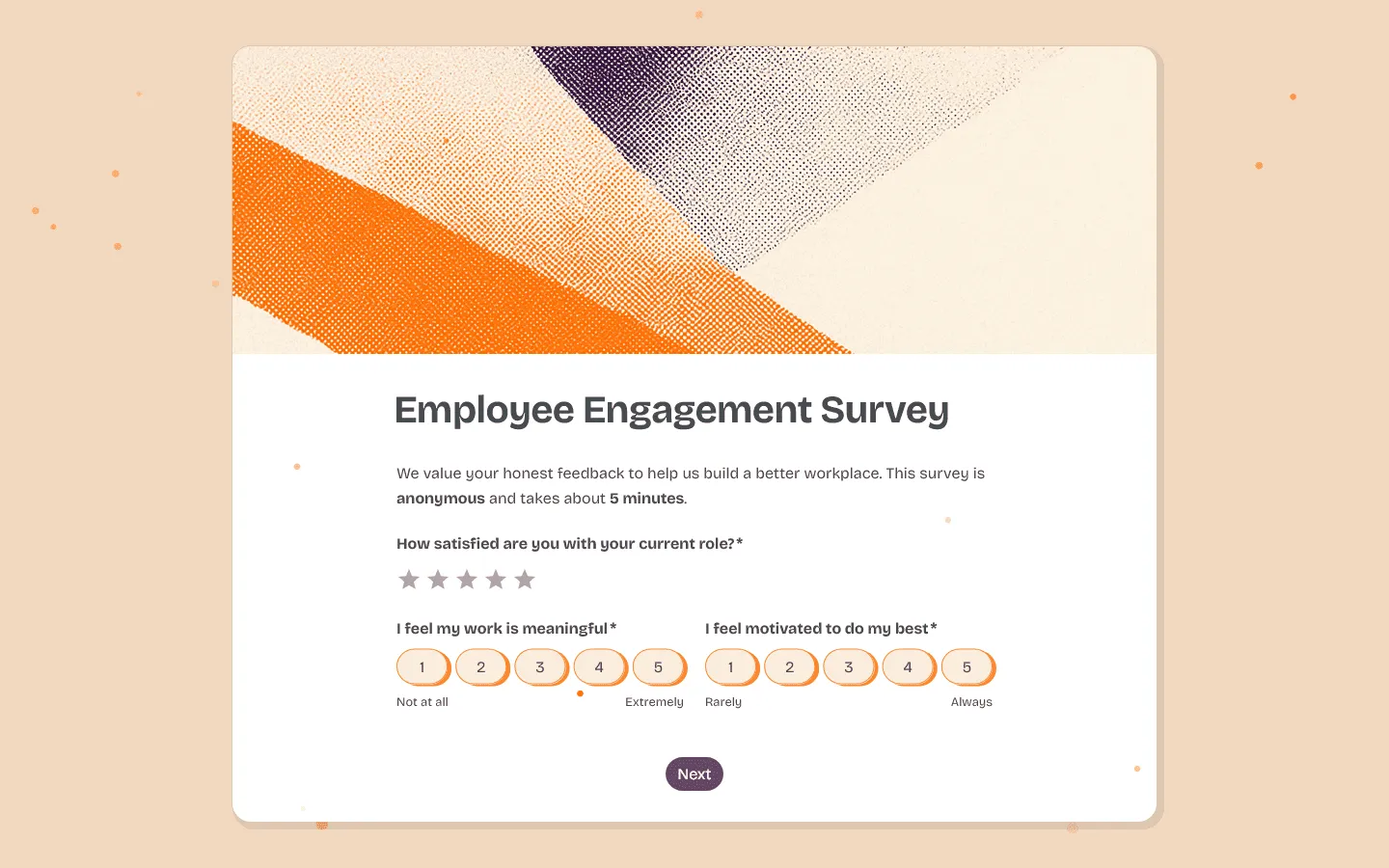
FormGrid uses the same doc-style editor as Tally, so the building experience feels familiar. But it adds considerably more visual control: you can change layouts, adjust spacing, customize typography, and design forms that feel more like branded pages than standard surveys. It also includes an AI generator that lets you describe what you need and creates a full custom form for you in seconds, for free.
Like both Tally and Google Forms, FormGrid is free to use with unlimited forms and responses. It is a practical alternative for anyone who likes Tally’s editor but wants more visual personality, or who finds Google Forms too limiting.
For a closer look at how FormGrid compares to both tools, read our full FormGrid vs Google Forms and FormGrid vs Tally comparisons.
Conclusion: Should you choose Tally or Google Forms?
Go with Tally if…
- Your form is public-facing or represents your brand in any way
- You need conditional logic, calculations, or payment collection
- You work in Notion and want responses to flow directly into a database
- You want a polished, modern form without paying for a premium tool
Tally is the smarter choice for most people who want more than a utility form. The free plan is genuinely capable, the editor is pleasant to work in, and the output looks professional without any extra effort.
Go with Google Forms if…
- You live in Google Workspace and need direct Sheets integration
- You want real-time team editing with no seat costs
- The form is internal and design doesn’t matter
- Speed and simplicity are the only priorities
Google Forms remains the default for a reason: it is near-instant to use and genuinely capable for simple data collection. If the audience is internal and the goal is just answers in a spreadsheet, it is hard to justify switching.
Go with FormGrid if…
- You want the fast, text-based editor of Tally with more design flexibility
- Your forms are public-facing and you want them to feel distinctly branded
- You want to generate a starting point with AI rather than building from scratch
- You want free, unlimited access without any usage anxiety
FormGrid makes the most sense when you are somewhere between Tally and a premium design tool. You get the approachable editor and generous free tier, plus the design control that Tally’s single-column layout doesn’t give you.
Tally vs Google Forms: Common questions
Is Tally better than Google Forms?
Usually, yes. Tally gives you a better-looking form, more flexible logic, and built-in payments, while Google Forms is much more bare-bones. Google Forms is better for internal teams that are already in the Google ecosystem.
Does Tally have a free plan?
Yes. Tally’s free plan includes unlimited forms, unlimited responses, conditional logic, calculations, and payment collection (with a 5% transaction fee). The Pro plan ($29/month) adds custom domains, branding removal, and team workspaces. The Business plan ($89/month) covers email verification and automatic data deletion for teams with stricter compliance needs.
Can Google Forms collect payments?
No. Google Forms does not support payment collection natively. You would need to use a third-party tool or workaround. Tally handles payments on the free plan via Stripe, with a 5% commission.
Is Google Forms completely free?
Yes. Google Forms is free for anyone with a Google account. There are no paid tiers, no response limits, and no hidden costs. Uploaded files count toward your Google Drive storage quota.