SurveyMonkey vs Google Forms: Which tool is better? (2026)
The choice between SurveyMonkey vs Google Forms usually comes down to one question: do you need advanced survey features badly enough to pay for them?
Google Forms works for most people. It’s free, quick to set up, and does the job for everyday forms. SurveyMonkey goes further, but the free plan is tight and the paid plans add up quickly.
This guide compares Google Forms and SurveyMonkey across pricing, question types, design, logic, analytics, and ease of use.
SurveyMonkey vs Google Forms: Summary & feature comparison
The biggest difference between SurveyMonkey and Google Forms is depth. Google Forms is a simple free tool for everyday forms and surveys. SurveyMonkey is a more advanced survey platform with better analytics, broader distribution options, and more powerful paid features.
If you want the short version, here is the high-level comparison:
| Feature | SurveyMonkey | Google Forms |
|---|---|---|
| Capterra rating | 4.6/5 (10,000+ reviews) | 4.7/5 (11,000+ reviews) |
| Best for | Research, customer feedback, analytics | Quick internal surveys, simple data collection |
| Free plan | Very limited (10 questions, 25 responses) | Fully featured, unlimited responses |
| Starting price | $39/month | Free |
| Question types | 25+ (most require a paid plan) | 11 (all free) |
| Design | Themes and custom branding (paid) | Basic colors and header image |
| Logic | Advanced (paid only) | Basic section branching (free) |
| Analytics | Advanced charts, filters, exports | Basic pie charts and graphs |
| Templates | 400+ (most require a paid plan) | 17 (all free) |
| Google Sheets sync | No | Yes, native |
Bottom line:
- Choose Google Forms if you just want something simple that works. You can set it up in minutes, it’s free, and everything feeds straight into Sheets. Logic and all question types are included for free.
- Choose SurveyMonkey if you run surveys as a regular part of your workflow and need professional templates, detailed analytics, and distribution tools. Just be aware the free plan only lets you see 25 responses. In practice, you’ll need a paid plan pretty quickly.
If you want something between the two (more control over design than Google Forms, without SurveyMonkey’s pricing), FormGrid offers a modern editor, AI form generation, and unlimited responses for free.
What is Google Forms?
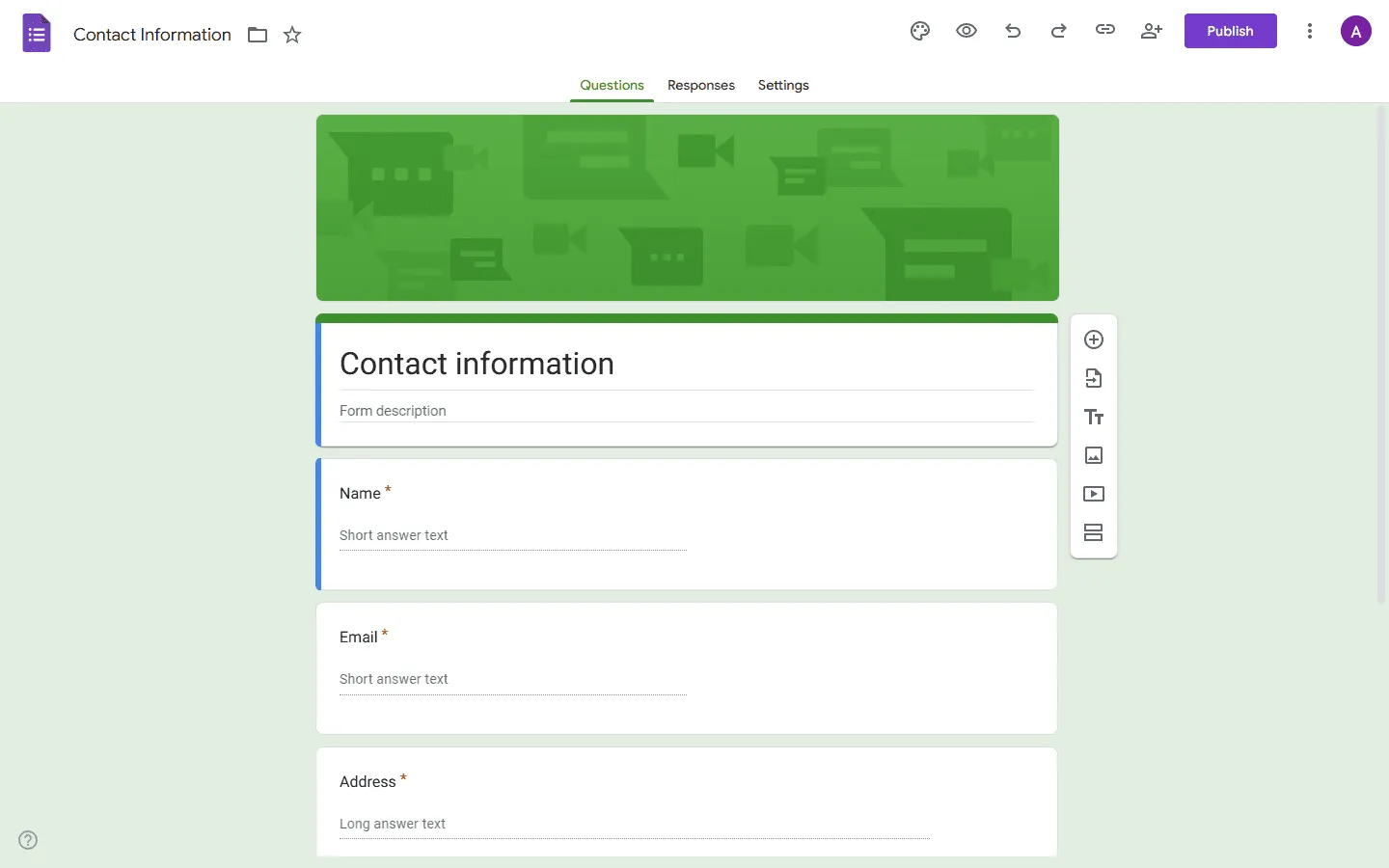
Google Forms is part of Google Workspace. It is designed for speed and accessibility, not depth. You open it, add questions, share the link, and responses appear in Google Sheets automatically.
There is no account setup beyond your Google account, no pricing tiers, and no response limits. It covers 11 question types including text fields, multiple choice, checkboxes, dropdowns, file uploads, linear scales, and grids. For basic branching, you can set rules that send respondents to different sections based on their answers.
If you only need a quick, functional survey and do not care much about how it looks, Google Forms is hard to argue against. If you are exploring tools with more design control, our Google Forms alternatives guide covers the main options.
Advantages of Google Forms
- Completely free, with no limits on forms or responses
- Instant access with any Google account, no sign-up required
- Responses sync to Google Sheets automatically in real time
- Multiple people can edit the same form at once, just like a Google Doc
- Works for quizzes with automatic grading and point values
Disadvantages of Google Forms
- Design is fixed to a single column with a small set of color and font options
- Logic is limited to skip-to-section branching with no calculations or field-level conditions
- No payments, approvals, or document generation built in
- Reporting is basic: pie charts and bar graphs, nothing deeper
- Only 17 templates, all quite generic
What is SurveyMonkey?
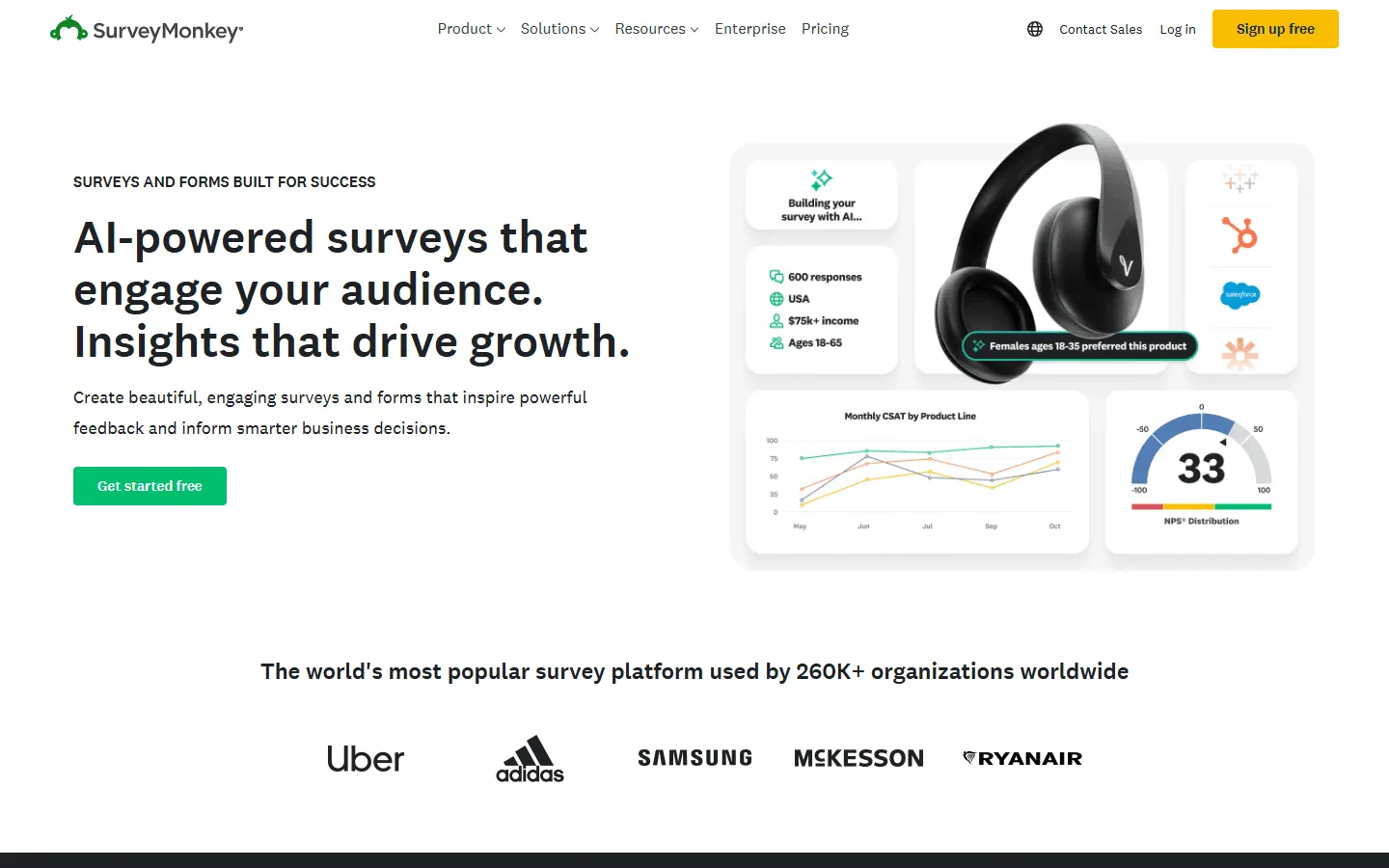
SurveyMonkey has been around since 1999. It is one of the oldest online survey tools and has spent that time building features for teams that take surveys seriously: research teams, HR departments, marketing researchers, and customer experience programs.
The platform has over 400 templates, 25+ question types, multiple distribution channels, and a detailed analytics dashboard. There is an AI survey builder that generates surveys from a plain-language prompt, and a separate AI analysis tool that can identify sentiment patterns and flag low-quality responses in large datasets.
The problem is the pricing. SurveyMonkey’s free plan is a preview at best: 10 questions per survey and only 25 viewable responses. For any real use case, a paid plan is essentially required. Our SurveyMonkey alternatives guide covers other research-focused tools worth comparing if you are not sold on the price.
Advantages of SurveyMonkey
- Large template library covering HR, market research, healthcare, education, and more
- Detailed analytics with response filtering, cross-tabulation, and sentiment analysis
- Multiple distribution methods including email, link, embed, social media, and kiosk mode (plan dependent)
- AI survey builder speeds up creation from scratch
- Native integrations with Salesforce, HubSpot, Mailchimp, and Google Sheets
Disadvantages of SurveyMonkey
- Free plan is severely limited: 10 questions per survey and only 25 viewable responses
- Paid plans are expensive, especially for teams (minimum 3 users on team plans)
- The builder has a lot of options and can feel cluttered compared to newer tools
- Survey designs look functional but do not feel particularly modern
- Logic, custom branding, and most advanced features require a paid plan
Pricing
For most people, pricing is the deciding factor in this comparison. Google Forms is genuinely free. SurveyMonkey is only free in a very limited sense, and most useful features require a paid plan.
Google Forms pricing
Google Forms is completely free. No paid tiers, no response limits, no feature restrictions. File uploads go against your Google Drive storage quota (15 GB for personal accounts), but the form data itself has no limits.
SurveyMonkey pricing
SurveyMonkey has a free Basic plan, but it is intentionally minimal. The 25-response cap makes it unsuitable for anything beyond testing how the tool works.
- Free (Basic): 10 questions/survey, 25 viewable responses, basic question types
- Standard Monthly ($99/month): 1,000 responses/month, more question types, custom themes
- Advantage Annual ($432/year): 15,000 responses/year, A/B testing, recurring surveys, payments
- Premier Annual ($1,188/year): 40,000 responses/year, no SurveyMonkey branding, advanced logic
- Team Advantage (around $30/user/month, 3 users minimum): 50,000 responses/year, shared survey access
- Team Premier (around $75/user/month): 100,000 responses/year, advanced reporting
- Enterprise: Custom limits, SSO, HIPAA compliance, dedicated admin controls
The jump from free to the cheapest individual plan is steep. If you pay annually, the Advantage plan works out to $36/month. If you need a team plan with a minimum of 3 users, you are looking at at least $90/month before you start.
For most individuals and small teams, the cost is hard to justify unless surveys are genuinely central to how you work.
Question types
Both tools cover the standard question types, but where Google Forms gives you everything for free, SurveyMonkey gates many of its types behind paid plans.
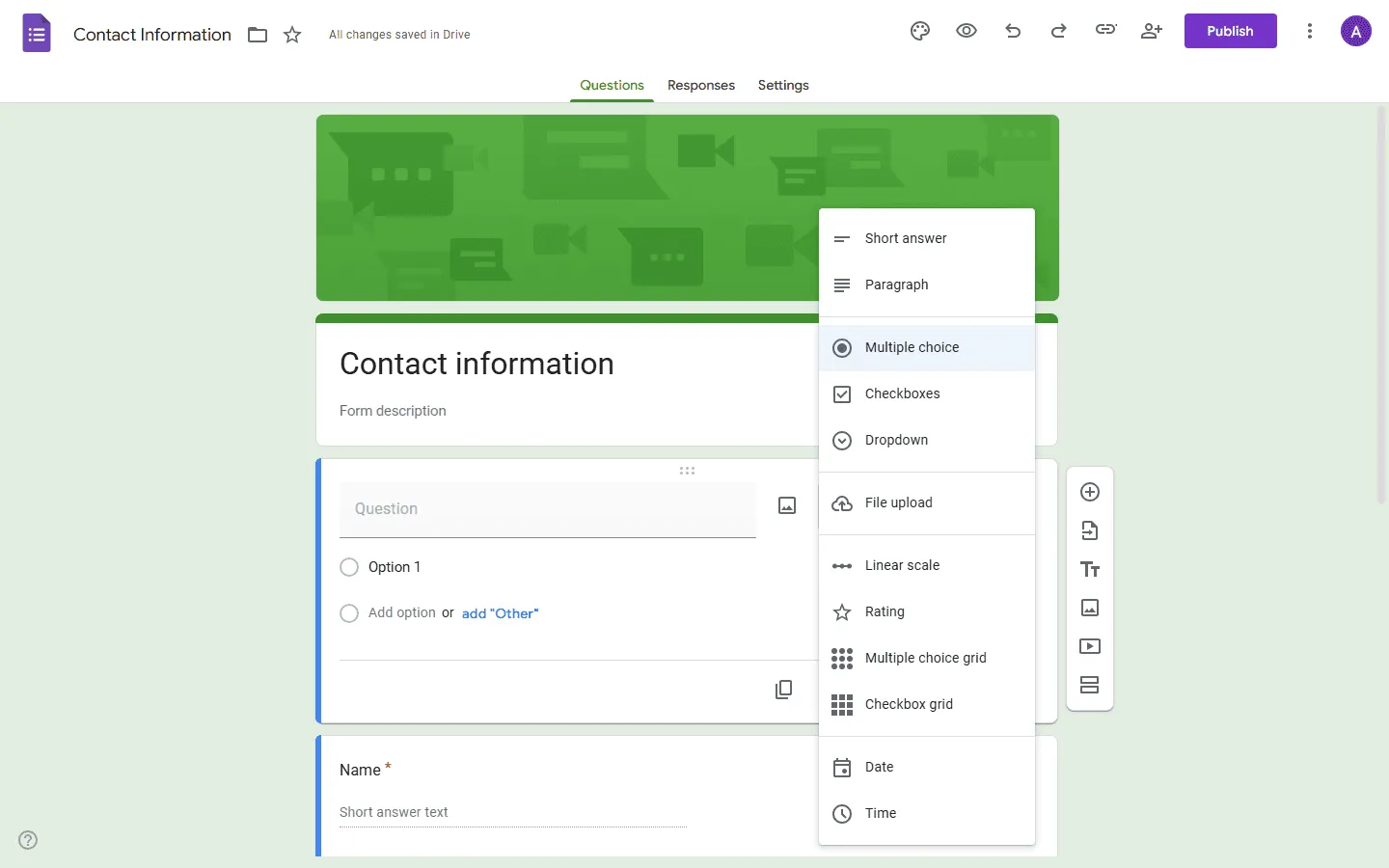
Google Forms includes 11 question types at no cost:
- Short answer and paragraph text
- Multiple choice, checkboxes, dropdown
- Linear scale
- Multiple choice grid and checkbox grid
- Date and time
- File upload
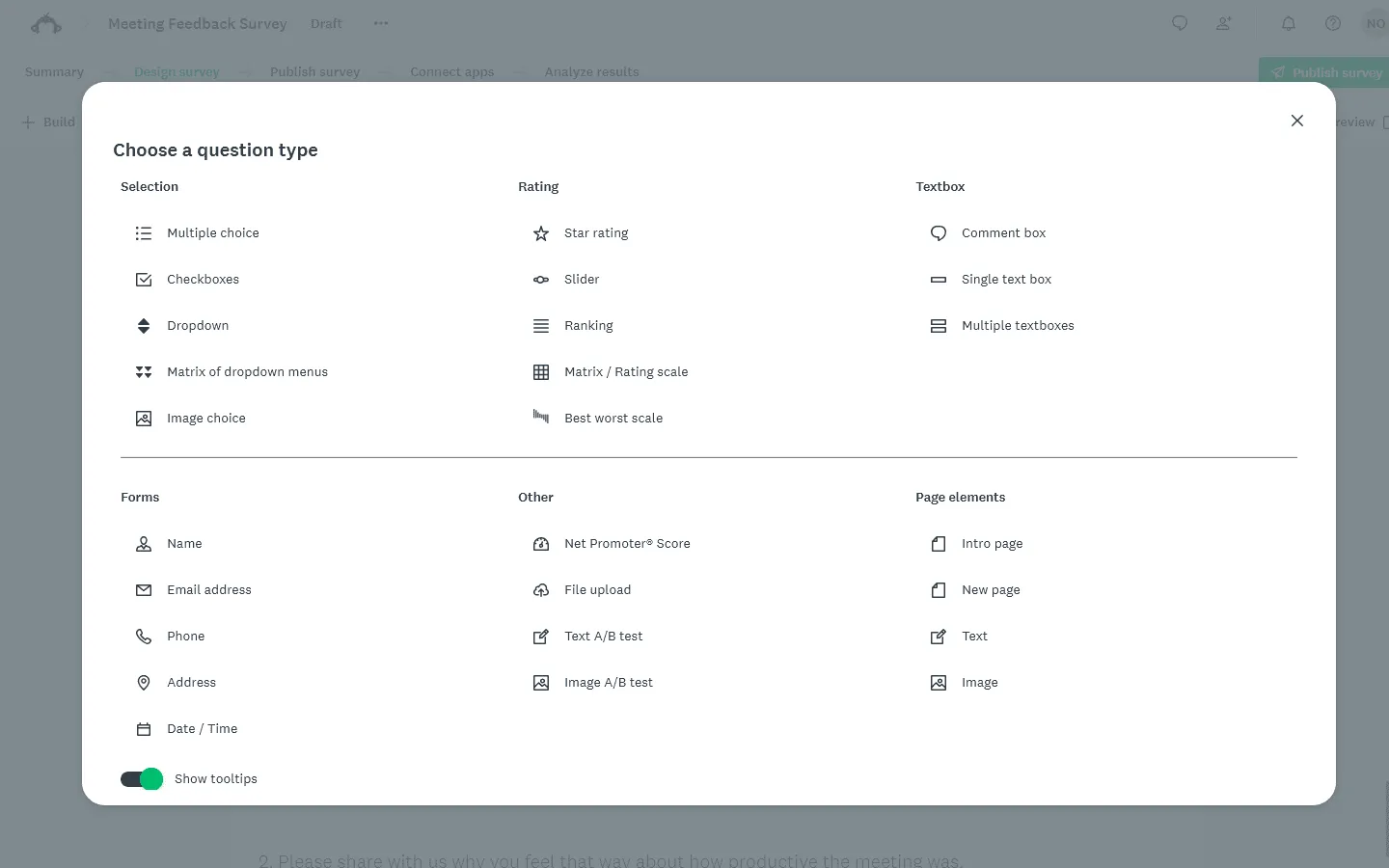
SurveyMonkey has more variety overall, but the free tier is narrow. Free users get multiple choice, checkboxes, a single text box, dropout, NPS, and date/time. A paid plan unlocks matrix grids, star ratings, file uploads, sliders, click map questions, and A/B testing question variants.
Important detail: Google Forms includes grids and file uploads for free. SurveyMonkey does not. So for free users specifically, Google Forms actually offers more usable question variety.
Design and customization
Neither tool is great here. Google Forms is quite limited and SurveyMonkey only becomes reasonably flexible on paid plans.
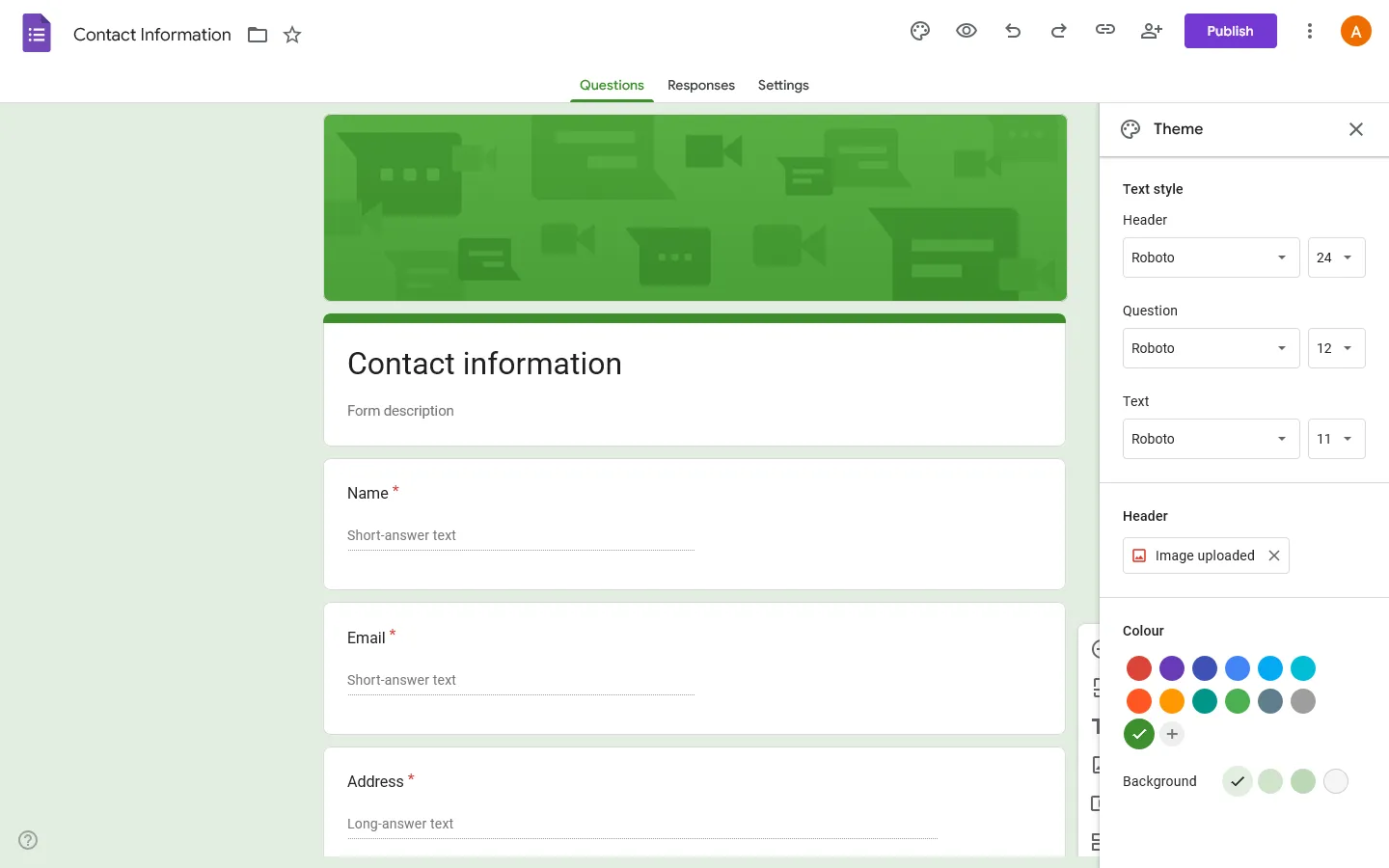
Google Forms lets you pick a header image, a primary color, and a font from a short list. The layout is always a single vertical column. Every Google Form looks the same, and you can’t really change that.
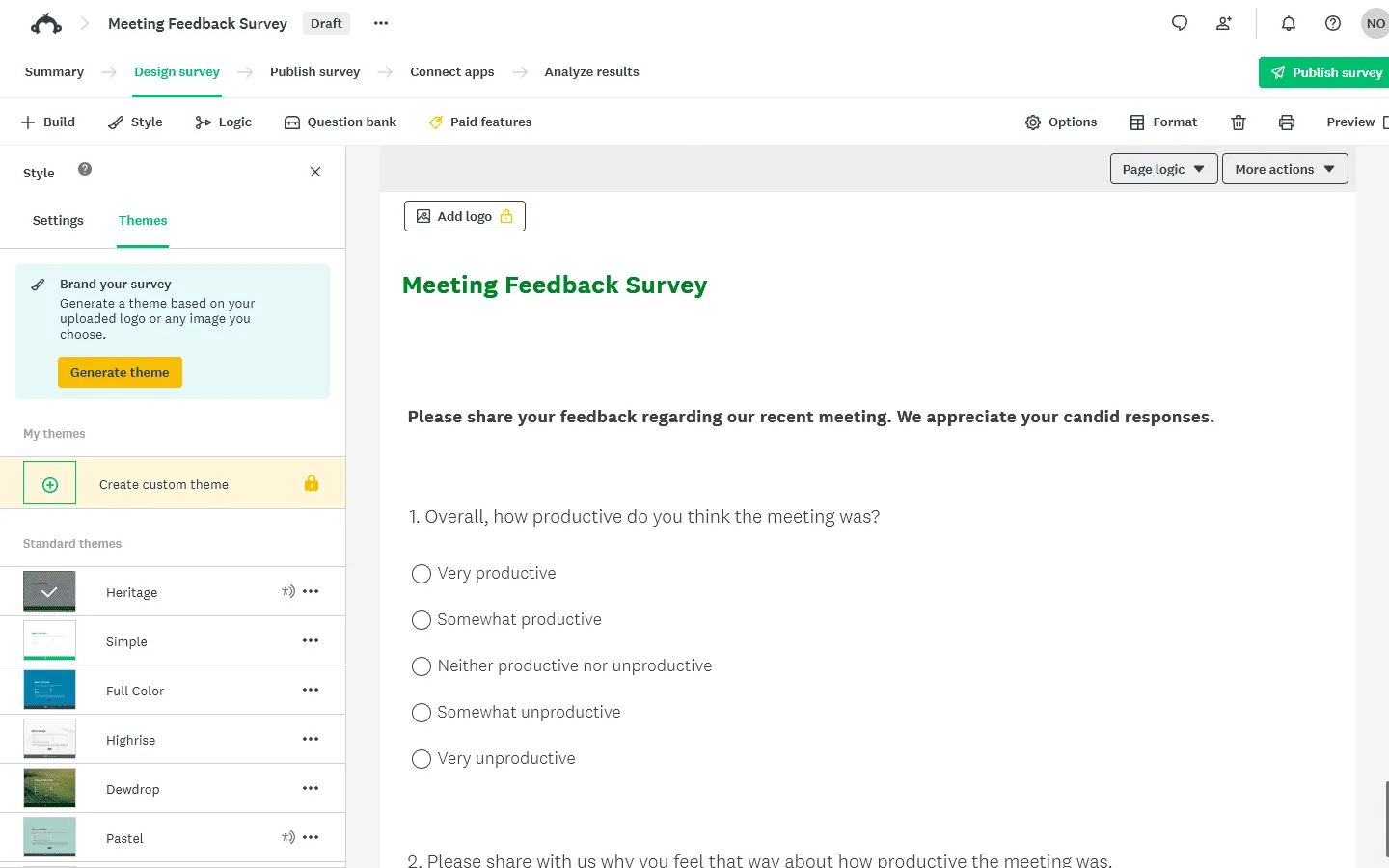
On SurveyMonkey’s free plan, you cannot even change the background color or upload a header. On paid plans, you get 20 built-in themes, logo support, font customization, and the ability to create a saved brand theme you can reuse across surveys. It is more flexible than Google Forms, but the designs still lean toward functional over polished. Compared to newer tools like Typeform or Paperform, the visual output from SurveyMonkey feels dated.
If your survey needs to look professional and on-brand, SurveyMonkey on a paid plan will get you there. Google Forms will not.
Logic and branching
Google Forms supports skip logic at the section level. If someone picks a certain answer, they go to a specific section. It works if your survey is simple, but there is no way to show or hide individual questions, no calculations, and no way to build more complex flows.
SurveyMonkey’s paid plans go considerably further. You can skip to different questions or pages based on answers, randomize questions or pages, use custom variables that carry answers forward through the survey, and set rules at either the question or page level. The logic system is not as visual or intuitive as some newer tools, but it is capable of handling sophisticated survey flows.
On SurveyMonkey’s free plan, all logic features are unavailable. So free users are working with a simpler tool than even Google Forms in practice.
Analytics and reporting
This is one of the clearest areas where SurveyMonkey pulls ahead (assuming you’re on a paid plan).
Google Forms gives you a basic summary in the Responses tab with pie charts and bar graphs. You can link to Google Sheets for deeper slicing, filtering, and pivot tables. That is actually useful for power users comfortable in Sheets, but there are no built-in filters, cross-tabulation, trend analysis, or response drop-off data inside the tool itself.
SurveyMonkey has a proper analytics dashboard. You can filter responses by any field, compare results across groups, run sentiment analysis on open-ended responses, and export in multiple formats including CSV, Excel, PDF, and SPSS. The dashboard also shows you response completion rates and where respondents dropped off in the survey. For teams that need to present survey findings to stakeholders or track changes over time, this is genuinely useful.
Distribution and sharing
Google Forms covers the basics: share a link, embed via HTML code, or send to email contacts directly from the tool. One known quirk: if you shorten the survey URL and also require respondents to be logged in, the shortened link does not work for users who are not already signed in. Worth testing before you send.
SurveyMonkey offers more ways to get surveys out. Free users can share a link, embed on a site, and post on social media. Paid users can send surveys by email directly through SurveyMonkey, distribute in kiosk mode (useful for events or in-person research), embed in a mobile app, and buy targeted respondents through SurveyMonkey Audience. That last option, where SurveyMonkey recruits respondents matching your criteria, is something Google Forms cannot come close to matching.
Integrations
Google Forms connects natively with the Google Workspace suite: Sheets, Drive, Docs. Getting data into anything else usually requires Zapier or Make.
SurveyMonkey has direct integrations with Salesforce, HubSpot, Mailchimp, monday.com, Slack, and Google Sheets, among others. Some are native, some need Zapier. If survey responses need to trigger actions in a CRM or notify a team automatically, SurveyMonkey is easier to wire up.
Ease of use
Google Forms is about as quick to start as any tool gets. There is no setup, no configuration, and no learning curve. You add questions from a dropdown menu and share a link. There’s basically no learning curve.
SurveyMonkey takes longer to get comfortable with. The sidebar has a lot of options, questions have multiple configuration settings, and the UI can feel cluttered when you are working through a longer survey. One specific frustration: you have to fully configure each question before adding the next, otherwise the tool throws an error. It is a minor thing, but it interrupts the process of building. Once you are familiar with it, the builder is manageable, but it is not fast.
SurveyMonkey and Google Forms alternatives
If neither tool fits what you need, the gap is usually one of two things: you want more design flexibility than Google Forms offers, or you want more features than SurveyMonkey provides at a reasonable price.
Google Forms is free but visually limited and light on analytics. SurveyMonkey has a strong feature set but costs real money, and the free plan is not usable for anything beyond a quick test.
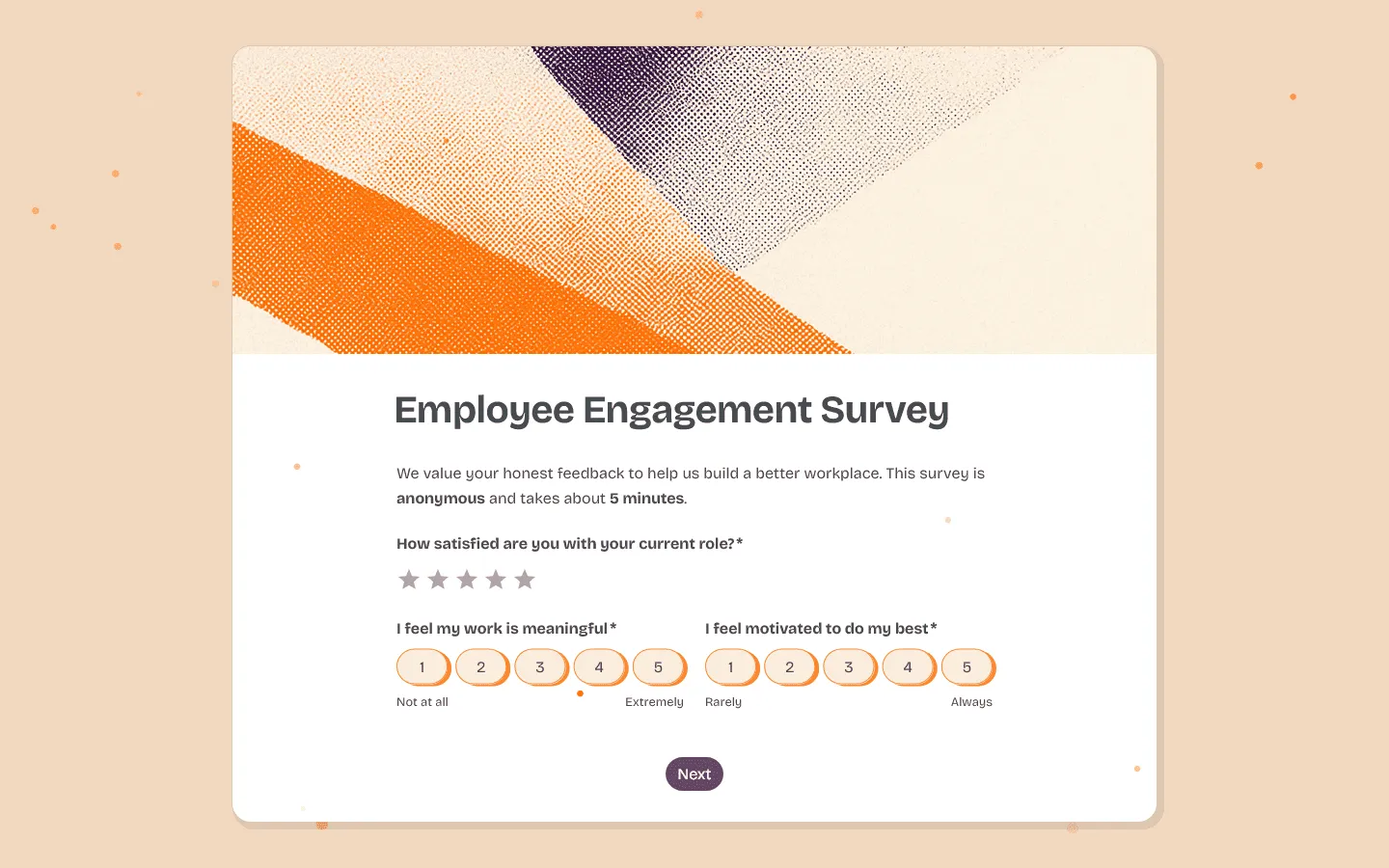
FormGrid sits between them. It is free, has no response limits, and gives you real control over how your surveys look. You can adjust layout, styling, and branding without touching a paid plan. There is also an AI builder that can help you create a complete survey from a short description, which you can then edit and refine.
If you want to explore more options in either direction, our Google Forms alternatives guide covers tools with better design and deeper features, and our SurveyMonkey alternatives guide covers research-focused tools that compete more directly with SurveyMonkey.
SurveyMonkey vs Google Forms: Which should you use?
Choose Google Forms if…
- You want a genuinely free tool with no response cap for standard forms
- You need something quick for internal surveys, event registrations, quizzes, or feedback forms
- You already use Google Workspace and want responses in Google Sheets automatically
- You do not care much about branding, advanced logic, or built-in analytics
Google Forms is the better default for most people. It’s simple, free, and gets the job done.
Choose SurveyMonkey if…
- Surveys are a regular part of how your team works
- You need better analytics, stronger survey logic, or more structured reporting
- You want access to a larger template library and broader distribution options
- You are comfortable paying for the features that make SurveyMonkey worth using
SurveyMonkey makes more sense for research-heavy teams, recurring feedback programs, and businesses that need more than a basic form tool. For occasional use, it’s hard to justify the cost.
Choose FormGrid if…
- You want more visual control than Google Forms
- You want a lower barrier to entry than SurveyMonkey
- You want unlimited responses on a free plan
- You want to generate a survey quickly and still have room to customize the final result
FormGrid is a good fit if you want something more flexible and better-looking than Google Forms without moving into SurveyMonkey’s pricing territory.
FAQ: SurveyMonkey vs Google Forms
Is SurveyMonkey better than Google Forms?
For research and analytics, yes. For simple, free data collection, Google Forms is the better choice. It really comes down to whether you need what SurveyMonkey’s paid plans offer.
Can I use SurveyMonkey for free?
Yes, but with significant limits: 10 questions per survey and only 25 viewable responses. Most real survey projects will hit those limits fast, so a paid plan is usually necessary.
Is SurveyMonkey worth paying for over Google Forms?
It can be, but only if you actually need its stronger analytics, survey logic, and research features. For basic forms and everyday data collection, Google Forms covers a lot without costing anything.
Does Google Forms have a response limit?
No. Google Forms does not cap the number of responses. File uploads count against your Google Drive storage (15 GB on free accounts), but form responses have no limit.
Is Google Forms completely free?
Yes. Every feature including logic, all question types, templates, and collaboration is available for free with any Google account.
Can SurveyMonkey send responses to Google Sheets?
Yes, it is one of the available integrations. It takes a few steps to set up and is not as direct as Google Forms’ built-in Sheets connection, which is automatic.