Jotform vs Microsoft Forms: Which form builder is better? (2026)
Most people comparing Jotform and Microsoft Forms are choosing between convenience and capability. The question is whether Microsoft Forms is enough for what you need, or whether you have already outgrown it.
Microsoft Forms is the obvious option if your team already uses Microsoft 365. It is quick to set up and works well for basic internal surveys, quizzes, and polls. Beyond that, it starts to feel limited pretty fast.
Jotform is built for heavier use cases: payments, approvals, e-signatures, more advanced logic, and integrations outside Microsoft 365. It can do much more, but it is also more expensive and less approachable.
This guide compares Jotform vs Microsoft Forms across pricing, design, features, and real-world use cases so you can make the call faster.
Jotform vs Microsoft Forms: Quick summary & feature comparison
The main difference between Jotform and Microsoft Forms is that Jotform is built for more complex, customer-facing workflows, while Microsoft Forms is built for simple surveys and quizzes inside the Microsoft ecosystem.
If you want the short version, the table below breaks down the key differences across pricing, features, design, and use cases:
| Feature | Jotform | Microsoft Forms |
|---|---|---|
| Capterra rating | 4.7/5 (2,700+ reviews) | 4.6/5 (300+ reviews) |
| Best for | Business workflows, payments, complex forms | Internal surveys, Microsoft 365 users |
| Free plan | 5 forms, 100 responses/month | Included with Microsoft account (limited) |
| Starting price | $34/month | Included in Microsoft 365 |
| Templates | 20,000+ | ~40 basic templates |
| Design | Advanced (CSS, themes, layout control) | Minimal (themes and background colors) |
| Logic | Advanced (show/hide fields, calculations, multi-step) | Basic branching only |
| Payments | Yes (40+ payment processors) | No |
| E-signatures | Yes (Jotform Sign) | No |
| Integrations | 150+ native integrations | Primarily Microsoft 365 ecosystem |
| HIPAA compliance | Yes (Gold and Enterprise plans) | Yes (with Microsoft 365) |
The bottom line:
- Choose Jotform if your forms are part of a business process: collecting payments, signatures, or handling complex workflows with integrations to external tools like Salesforce or HubSpot.
- Choose Microsoft Forms if you already use Microsoft 365 and mainly need internal surveys, quizzes, polls, or simple forms that feed into Excel.
If Microsoft Forms feels too limited but Jotform feels like overkill (or too expensive), you might also want to look at FormGrid. It combines a flexible, modern editor with a generous free plan and no response limits.
What is Jotform?
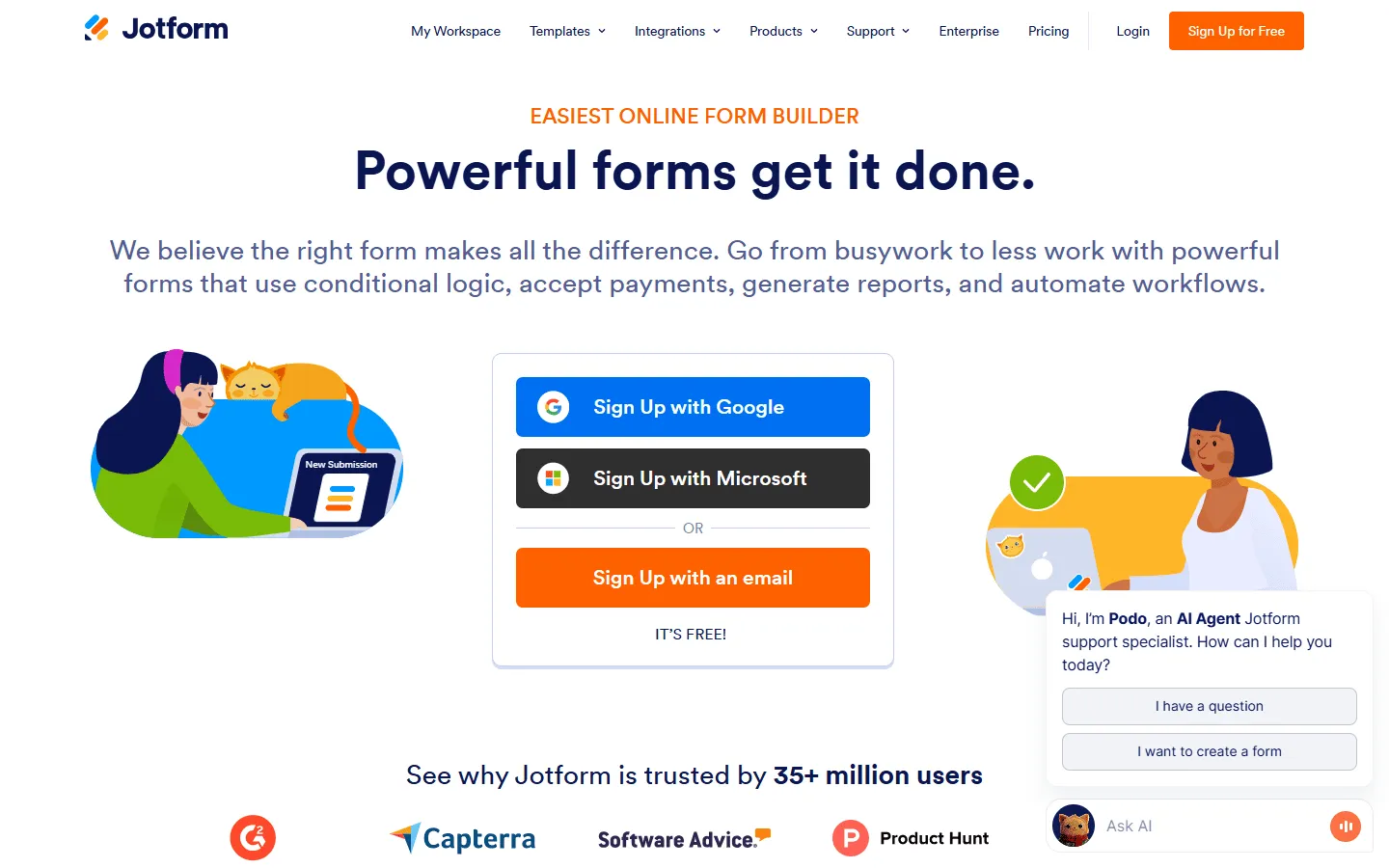 Jotform has been around since 2006 and has grown into one of the most feature-complete form builders on the market. It is a platform that covers payments, e-signatures, PDF generation, approval workflows, and app building, all without writing code.
Its drag-and-drop interface gives you access to a huge library of widgets (product lists, signature pads, appointment pickers) and over 20,000 ready-made templates. If you need a specific form for a specific industry, Jotform almost certainly has a template that is 90% of the way there.
What are the advantages of Jotform?
- Extensive feature set. Payments, signatures, multi-step logic, file uploads, conditional fields. It covers nearly every form use case in one product.
- 20,000+ templates. Finding a starting point for any industry or use case is usually quick.
- 150+ native integrations. Connects directly with Salesforce, HubSpot, Google Sheets, Slack, Dropbox, and many more without needing Zapier.
- HIPAA compliance. Available on higher-tier plans, making it viable for medical and financial use cases.
What are the disadvantages of Jotform?
- It gets expensive quickly. The free plan is limited to just 5 forms and 100 responses/month. Anything beyond basic use pushes you into plans starting at $34/month.
- Feature overload. The sheer number of options can make the interface feel cluttered, especially for simple projects.
- Design can feel dated. Despite customization options, the default themes often look generic compared to newer tools.
What is Microsoft Forms?
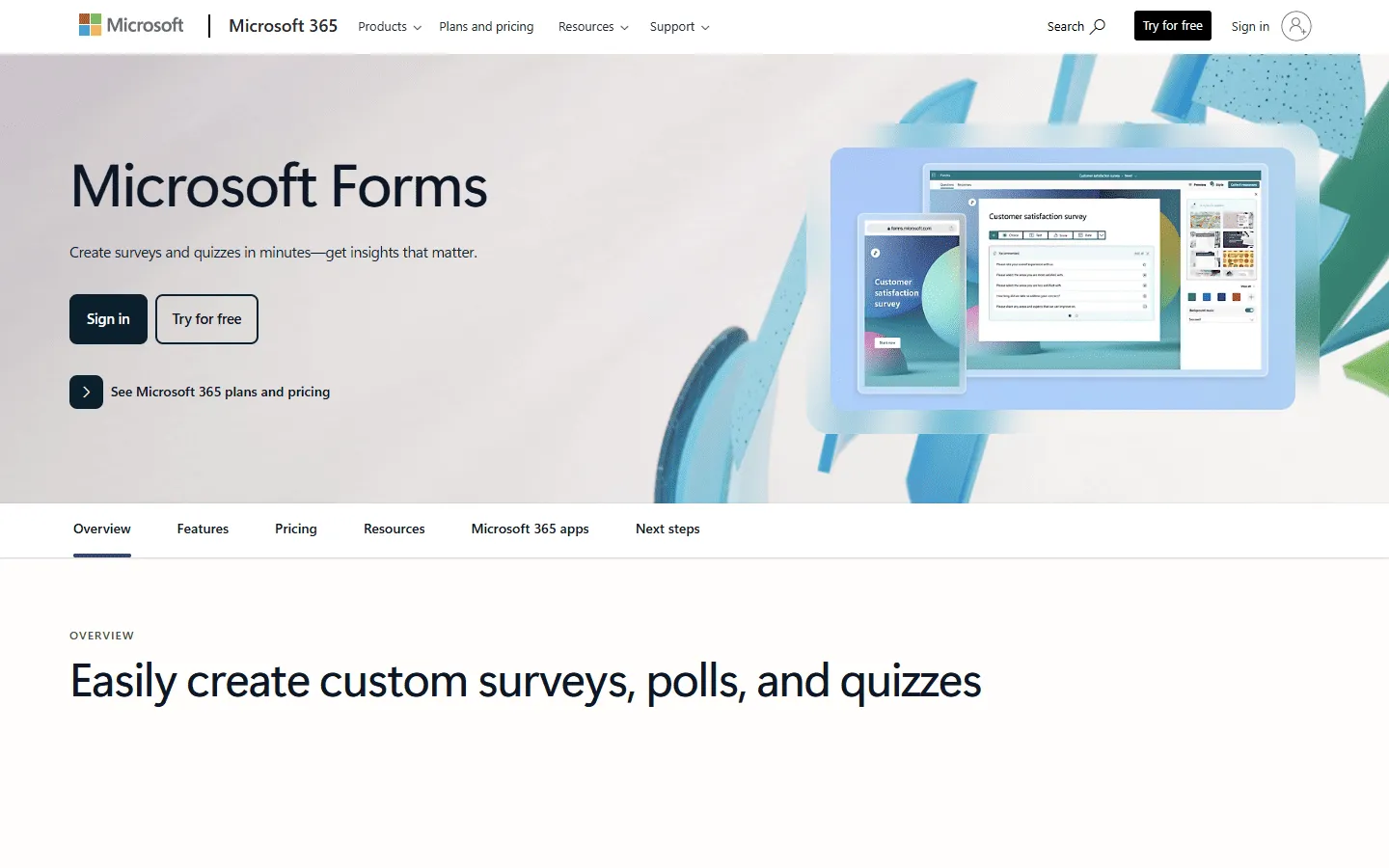 Microsoft Forms launched in 2016 as part of the Microsoft 365 suite. It was designed to be the fastest way to create a survey or quiz inside Microsoft’s ecosystem. If you already have a Microsoft 365 account, you have it, no extra setup required.
It is deliberately simple. You add questions, apply a theme, and share. Responses land in a summary view or can be exported to Excel in one click. For internal use in organizations that run on Microsoft 365, it covers the basics well.
What are the advantages of Microsoft Forms?
- Included in Microsoft 365. No extra cost if your organization already pays for M365.
- Fast to set up. Survey live in minutes with no learning curve.
- Native Excel export. Responses flow directly to Excel.
- Enterprise-grade security. Meets HIPAA, FERPA, and ISO 27001 standards through Microsoft’s compliance infrastructure.
- Built-in QR codes. Every form automatically generates a QR code, useful for events and printed materials.
What are the disadvantages of Microsoft Forms?
- Limited customization. You can change colors and pre-set themes, but fonts, layouts, and spacing are not under your control.
- Basic logic. Branching works for routing to different sections, but you cannot show or hide individual fields or run calculations.
- No payments or e-signatures. It is strictly a data collection tool, nothing more.
- Weak integrations outside Microsoft. Connecting to non-Microsoft tools usually requires Power Automate, which has its own learning curve.
- Response limit caps. The free (personal) version is capped at 200 responses. Full capacity requires a paid Microsoft 365 subscription.
Jotform vs Microsoft Forms: Detailed comparison
Pricing
Pricing works very differently between the two.
Microsoft Forms pricing
Microsoft Forms is bundled into Microsoft accounts and Microsoft 365 plans rather than sold as a separate standalone product. The pricing depends on which Microsoft 365 plan you are on:
- Free (personal Microsoft account): Very limited, around 200 total responses.
- Microsoft 365 Personal ($99.99/year): Includes Microsoft Forms with standard limits.
- Microsoft 365 Business Basic ($6/user/month): Teams up to 300 users, standard form functionality.
- Microsoft 365 Business Standard ($12.50/user/month): Full Microsoft 365 apps, up to 50,000 responses per form.
If your organization already pays for Microsoft 365, the cost of Forms is effectively zero.
Jotform pricing
Jotform is priced as a standalone form builder. The pricing is based on the number of forms, monthly submissions, and storage:
- Free (Starter): 5 forms, 100 responses/month.
- Bronze ($34/month): 25 forms, 1,000 responses/month, no Jotform branding.
- Silver ($39/month): 50 forms, 2,500 responses/month.
- Gold ($99/month): 100 forms, 10,000 responses/month, HIPAA compliance.
- Enterprise (custom): Unlimited usage, SSO, dedicated support.
The verdict: If you already pay for Microsoft 365 and only need basic forms, Microsoft Forms wins on price, as it is already included. If you need advanced features and your forms are driving revenue or capturing sensitive data, Jotform’s cost can be justified. But if you are on no plan at all, Microsoft Forms’ free tier is quite limited, and Jotform’s free plan (5 forms, 100 responses) is not much better.
Templates
Templates are one of Jotform’s strongest differentiators, and this is not a close competition.
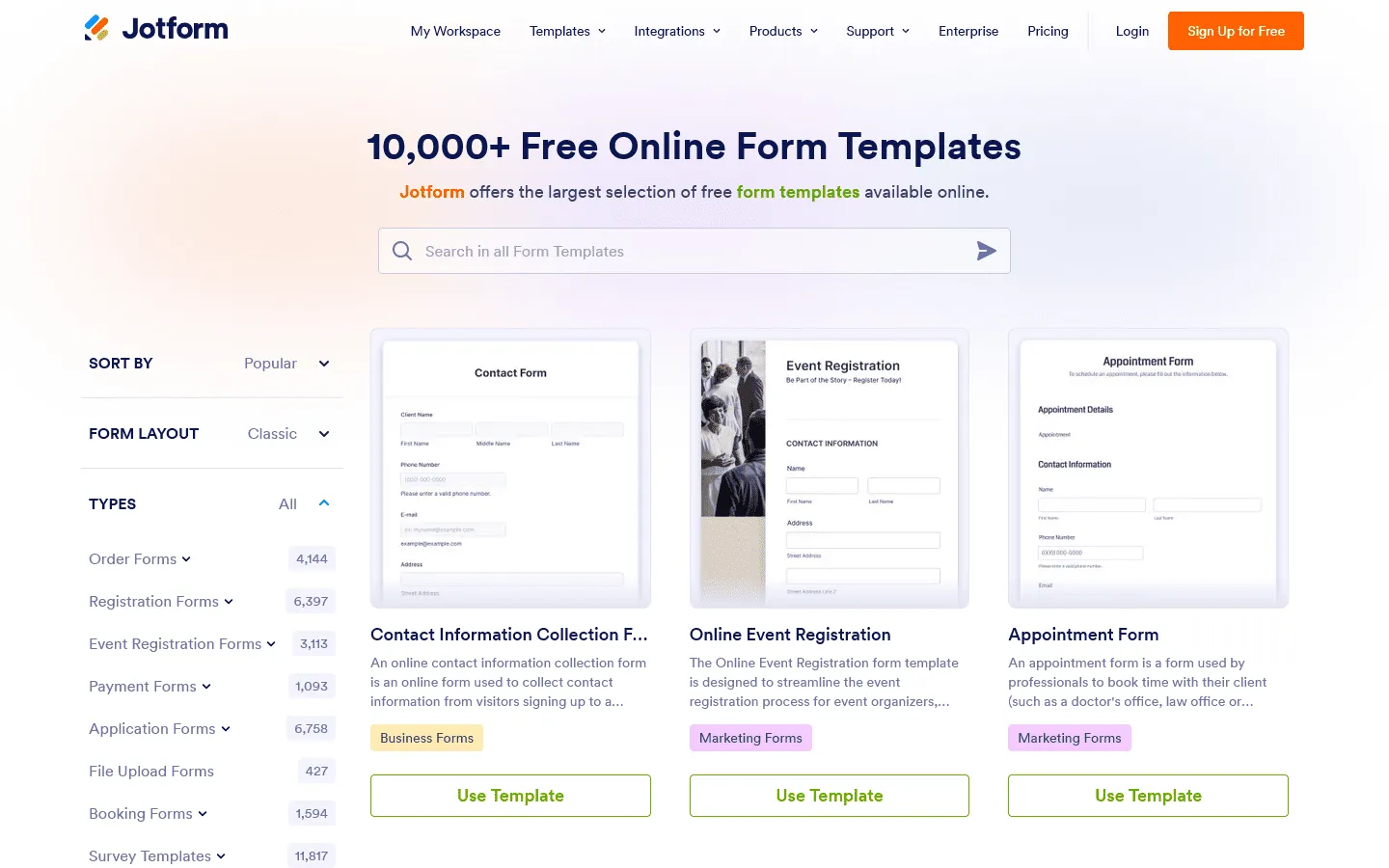
Jotform has over 20,000 templates covering virtually every industry: healthcare intake forms, rental applications, event registrations, payment orders, legal contracts. If you need a specialized form, you almost always find a template that saves significant setup time.
Microsoft Forms offers around 40 basic themes and a handful of template categories (employee satisfaction, product feedback, market research). Functional, but not particularly specific. You will almost always need to build from scratch.
The verdict: Jotform is clearly stronger on templates. Microsoft Forms only covers the basics.
Design and customization
Neither tool is especially strong on design, but Jotform gives you more control.
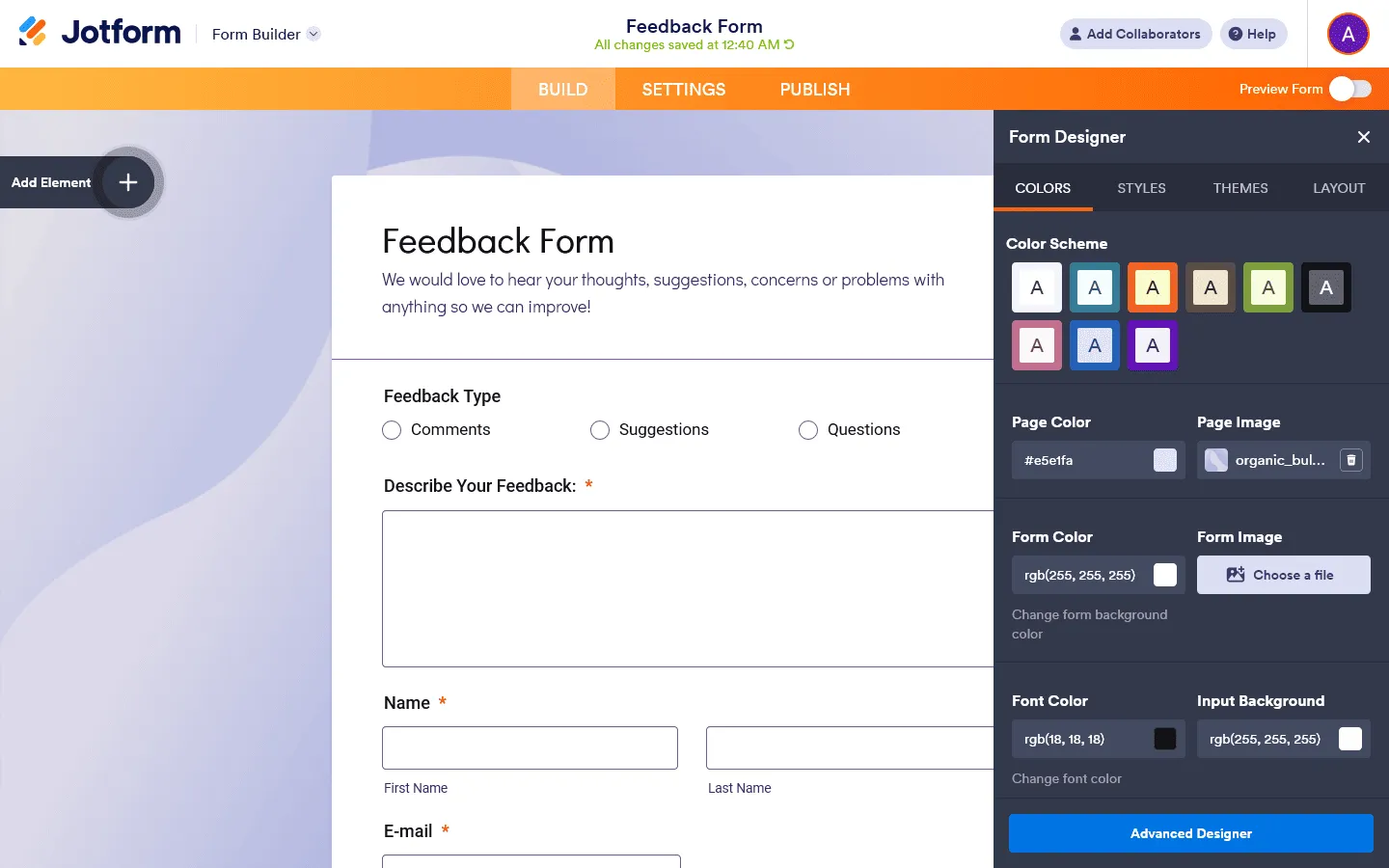
Jotform lets you inject custom CSS, modify backgrounds, adjust spacing, and alter layouts substantially. The results can look very polished if you are willing to invest the time. Out of the box, Jotform’s default themes can look a bit generic, but they are customizable.
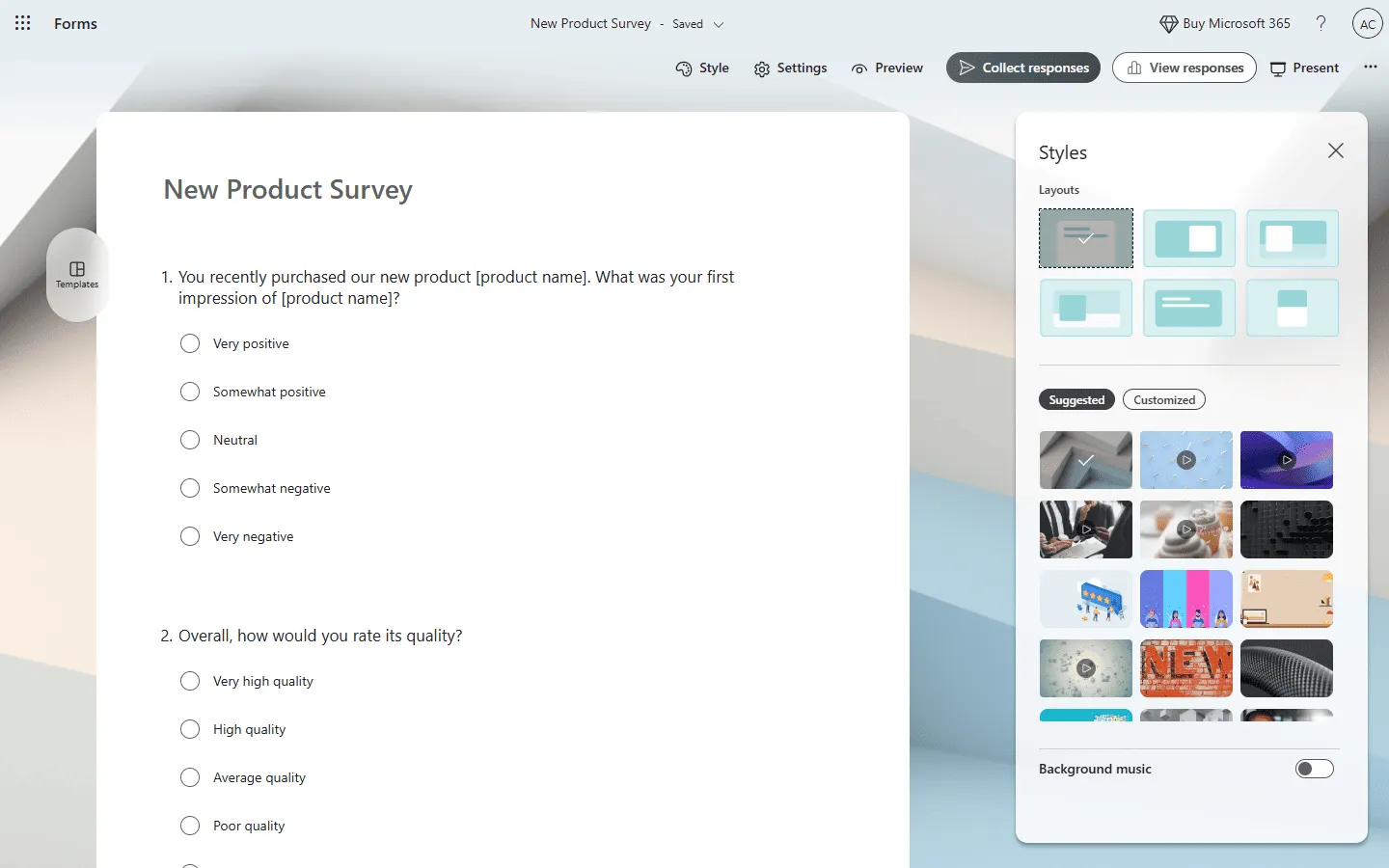
Microsoft Forms is restricted to pre-built themes and background color choices. There is no way to change fonts beyond the system defaults, adjust spacing, or touch any layout structure. Your form will always look like a Microsoft Form.
For external, public-facing forms where brand presentation matters (applications, client intake, lead capture), Jotform is the stronger choice. For internal surveys where nobody cares how the form looks, Microsoft Forms is fine.
The verdict: Jotform wins on design. Microsoft Forms works, but it will always look like a Microsoft Form.
Form builder experience
The builder experience reflects each tool’s goals.
Jotform is a drag-and-drop canvas with a large sidebar of widgets and options. The power is genuine, but so is the complexity. First-time users often need time to get comfortable, especially when building forms with conditional logic, multi-step flows, or calculation fields.
Microsoft Forms is a linear editor. You click “Add question,” choose a type, and fill it in. There are no sidebars, no drag-and-drop confusion, and very little to configure. You can have a survey live in five minutes.
The verdict: Microsoft Forms is easier to learn. Jotform is more capable once you get used to it.
Features and logic
This is the clearest difference between them.
Jotform supports:
- Show/hide individual fields based on answers
- Calculations that run in real time as people fill out the form
- Multi-page forms with conditional routing
- Payment collection (credit cards, PayPal, Square, and 40+ others)
- E-signatures through Jotform Sign
- File uploads with size and format restrictions
- Approval workflows that route submissions to team members for action
Microsoft Forms has basic branching, so you can send someone to a different section based on an answer. That is about as far as it goes.
The verdict: Jotform is in a different category for features. If logic and automation matter, there is no comparison.
Integrations and data handling
Jotform manages submissions in its own database (Jotform Tables) and has native integrations with 150+ tools. You can send data directly to Salesforce, HubSpot, Google Sheets, Slack, Dropbox, or Mailchimp without third-party connectors. This makes Jotform much more useful for automated business workflows.
Microsoft Forms is excellent at one thing: exporting to Excel. The native integration with Excel on OneDrive or SharePoint is fast and direct. But beyond Microsoft’s own ecosystem, you usually need Power Automate to connect to anything else, which adds complexity.
The verdict: Jotform is the better fit if your data needs to move across different tools. Microsoft Forms makes more sense if everything ends in Excel anyway.
Security and compliance
Both tools clear the bar for most business use cases, but in different ways.
Jotform offers GDPR compliance on all plans and HIPAA compliance starting on the Gold plan ($99/month). It also provides SSL encryption and PCI certification for payment forms. If you are handling sensitive medical or financial data and need certifications, Jotform supports it.
Microsoft Forms benefits from Microsoft’s enterprise-grade security infrastructure. It meets HIPAA, FERPA, and ISO 27001 standards through Microsoft’s existing compliance framework. For organizations already inside Microsoft 365 with enterprise agreements, this is often sufficient with no extra cost.
The verdict: Both tools are secure. Jotform is better for organizations outside Microsoft’s ecosystem that need explicit certifications. Microsoft Forms wins if your organization already has enterprise Microsoft compliance in place.
Collaboration
Jotform has collaboration features, but true multi-user access and role management is gated behind the more expensive plans. Small teams often end up sharing a Jotform login, which is not great.
Microsoft Forms handles collaboration the way Google Docs does: real-time co-editing, easy sharing within your Microsoft 365 organization, and no friction for internal teams already in the ecosystem.
The verdict: Microsoft Forms wins for team collaboration, especially inside organizations already using Microsoft 365.
Common use cases: When to use which?
Use Jotform for:
- Application forms with payments (job applications, course registrations)
- Client intake forms with file uploads and conditional logic
- Order forms and checkout flows that collect payment at submission
- Documents requiring e-signatures from clients or employees
- Forms connecting to CRM tools like Salesforce or HubSpot
Use Microsoft Forms for:
- Quick internal team polls (“Which day works for the meeting?”)
- HR feedback surveys and quarterly check-ins
- Training quizzes with auto-grading
- Event registrations shared internally via Teams or SharePoint
- Simple data collection that lands in Excel for analysis
Jotform and Microsoft Forms alternatives
If you are finding that neither tool hits the right balance (for example, if Microsoft Forms is too limited, but Jotform is too expensive or too complex), there are other options worth considering.
Our Jotform alternatives guide covers the tools most commonly chosen by teams switching away from Jotform, including options that focus on simplicity, design, or workflow automation. And if Microsoft Forms is the one feeling too restrictive, the Microsoft Forms alternatives guide compares the most practical replacements.
One tool that tends to come up in this specific situation is FormGrid.
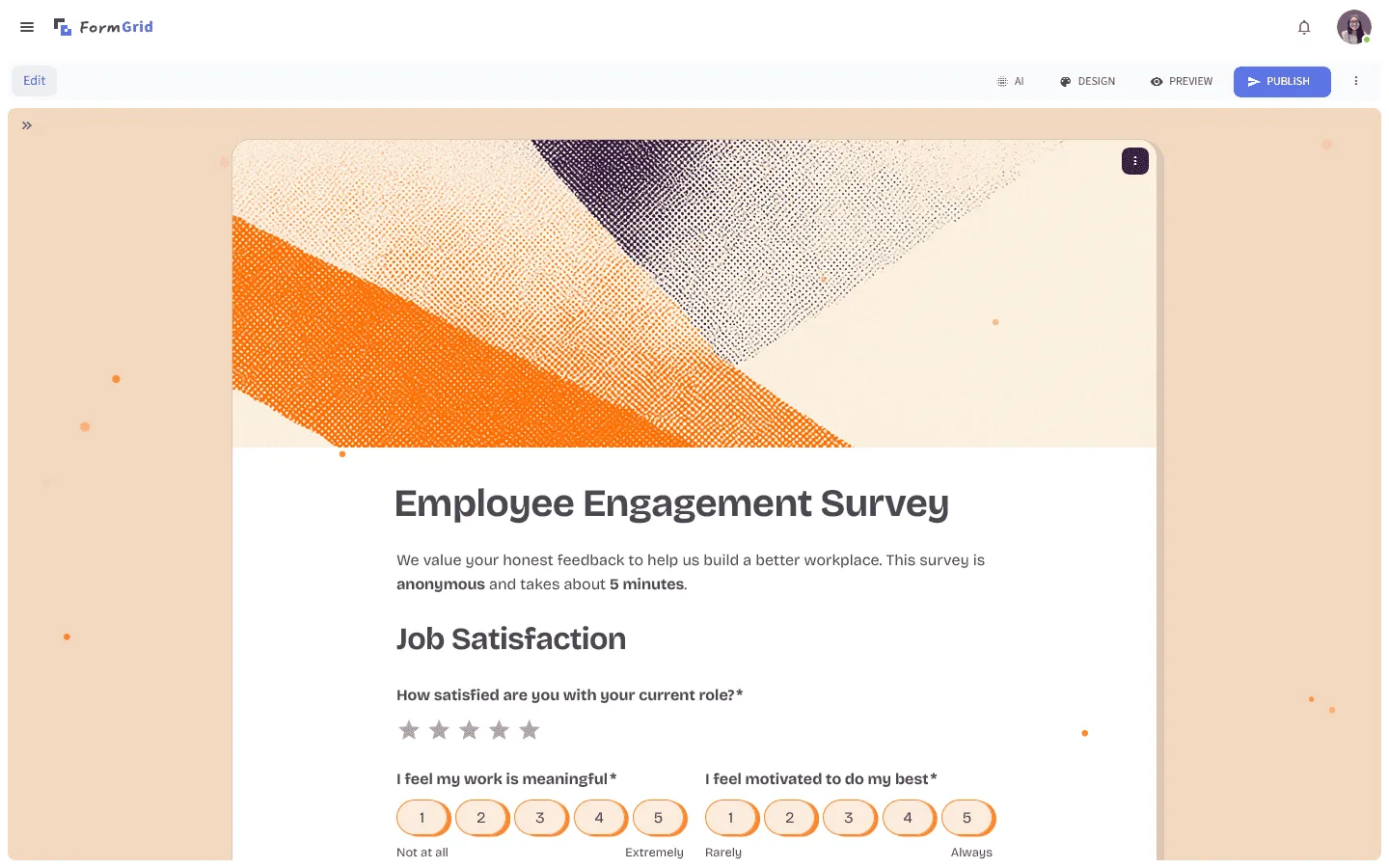
FormGrid is designed for teams who want more visual control than Microsoft Forms without the complexity and cost of Jotform. Its editor is flexible and fast, the free plan has no response limits, and designs can go well beyond the generic “form inside a browser” look, closer to a small branded landing page.
You can generate a fully custom form for free from a short description, then refine the layout, styling, and questions as needed. It’s free and no account is required to get started.
Conclusion: Should you choose Jotform or Microsoft Forms?
The right choice mostly depends on what role the form plays in your workflow.
Choose Microsoft Forms if:
- Your organization already uses Microsoft 365 and you want zero additional cost.
- The forms are internal (team surveys, training quizzes, quick polls).
- Data needs to go straight into Excel without extra steps.
- You need enterprise security without setting anything up separately.
Choose Jotform if:
- Your forms are external and customer-facing.
- You need to collect payments, e-signatures, or complex file uploads.
- You need integrations with tools outside of Microsoft’s ecosystem.
- Design and brand presentation matter for your audience.
Consider FormGrid if:
- You want something cleaner and more design-forward than Microsoft Forms.
- Jotform’s pricing or feature complexity is more than you need.
- You want unlimited responses and forms on a free plan.
- You want to generate a customized, branded form quickly using AI.
Jotform vs Microsoft Forms: Common questions
Is Jotform better than Microsoft Forms?
It depends on your use case. Jotform is better for complex, external, or transactional forms. Microsoft Forms is better for simple, internal surveys inside Microsoft 365.
Can Microsoft Forms replace Jotform?
Only for basic data collection. Once you need payments, conditional field logic, e-signatures, or integrations with non-Microsoft tools, Microsoft Forms cannot cover the gap.
Is Microsoft Forms free?
Microsoft Forms is included with a Microsoft account, but the free (personal) version is limited to around 200 total responses. Full functionality requires a Microsoft 365 subscription.
Does Jotform integrate with Microsoft Teams?
Yes. Jotform has a native Microsoft Teams integration that allows you to share forms and view submissions directly inside Teams.
Which is better for surveys: Jotform or Microsoft Forms?
For a quick internal survey, Microsoft Forms is faster. For a longer survey with branching logic, custom branding, or analysis beyond a basic Excel export, Jotform handles it better.