How to Make a Personality Quiz on Google Forms
You can make a basic personality quiz on Google Forms, but there are a few limits to know before you start. Google Forms is good for simple questions, branching, and collecting responses. It is less good at calculating personality types from many answers and showing a polished result at the end.
This guide walks through how to create a personality quiz in Google Forms, how to set up simple result pages, and what to do if you need a more flexible quiz builder.
Can you make a personality quiz on Google Forms?
Yes. The easiest version uses sections and branching logic: the respondent picks an answer, and Google Forms sends them to a result section based on that choice. One question, one result. It works well for short quizzes with a handful of outcomes.
Where it gets harder is when you want a quiz that asks ten questions and tallies which personality type came up most often. Google Forms does have a quiz mode with scoring, but it assigns points to correct answers, not to personality outcomes. To track something like “Personality Type 1: 5 points, Personality Type 2: 3 points, Personality Type 3: 7 points,” you need to collect responses in Google Sheets and calculate the result there, or use a different tool.
For a very simple personality quiz, the branching method is enough. Here is how to set it up.
How to make a personality quiz on Google Forms
Step 1: Plan your outcomes before you open Google Forms
The easiest mistake to make is starting in Google Forms before you know what results your quiz can give.
Before anything else, decide on your personality types. 3-5 outcomes is a good range. More than that and the quiz becomes harder to write, harder to route, and harder for respondents to understand.
For each outcome, write a short result description you can use on the result page.
Step 2: Create a new Google Form
You will need a Google account to get started. Go to Google Forms and click the “Blank form” option.
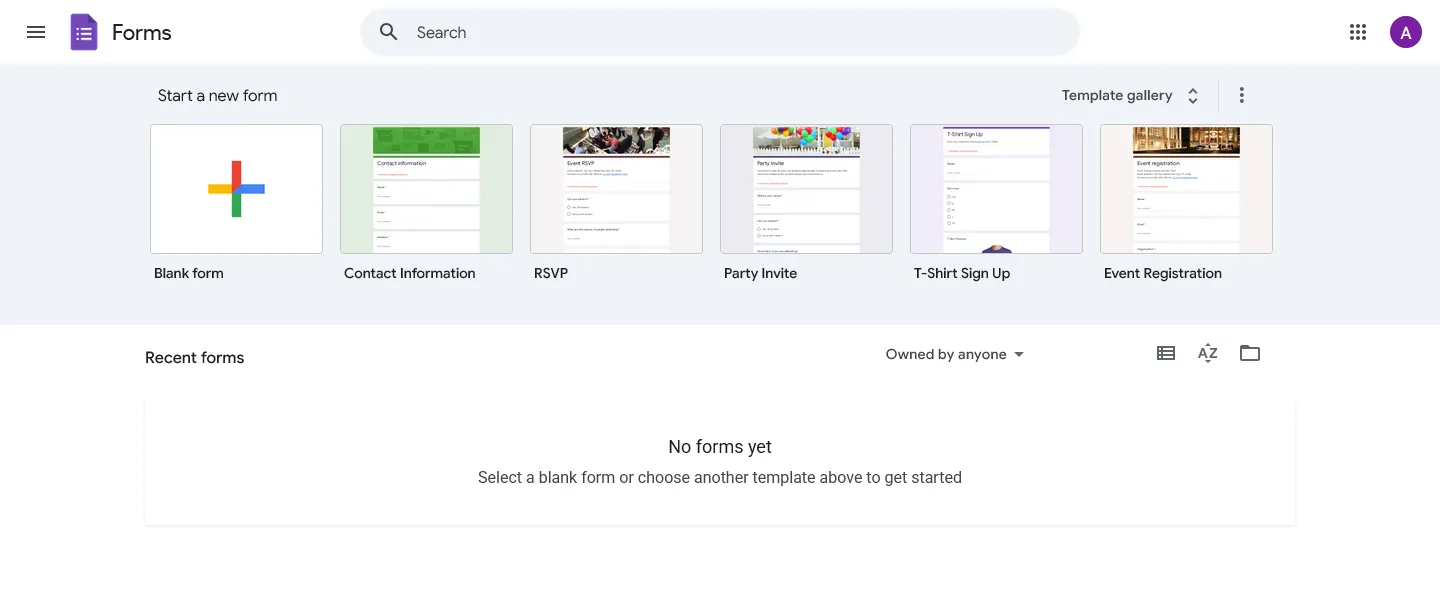
Give your form a clear title. Something like “Which type of traveler are you?” works better than “Personality Quiz” because it tells people what they are about to find out.
Add a short description below the title. One or two sentences is enough. Tell people what the quiz is about, roughly how long it takes, and what they will get at the end.
Step 3: Add your questions
For a branching personality quiz, multiple choice questions work best. They are fast to answer and they support conditional routing to different sections.
When writing your questions, each answer option should point naturally toward one of your outcomes. Try to avoid answers that could map to multiple personality types.
Example for a “travel personality” quiz:
Your flight is delayed by 4 hours. What do you do?
- I find a quiet corner and read my guidebook (Cultural Historian)
- I head to the lounge for a cocktail and a nap (Luxury Escape Artist)
- I check the departures board for any earlier flights to anywhere (Spontaneous Explorer)
- I use the time to organize my gear and charge my batteries (Minimalist Backpacker)
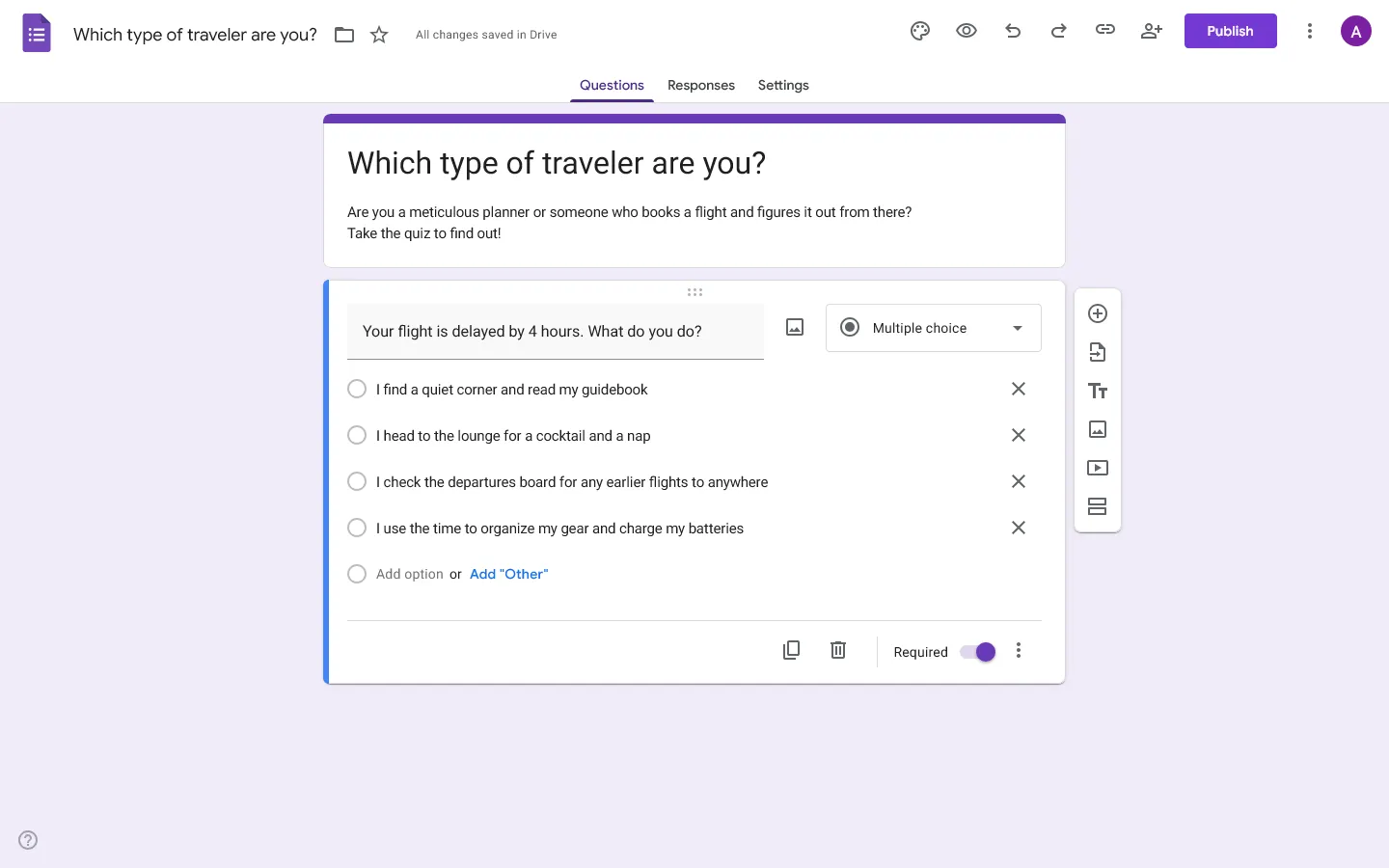
Each answer maps to one result. If the quiz only has one or two questions, you can route based on a single answer. If it has more questions, you will need either conditional logic per question or the Google Sheets method covered below.
Step 4: Create a section for each result
In Google Forms, click the section icon (the last icon at the bottom of the right-hand toolbar) to add a new section.
Create one section for each personality type:
- Result: The Cultural Historian
- Result: The Luxury Escape Artist
- Result: The Spontaneous Explorer
- Result: The Minimalist Backpacker
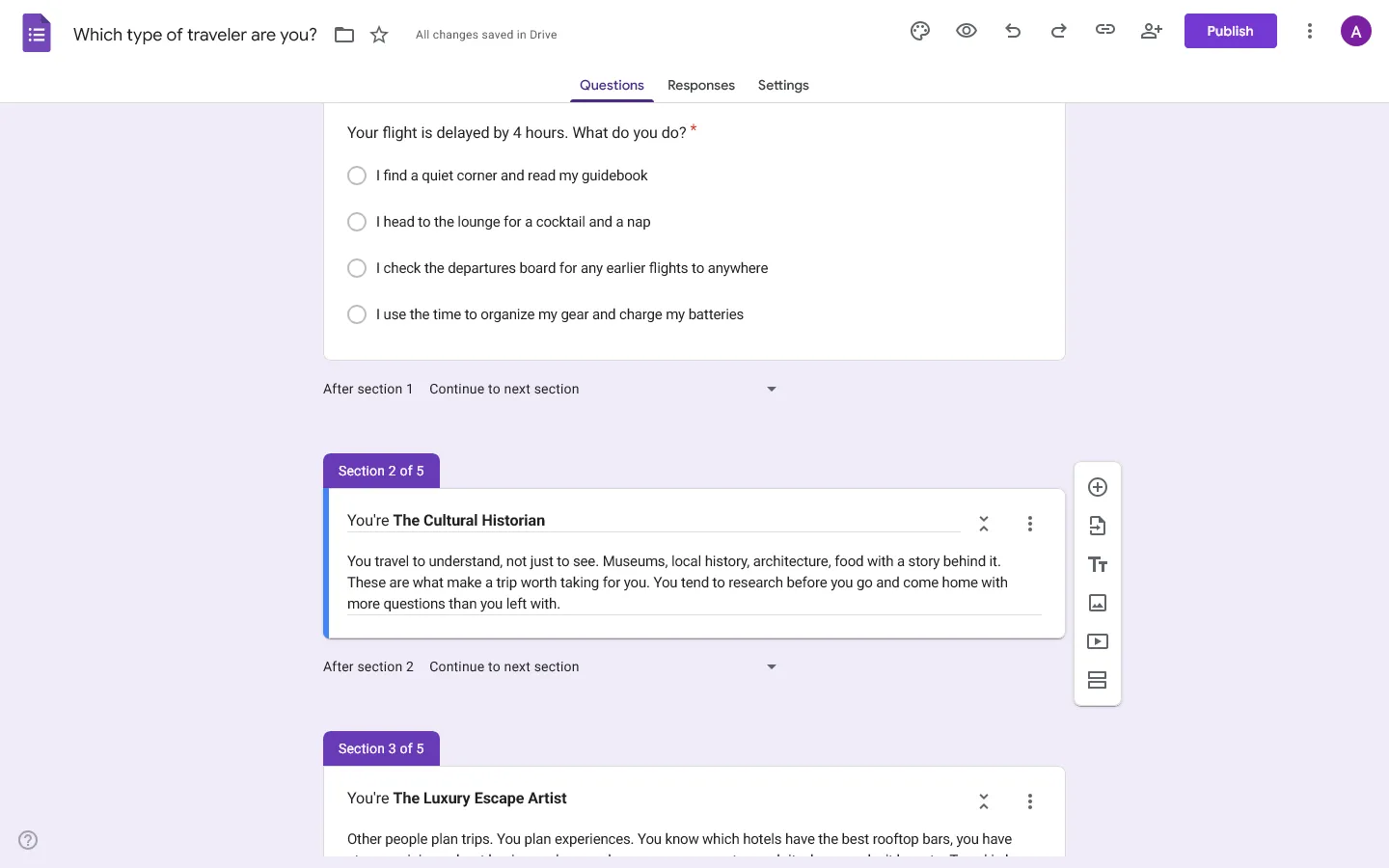
Inside each section, paste the result description you wrote in Step 1. You can also add a link at the end, such as a relevant blog post, a product recommendation, or a booking page, if the quiz is part of a campaign.
Keep the result sections short. Google Forms does not give you much design flexibility, so long result pages will look plain regardless of what you write.
Step 5: Set up conditional logic
Now you connect the answers to the result sections.
On a multiple choice question, click the three-dot menu in the bottom-right corner of the question. Choose Go to section based on answer.
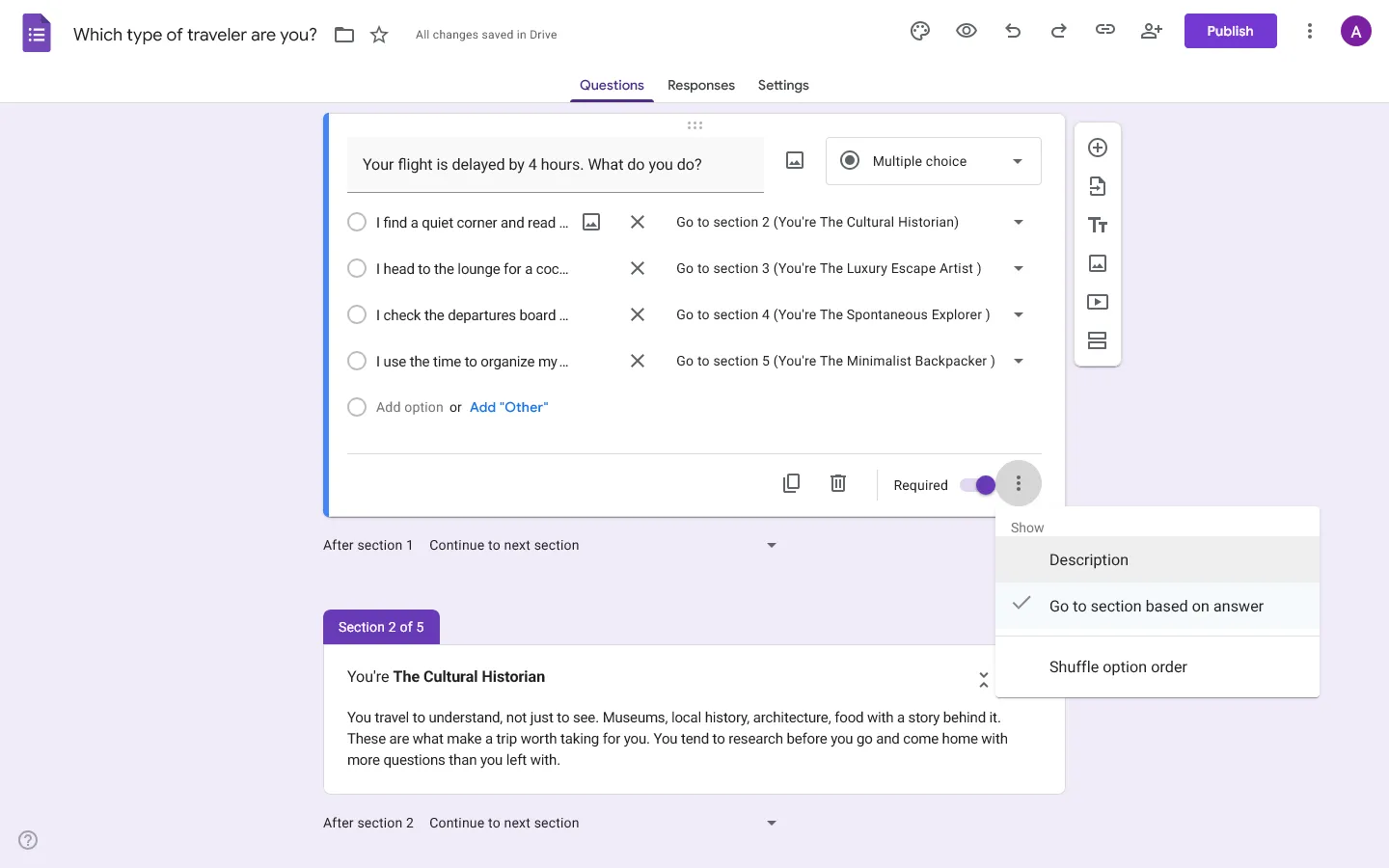
Assign each answer to its matching result section:
- “I find a quiet corner and read my guidebook” goes to Result: The Cultural Historian
- “I head to the lounge for a cocktail and a nap” goes to Result: The Luxury Escape Artist
- “I check the departures board for any earlier flights to anywhere” goes to Result: The Spontaneous Explorer
- “I use the time to organize my gear and charge my batteries” goes to Result: The Minimalist Backpacker
Repeat this for each question that should route to a result. If only one question determines the outcome, you only need to set this up once.
Step 6: Decide whether you need scoring
Google Forms has a quiz mode under Settings > Make this a quiz. It lets you assign points to answers and show a score at the end.
This can work for personality quizzes where a higher or lower total score means something, like confidence level, experience level, or fit for a role. It is less useful for quizzes where you are matching someone to one of several equally valid personality types, because the scoring system is built around right and wrong answers, not multiple competing outcomes.
If you want to calculate a result across many questions, for example finding which personality type appeared most across ten questions, the cleaner approach is to collect responses in Google Sheets. Each answer maps to a personality type, and a formula in the spreadsheet counts which type got the most selections. The downside is that respondents will not see their result automatically.
Step 7: Customize the look
Click the theme icon at the top of the form. You can adjust the header image, font, form color, and background color.
The header image matters most. It sets the tone before anyone reads a question. A playful quiz and a professional assessment should look different from each other, even in Google Forms.
That said, the design options here are limited. You can change colors and fonts, but you cannot control layout, spacing, or how individual result pages look. If the visual presentation matters for your use case, that is one of the main reasons to consider a different tool.
Step 8: Test every result path
Before sharing the quiz, click the preview icon and take it yourself. Go through each possible answer path and check that every route leads to the right result section.
It is easy to miss a routing mistake while editing, especially once you have more than three or four outcomes. If you can, ask someone else to test it too.
Check that:
- each answer leads to the correct result section
- no path gets stuck or loops back incorrectly
- result pages are clear and complete
- the quiz works on mobile
Step 9: Share your quiz
Click Send in the top-right corner. Google Forms lets you share via email, a shareable link, or an embed code for your website.
If the quiz is for marketing purposes, the shareable link is usually the easiest option. If it lives on your site, use the embed code.
After responses start coming in, check the Responses tab or link it to Google Sheets for a full breakdown.
How Google Forms personality quizzes work
There are two main ways to create a personality quiz in Google Forms.
Option 1: Use sections and conditional logic
This is the simpler method that I described in detail above.
You create different result sections, then use “Go to section based on answer” to send respondents to the right result page.
This is best for:
- simple quizzes
- product recommendation quizzes
- lead magnets
- “which type are you?” quizzes with a few outcomes
- quizzes where one key answer determines the result
The downside is that it does not calculate a full personality score across many questions.
Option 2: Collect answers and calculate results later
This alternative method is better if you want a more accurate scoring system.
You create the quiz in Google Forms, collect responses, send them to Google Sheets, and calculate the result there. For example, each answer can map to a personality type, and the spreadsheet can count which type got the most points.
This is best for:
- more detailed personality tests
- quizzes with multiple outcomes
- internal assessments
- research-style quizzes
- quizzes where you do not need to show the result instantly
The downside is that respondents will not automatically see a personalized result unless you add more tools or custom setup.
If these limitations are a blocker, you may want to explore some Google Forms alternatives that handle scoring more naturally.
Limitations of making a personality quiz in Google Forms
Google Forms is free and easy to use, so it is a reasonable place to start. But it has real limits for personality quizzes.
It does not handle personality scoring naturally
Google Forms quiz scoring is built around correct answers. Personality quizzes usually need outcome-based scoring, where different answers add points to different personality types.
You can work around this with Google Sheets, but it is not built into the quiz experience.
Result pages are basic
You can create result sections, but they are visually limited. If your quiz is customer-facing, the result page may feel less polished than the rest of your website or brand.
Branching can get messy
Conditional logic works, but larger quizzes become harder to manage. If you have many questions and outcomes, it is easy to send people to the wrong section or create a confusing path through the form.
Design options are limited
Google Forms lets you adjust colors, fonts, and the header image. That is enough for simple internal quizzes, but not well-suited for branded quizzes, lead magnets, product recommenders, or interactive campaigns.
A more flexible way to build personality quizzes
If you only need a simple quiz, Google Forms can do the job.
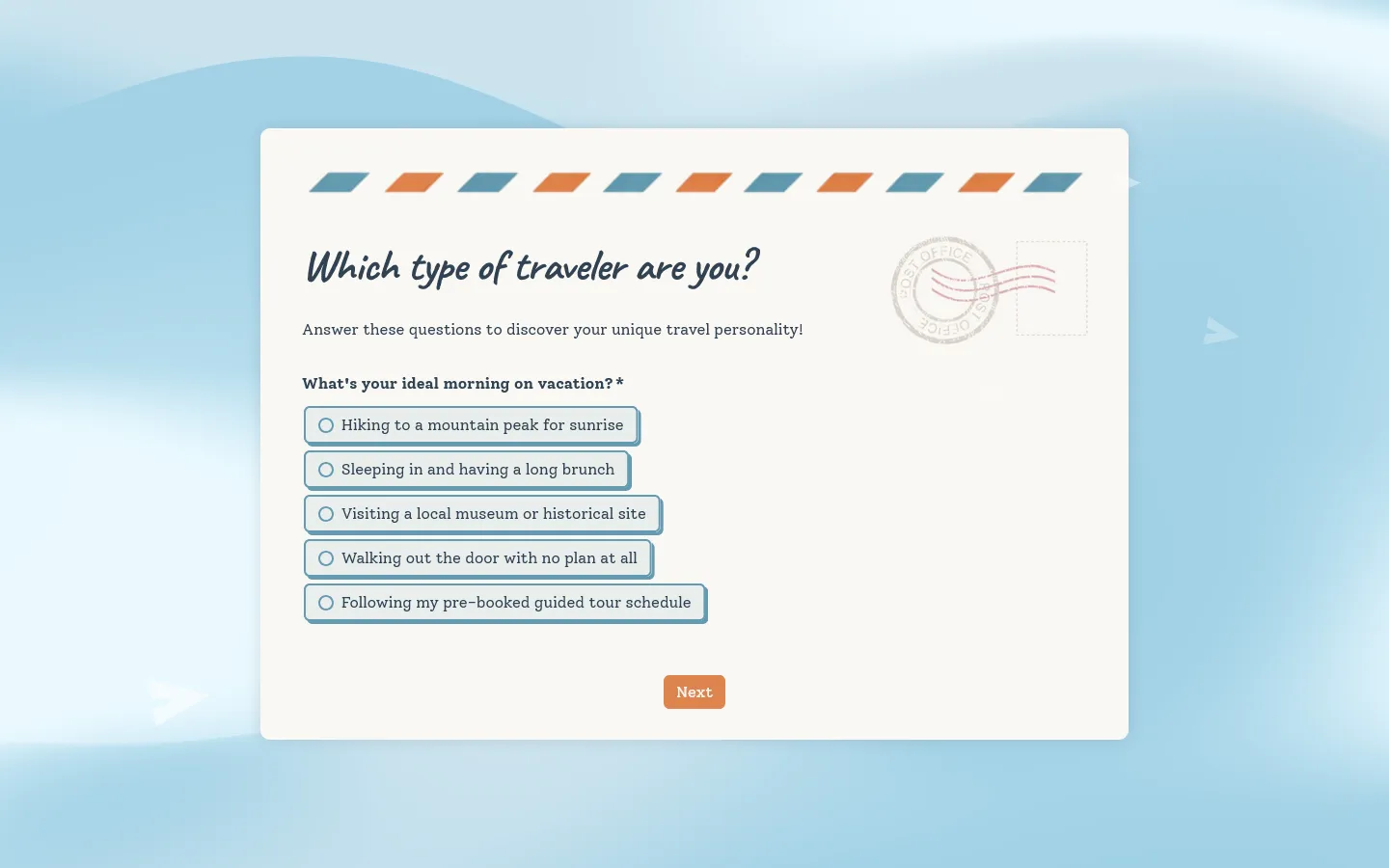
But if you want a personality quiz with a more custom design, richer result pages, and more control over the respondent experience, FormGrid is a better fit.
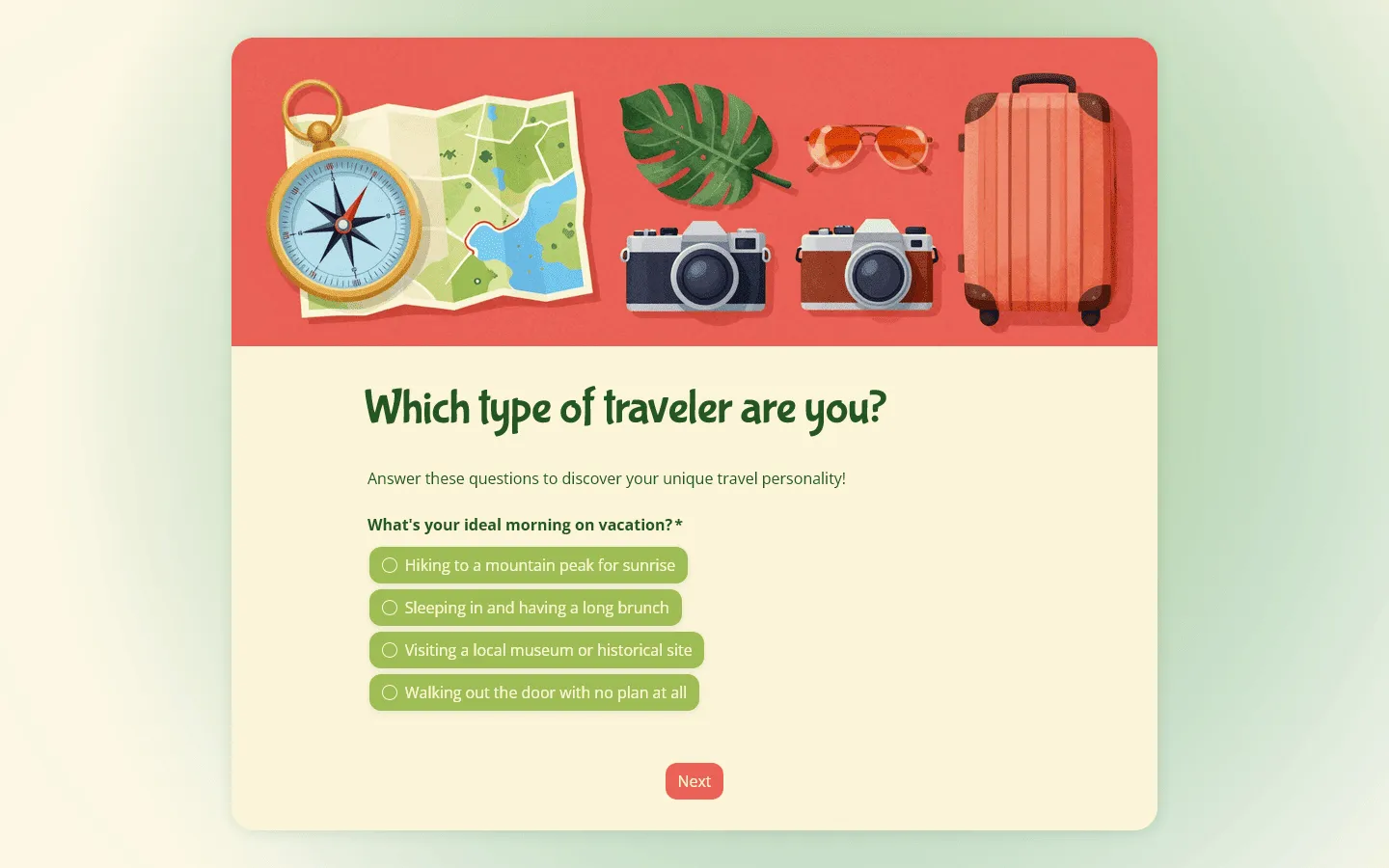
With FormGrid, you can generate a custom personality quiz from a prompt, then edit the questions, layout, design, and logic. That means you are not stuck with a plain form layout or a rigid result page.
You can also make the quiz feel more like a small interactive page than a standard form. Add context, images, sections, custom layouts, and result pages that match the rest of your brand.
Generate a personality quiz for free, no signup required.
Frequently asked questions
Can Google Forms calculate personality quiz results automatically?
Not directly. Google Forms quiz mode scores answers against a correct answer key. For personality quizzes with multiple outcome types, you need to use sections with conditional logic (for simple quizzes) or collect responses in Google Sheets and calculate the result there.
How do I show different results in Google Forms?
Create a separate section for each result, then use Go to section based on answer on a multiple choice or dropdown question. Each answer option routes the respondent to a different section.
Can I make a BuzzFeed-style personality quiz in Google Forms?
You can make a basic version. The design will be more limited than what you see on BuzzFeed, and the scoring logic will need workarounds if you want results based on cumulative answers across many questions. A dedicated quiz builder gives you more control over both.
Can I add images to a Google Forms personality quiz?
Yes. You can add images to questions, answer options, and sections. This can make the quiz feel more engaging, especially for style quizzes or product recommendations.
Will respondents see their personality result immediately?
Yes, if you use sections and conditional logic. They get sent to a result section as soon as they submit. If you calculate results later in Google Sheets, they will not see anything automatically.
Is Google Forms good for personality quizzes?
It depends on the quiz. For simple quizzes with a few outcomes and one decisive question per result, Google Forms works fine. For quizzes with more complex scoring, multiple competing outcomes, or a need for a polished result page, you will probably want a different tool.